EasyManua.ls Logo

Epson LX-300+ - User Manual

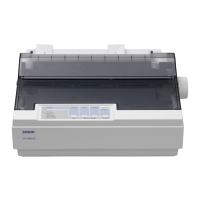
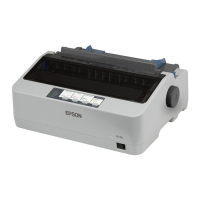
Epson LX-300+
138 pages
Print Icon
To Next Page IconTo Next Page
Loading...
Proof Sign-off:
SEI Y.Ohkawara K.Kono
K.Kono
SEI M.Kauppi
R4C4610
Rev. C
A5 size FRONT.FM
6/28/00 Pass 3
R
User’s Guide
9-Pin Dot Matrix Printer
All rights reserved. No part of this publication may be reproduced, stored in a retrieval
system, or transmitted in any form or by any means, electronic, mechanical, photocopying,
recording, or otherwise, without the prior written permission of SEIKO EPSON
CORPORATION. The information contained herein is designed only for use with this EPSON
printer. EPSON is not responsible for any use of this information as applied to other printers.
Neither SEIKO EPSON CORPORATION nor its affiliates shall be liable to the purchaser of
this product or third parties for damages, losses, costs, or expenses incurred by the purchaser
or third parties as a result of: accident, misuse, or abuse of this product or unauthorized
modifications, repairs, or alterations to this product, or (excluding the U.S.) failure to strictly
comply with SEIKO EPSON CORPORATION’s operating and maintenance instructions.
SEIKO EPSON CORPORATION shall not be liable for any damages or problems arising from
the use of any options or any consumable products other than those designated as Original
EPSON Products or EPSON Approved Products by SEIKO EPSON CORPORATION.
EPSON and EPSON ESC/P are registered trademarks of SEIKO EPSON CORPORATION.
Microsoft, Windows, and Windows NT are registered trademarks of Microsoft Corporation.
IBM is a registered trademark of International Business Machines Corporation.
General Notice: Other product names used herein are for identification purposes only and may be
trademarks of their respective owners. EPSON disclaims any and all rights in those marks.
Copyright © 2000 by SEIKO EPSON CORPORATION, Nagano, Japan.
®

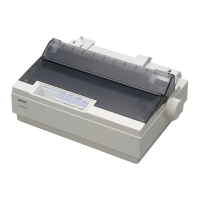
Table of Contents

Other manuals for Epson LX-300+

Questions and Answers

  • L
    Lacey NormanAug 21, 2025
    Why is my Epson LX-300+ not turning on?
    • J
      jeffreybellAug 21, 2025
      If your Epson printer is not receiving power, start by checking the power cord to ensure it is securely plugged into the electrical outlet. If it is, verify that the outlet is functioning correctly by plugging in another electrical device, such as a lamp. If the outlet is controlled by a switch or timer, try a different outlet.
  • B
    barbara13Sep 3, 2025
    What to do if Epson LX-300+ becomes fatal error when power is applied?
    • K
      Kevin MercadoSep 3, 2025
      If your Epson printer experiences a fatal error upon powering on, ensure the CR motor harness and HP detector harness are properly connected. If the CR motor or HP detector are defective, replace them. Also, consider replacing the power board. In some cases, replacing the main board and printer mechanism might be required.
  • T
    Theresa MooreSep 1, 2025
    Why does control panel LED not operate on Epson LX-300+?
    • J
      John HernandezSep 1, 2025
      If your Epson printer's control panel LED isn't working, it could be due to several reasons. First, check the electric circuit and printer mechanism for a short circuit; if none exists, replace the fuse. Other potential solutions involve replacing the power board if the connector isn't connected, the power switch is defective, or the power board itself is defective. Ensure CN8 is properly connected if the power board and main board aren't connected correctly. If the main board is defective, it should be replaced. Also, check that the control panel harness is properly connected, and if the control panel board or harness is defective, replace the control panel.
  • J
    Jennifer RodriguezAug 30, 2025
    What to do if Epson LX-300+ Printer shows fatal error?
    • J
      jhendersonAug 30, 2025
      If your Epson printer experiences a fatal error possibly due to a carriage error, ensure there are no obstructions hindering the carriage's movement. If the fatal error stems from an abnormal input voltage, verify the power supply voltage. Should the issue be a hardware problem, inspect the machine and electric circuit.
  • X
    xandersonAug 29, 2025
    What to do if a single sheet of paper is not fully ejected from my Epson Printer?
    • C
      Cynthia JonesAug 29, 2025
      If your Epson printer isn't ejecting a single sheet of paper fully, press the Load/Eject button to eject the sheet completely. Then, if necessary, press the Pause button to turn off the Pause light.
  • A
    Anthony KramerAug 27, 2025
    Why is paper feed abnormal on Epson printer?
    • L
      Laura MitchellAug 27, 2025
      If your Epson printer's paper feed is abnormal, replace the sensor if the RPE detector or BPE detector is defective or not connected properly. If the paper switching mechanism or printer mechanism paper loading mechanism is defective, replace the printer mechanism or paper loading mechanism parts. If the PF motor is defective, replace it. If the PF motor driver is defective, replace the main board.
  • D
    Dr. Raymond PerezAug 26, 2025
    How to resume printing on my Epson LX-300+ Printer when it's paused?
    • B
      Benjamin SheaAug 26, 2025
      If the Epson printer is paused, press the Pause button to resume printing.
  • J
    Joseph WatsonAug 25, 2025
    What to do if an unknown printer error has occurred on my Epson LX-300+?
    • T
      timothy68Aug 25, 2025
      If an unknown error has occurred with your Epson printer, turn it off and leave it off for several minutes, then turn it on again. If the error continues, contact your dealer.
  • R
    Robert LopezAug 22, 2025
    What to do if an unknown error has occurred on my Epson LX-300+ Printer?
    • M
      Melvin GonzalezAug 22, 2025
      If an unknown error has occurred on your Epson printer, turn off the printer and leave it off for a few minutes. Then, turn it back on. If the error continues, contact your dealer.

Summary

Printer Overview and Setup

Getting to Know Your Printer

Overview of the printer's features, including paper handling, print speed, and bundled software.

Control Panel Overview

Explains the functions of control panel buttons and lights for basic printer operation.

Important Safety Instructions

Provides essential safety precautions for printer operation, placement, and handling.

Regulatory Compliance

Details FCC and Canadian compliance statements, and other safety and emissions standards.

Setting Up the Printer

Unpacking and Printer Assembly

Guides on unpacking, identifying components, and assembling the printer.

Connecting and Initial Setup

Instructions for connecting the printer to power, running the self-test, and connecting to a computer.

Installing Printer Software

Instructions for installing the printer driver and utility software for various operating systems.

Using the Printer

Control Panel Operations

Explains how to use the printer's control panel buttons and lights for basic operations and settings.

Paper Handling and Printing

Instructions for printing with continuous and single-sheet paper, including tractor usage and special paper types.

Adjusting Print Position

How to fine-tune the starting print position on the page using micro adjust features.

Printer Default Settings Management

Overview of printer default settings and how to change them for customized operation.

Installing and Using Printer Options

Instructions for installing optional accessories like the cut-sheet feeder and color kit.

Software, Troubleshooting, and Appendix

Printer Driver Settings

Details on accessing and configuring printer driver settings for various Windows versions.

EPSON Status Monitor 3 Utility

Information on the Status Monitor utility for monitoring printer status and errors.

Troubleshooting Common Issues

Solutions for common printer problems like power, printing, and paper handling.

Printer Specifications and Support

Lists detailed specifications, command lists, and customer support contact information.

Epson LX-300+ Specifications

General IconGeneral
EmulationEpson ESC/P, IBM PPDS
Print Method9-pin, impact dot matrix
InterfaceParallel
Paper HandlingFriction feed
Dimensions366 x 275 x 159 mm
Paper Width4 - 10 inches

Related product manuals