EasyManua.ls Logo

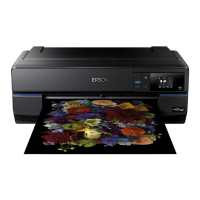
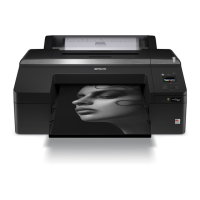
Epson SC-P5000 SERIES - User Manual

Epson SC-P5000 SERIES
192 pages
Print Icon
To Next Page IconTo Next Page
Loading...
User's Guide
CMP0089-00 EN

Table of Contents

Other manuals for Epson SC-P5000 SERIES

Questions and Answers

  • M
    Mr. David Jones DVMAug 18, 2025
    What to do if my Epson SC-P5000 Printer is not communicating with the computer?
    • C
      Carolyn YoungAug 18, 2025
      If your Epson printer isn't communicating with the computer, check that the interface cable is securely connected to both the printer and the computer. Ensure the interface cable specifications match those for both devices. Also, verify that the printer driver is installed; if not, install it. Try plugging the USB cable directly into your computer's USB port.
  • K
    Kyle HendersonAug 21, 2025
    What to do if my Epson SC-P5000 stops printing?
    • C
      Clayton StewartAug 21, 2025
      If your Epson printer stops printing, perform a test print from the printer driver to check the connection and driver settings. Also, check if the print queue is paused. If it is, double-click the printer icon in the Devices and Printers, Printers, or Printers and Faxes folder, open the Printer menu, and clear the Pause check box.
  • D
    Debra CollinsAug 23, 2025
    What to do if I cannot feed or eject paper from my Epson SC-P5000?
    • T
      Tara ValenzuelaAug 23, 2025
      If your Epson printer is unable to feed or eject paper, do not use wavy or curled paper. For roll paper, cut off any wavy or curled parts before reloading. Ensure the paper specifications are compatible with your printer. Load cut sheets vertically and after selecting Cut Sheet from the Paper Type menu. Open the printer cover and check for paper jams or foreign objects. Do not use damp paper. Try lowering the Paper Suction. Always use new paper.
  • E
    Eric DavisAug 26, 2025
    How to fix Epson SC-P5000 driver not installed properly (Windows)?
    • T
      Tyler WilkersonAug 26, 2025
      If the Epson printer driver is not installed properly on Windows, check the printer port setting. In the printer Properties dialog, click the Port tab and check the option selected for Print to following port(s). Delete and reinstall the printer driver.
  • M
    Michelle DavisAug 28, 2025
    Why does Epson SC-P5000 turns off automatically?
    • R
      Robert BoyerAug 28, 2025
      Your Epson printer may be turning off automatically because Power Management is enabled. To prevent this, select Off in the printer settings.
  • T
    Thomas MurrayAug 30, 2025
    How to fix Epson Printer if I cannot print under the network Paused?
    • D
      Derek SullivanAug 30, 2025
      If you cannot print on your Epson printer because the network is paused, open the status dialog for your printer and check whether printing is paused. Select System Preferences > Printers & Scanners (or Print & Fax) > Open Print Queue from the Apple menu. Double-click the icon for any printer that is Paused and click Resume Printer.
  • V
    vwilliamsSep 1, 2025
    How to fix Epson SC-P5000 if the nozzle check pattern is not printed correctly?
    • C
      Courtney JohnsonSep 1, 2025
      If the nozzle check pattern is not printed correctly on your Epson printer, perform head cleaning.
  • J
    Jeremy WestSep 4, 2025
    Why is the color not exactly the same as another printer on my Epson SC-P5000?
    • K
      Kelsey SandersSep 4, 2025
      If the color on your Epson printer is not exactly the same as another printer, it could be due to a low-quality mode being selected. Select a setting that assigns priority to quality. Ensure color management is enabled. To match the color precisely, use a color measurement device to perform color management.
  • S
    Stephanie PooleSep 6, 2025
    Why is the print not positioned properly on my Epson Printer?
    • A
      Amy PotterSep 6, 2025
      If the print is not positioned properly on your Epson printer, check the print area in the settings of the application and the printer. Do not open the printer cover while printing. Check the print settings, and we recommend replacing the ink cartridge with a new one if ink low is displayed. Set On for Paper Skew Check in the Printer Setup menu and change the setting to On if the print data does not fit within the paper width.
  • A
    Adrienne ThomasSep 8, 2025
    How to fix Epson Printer if the printed surface is scuffed or soiled?
    • N
      Nicholas BoothSep 8, 2025
      If the printed surface of your Epson printer is scuffed or soiled, clean the rollers by feeding and ejecting paper.

Summary

Introduction and Safety Guidelines

Important Safety Instructions

Essential safety warnings and precautions for using the printer.

Handling, Power, and Consumable Precautions

Guidance on safe handling, power connection, and precautions for consumables.

Manuals and System Information

Information on manual organization and operating system versions supported.

Printer Components Overview

Front Panel Components

Identification and description of parts on the front of the printer.

Rear and Spindle Components

Identification and description of parts on the rear and spindle area.

Control Panel and Screen Interface

Details on the printer's control panel buttons and screen display.

Key Printer Features

High Resolution and Ink Technology

Description of Epson UltraChrome HDX ink and resolution capabilities.

Advanced Printing Capabilities

Features like auto nozzle check, color management, and energy efficiency.

Usage, Storage, and Handling

Installation Space and Printer Usage

Guidelines for printer installation location and proper usage.

Storage and Handling Precautions

Precautions for storing the printer and handling ink and paper.

Software Management

Software Installation Sources

Information on installing software from disc or website.

Software Operation and Uninstallation

Procedures for starting, closing, and uninstalling printer software.

Basic Printer Operations

Paper Loading and Roll Paper Handling

Instructions for loading, removing, and managing roll paper.

Printing Procedures and Settings

Step-by-step guides for printing from Windows and Mac OS X.

Managing Print Jobs

How to cancel print jobs from the computer or printer.

Print Area and Ink Type Settings

Details on printable areas and switching black ink types.

Printer Driver Configuration

Windows Driver Settings and Help

Accessing and customizing printer driver settings in Windows.

Mac OS X Driver Settings and Utility

Using the printer driver and utility software on Mac OS X.

Printing Varieties and Techniques

Color Adjustment and PhotoEnhance

Using PhotoEnhance for automatic color correction and printing B&W photos.

Advanced Printing Layouts

Instructions for borderless, enlarged, poster, banner, and multi-page printing.

Layout Management and Settings Saving

Using Layout Manager for arranging prints and saving/recalling settings.

Color Management Printing

Color Management Concepts and Methods

Understanding color management and its application/driver settings.

Configuring Application and Driver Color Settings

Steps for setting color management via applications or printer driver.

Control Panel Menu Operations

Navigating the Control Panel Menus

How to operate and navigate through the printer's control panel menus.

Detailed Menu Options

Descriptions of Maintenance, Paper, Printer Setup, and other menus.

Printer Maintenance Procedures

Print Head Maintenance and Cleaning

Procedures for print head maintenance, nozzle checks, and cleaning.

Print Head Alignment

Steps for performing automatic and manual print head alignment.

Replacing Consumables and Cutter

Instructions for replacing ink cartridges, maintenance boxes, and the cutter.

Printer Cleaning Procedures

Guidelines for cleaning the printer's exterior, interior, rollers, and feed slots.

Troubleshooting Common Problems

Resolving Error Messages and Alerts

Solutions for common error messages displayed by the printer.

Printer Not Working or Communicating

Troubleshooting steps for printer not turning on, driver issues, or connectivity problems.

Print Quality and Paper Handling Issues

Resolving print quality problems and paper feeding/ejecting issues.

Color Mismatch and Printer Errors

Addressing color inconsistencies and specific printer errors.

Appendix and Support Information

Options and Consumable Products

List of available printer options, consumable products, and part codes.

Supported Media and Paper Specifications

Details on supported paper types, sizes, and characteristics.

System Requirements and Specifications

Hardware and software requirements, and printer specifications.

Getting Help and Contacting Support

Information on accessing technical support and regional help desks.

Software License Terms

Open Source and Third-Party Licenses

Details on open source software licenses like Bonjour and Info-ZIP.

Epson SC-P5000 SERIES Specifications

General IconGeneral
Max Print Resolution2880 x 1440 dpi
ConnectivityUSB, Ethernet
Operating SystemsWindows, macOS
Max Print Size17" wide
Ink PaletteCyan, Yellow, Light Cyan, Light Light Black, Matte Black, Photo Black
Media TypesFine art paper, photographic paper, canvas
Ink TypeUltraChrome HDX pigment ink
Number of Ink Colors10 (with Light Light Black)

Related product manuals