65
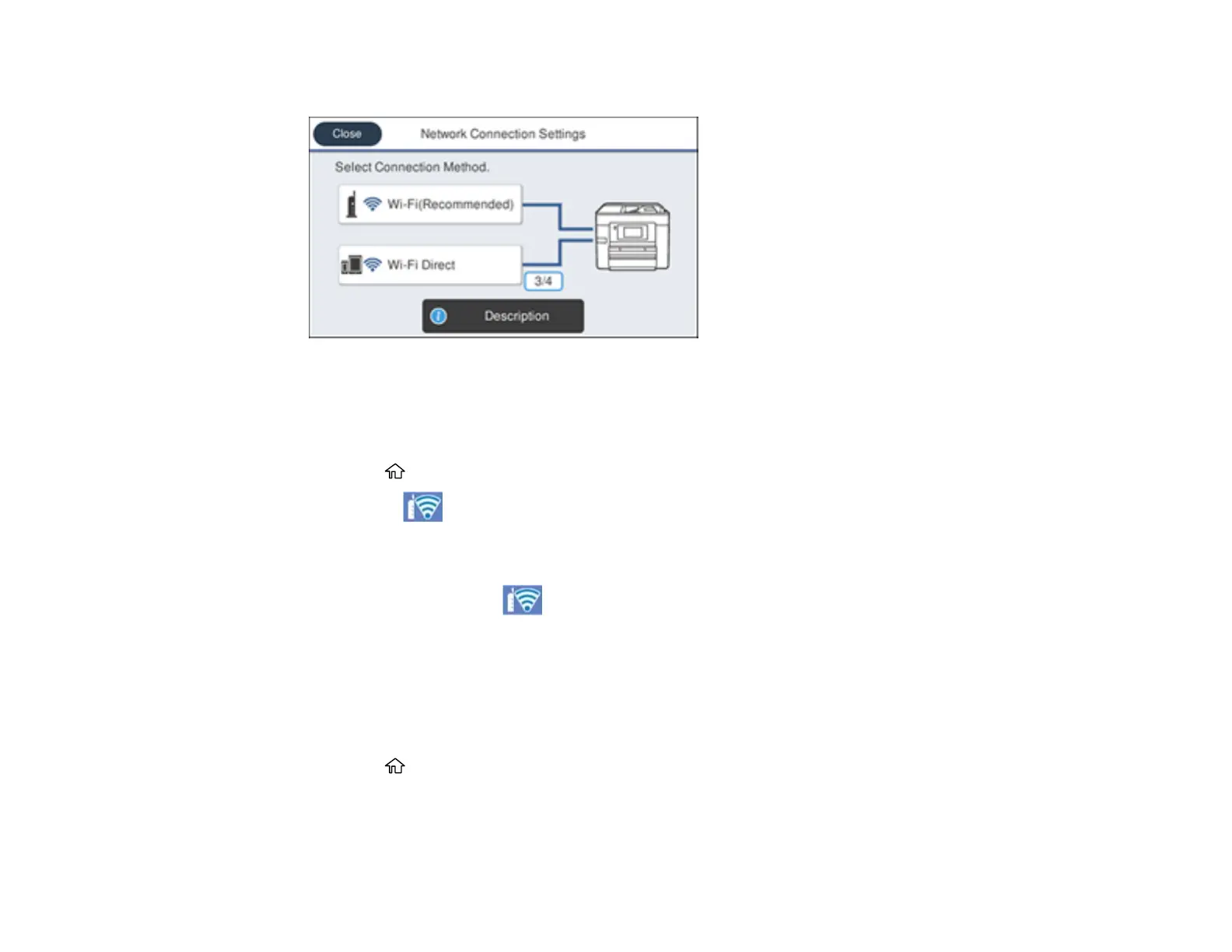
You see a screen like this:
3. Select Wi-Fi (Recommended).
4. Select Push Button Setup (WPS).
5. Follow the instructions on the LCD screen to complete WPS setup.
6. Press the home button to exit.
You see the icon on the LCD screen and should be able to connect to your product directly
from your computer or device, and then print. If you are printing from a computer, make sure you
installed the network software as described on the Start Here sheet.
Note: If you don't see the icon, repeat these steps to try again.
Parent topic: Wi-Fi Protected Setup (WPS)
Printing a Network Status Sheet
You can print a network status sheet to help you determine the causes of any problems you may have
using your product on a network.
1. Press the home button, if necessary.
2. Select Settings.
3. Select General Settings.


 To Next Page
 Loading...