Eureka Manta Manual Page 53 of 67
F.4 Establish Bluetooth Communication
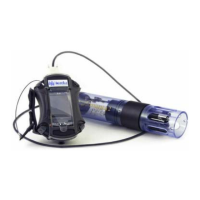
Follow the directions below for establishing Bluetooth communication between your Bluetooth Battery
and Data Display; it should take just a few minutes to set up. However, anything having to do with
Bluetooth can be tedious because of all the different versions of Bluetooth hardware and software floating
around the world. If you run into a problem, don’t give up. Call us at 512-302-4333 Ext. 1111 or send us
an email at sales@waterprobes.com.
F.4.a Connecting the Amphibian2 with Bluetooth for the First Time
(Please see F.2 if you wish to connect to your Amphibian2 with a cable instead of via Bluetooth.)
1 Power-on the Amphibian2 Data Display.
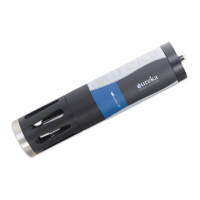
2 Turn on the Manta Bluetooth Battery by pushing the on/off button. You will see the LED begin flashing
indicating that the unit is “ON” (if not, recharge the battery using the recharger provided).
3 Enable Bluetooth (BT) on the Amphibian2 by pushing the BT ICON on the start-up screen. Make sure
the BT ICON turns green and says “Discoverable”.
4 On the Amphibian2 Home Page select “Settings”, then “Connections”, and then select the
“Bluetooth” ICON (not the BT COM ICON). Delete any BT devices listed by pressing and holding, then
select delete.
5 Select “Add New Device”, select the Bluetooth ID of your Manta BT when it appears, then select
“Next”.
6 Enter the password “1234”, select ‘Next”, and the display will connect to your Manta BT. Select the
Manta BT device, and put a checkmark on the serial port and then select “Save”.
7 Now select “COM Ports” at the top of the screen. Next select “New Outgoing Port”, then your Manta
BT will show up highlighted. Select “Next” from the bottom and use the pull-down menu to select an
available COM port, such as COM5. Once selected, select “Finish” and then “OK”. Select “X“ to return
to Home Page.
8 On the Home Page, select “Amp_2_2_X” to launch the Manta control software. Upon connection, the
blinking light on the Manta BT will turn solid. Once the software is running and the Amphibian2 is
connected via the Manta BT, you should see data scrolling.
9 From now on when the Amphian2 is on, with Bluetooth enabled, and the Manta BT Battery is
switched “ON”, the Manta will be found on the previously-selected COM port, unless you change the
settings.



 To Next Page