127
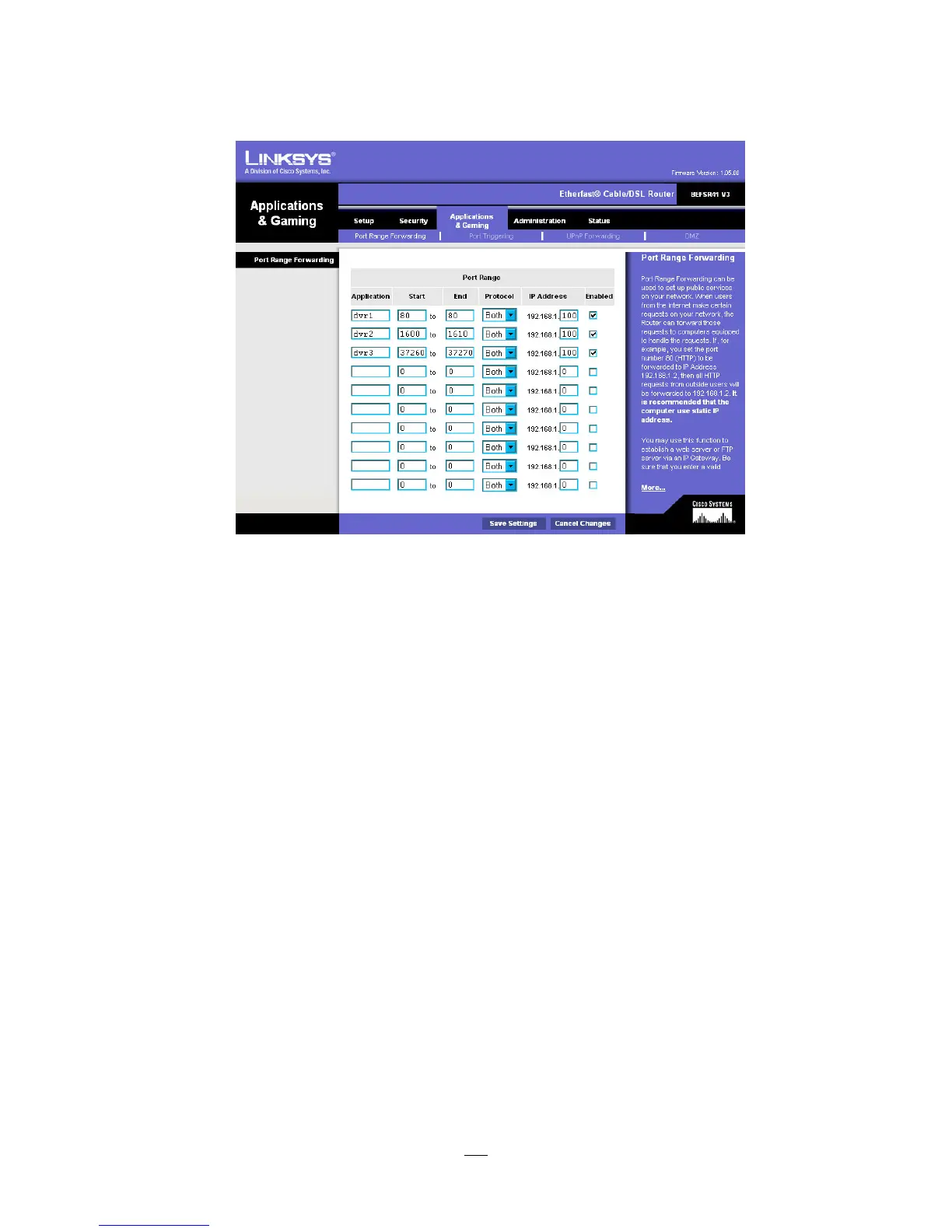
Applications and Gaming allows you to set up public services on your network, such as web servers, ftp
servers, e-mail servers, or other specialized Internet applications. (Some Internet applications may not
require any forwarding) To forward a port, enter the information on each line for the criteria required.
Descriptions of each criterion are described here.
Application - In this field, enter the name you wish to give the application.
Start/End - Enter the starting number of the range under Start and the ending number under End.
Protocol - Enter the protocol used for this application, either TCP or UDP, or Both.
IP Address - For each application, enter the IP Address of the PC running the specific application.
Enable - Click the Enable checkbox to enable port forwarding for the relevant application.
When finished making changes, click the Save Settings button to apply your changes or Cancel
Changes to cancel them.
Here is an example for how the port information might look:
HTTP 80 to 80 Both 192.168.1.50 Enable
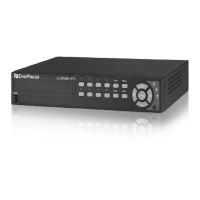
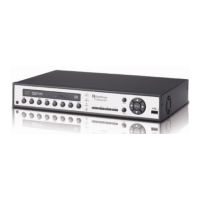
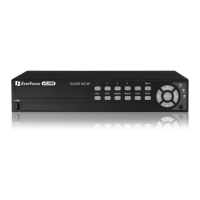
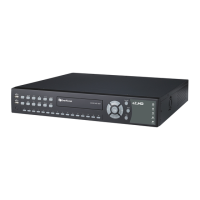
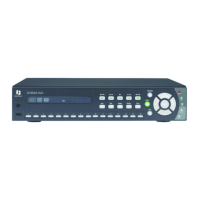
Where 192.168.1.50 is the IP address of the ECOR264 on the LAN, and the default port 80 is in use.
Note: If you changed port 80 in the DVR’s Network Menu, open that port instead of 80.




 To Next Page