45
4.3.2 Video Adjust
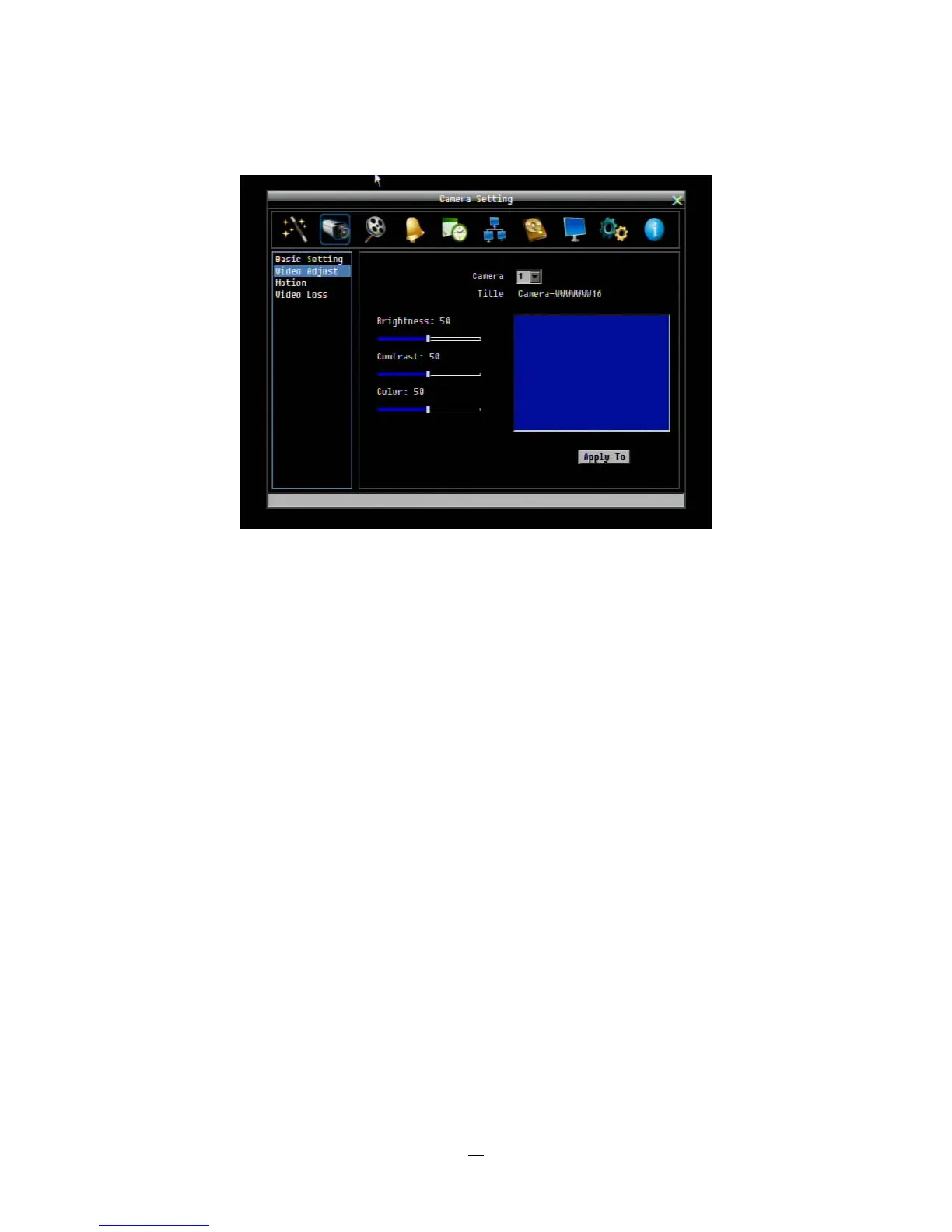
Figure 4-3 Camera Menu – Video Adjust
Camera: Select the camera you wish to adjust. “Title” will change to the name of the selected camera.
Brightness: Adjusts how bright/dark the picture appears. If details appear to be lost in the shadows or
darker regions, try increasing the Brightness. If the image appears too saturated or if the colors appear
overwhelmed by glare, try decreasing the Brightness.
Contrast: Adjusts the total amount of light output from the display. If details are lost or lines appear
distorted, try decreasing the contrast.
Color: Adjusts the amount of color information in the picture.
Apply To: This button can be used to copy the video settings to other cameras. Select which cameras you
wish to copy to. "Select All" selects all cameras, “Unselect All” deselects all cameras. Click “OK” to copy the
settings or "Cancel" to exit without copying.




 To Next Page