75
4. Change the section to different mode (with a different color) by clicking on the first block of the
section. The color switches from gray -> orange -> gray, every time user clicks the first block of a
section. Orange indicates ‘alarm action recording ON’.
5. To set the end of a timezone, select the time block following the end of the timezone defined in the
step above. The first click will highlight the block in blue. A second click will toggle the state/color of
that block and the remainder of the time bar, ending the above defined timezone
Alarm Action Setting from front panel
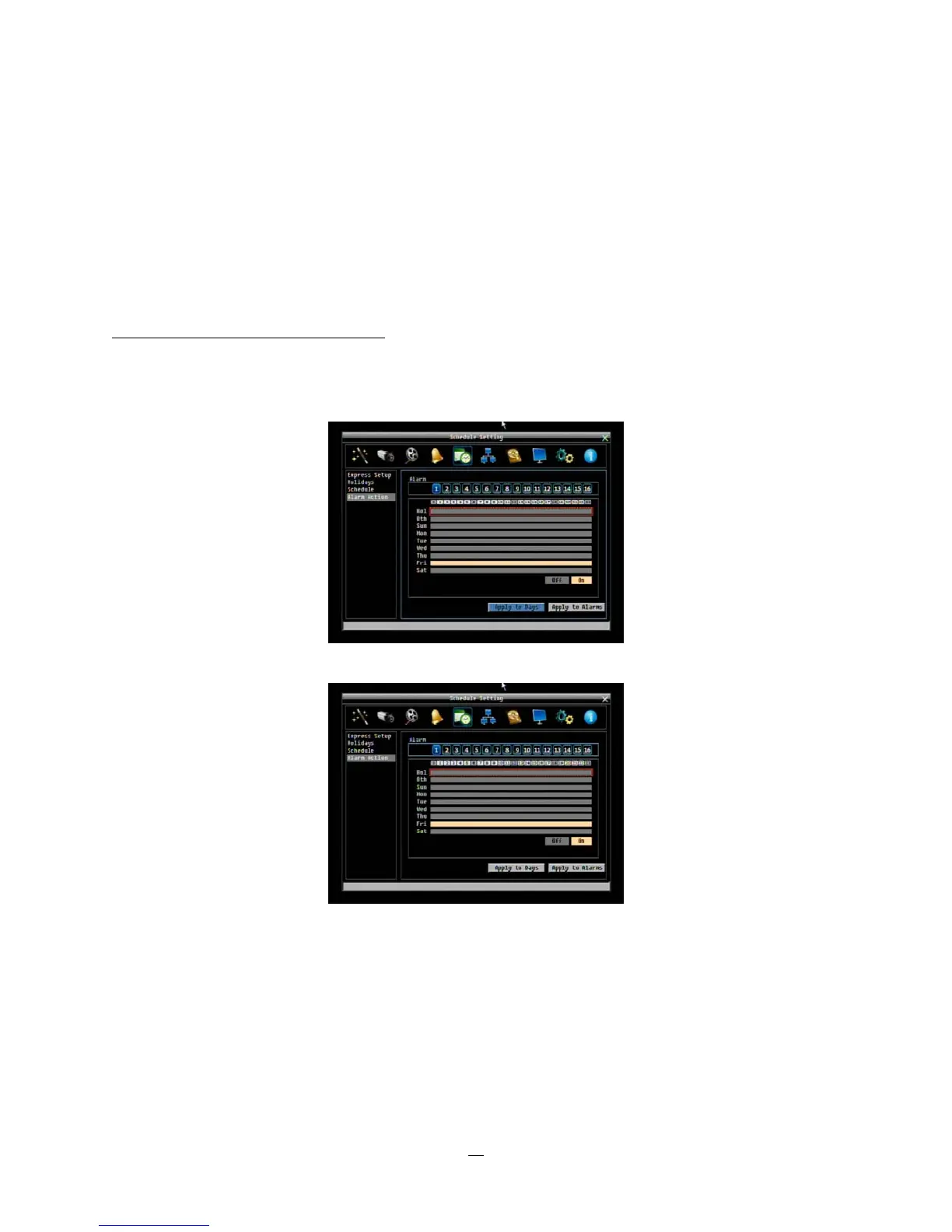
1. Enter Alarm Action setting mode: highlight the “Alarm Action: menu choice and press the “Enter”
button to enter Alarm Action setting mode. At this time, the whole editing area at the right side will
be highlighted within a blue frame. See image below.
2. Enter alarm selection mode: Use Up/Down arrow key to switch to Alarm selection mode.
3. Selecting alarm: Use Right/Left arrow key to select an alarm to configure. Selected alarm number
will be highlighted by a blue frame. See above image.
4. Enter time bar editing mode: Use Up/Down arrow key to switch to time bar editing mode. When
this mode is selected, the area surrounding the time bars will be highlighted within a blue frame..
5. Select desired time bar for setting: press the Enter button, the first time bar will be selected and
highlighted in a red frame. See below image. Use the Up/Down arrow keys to choose the desired
time bar for setting.




 To Next Page