Page 47
Flymaster Live C User Manual
Airspaces
Once the flight starts, the map is redrawn with an arrow (representing the pilot) which will move around the
map, indicating the relative position of the pilot to each of the airspace areas. Note that being inside a
airspace area (2D) does not mean that the airspace is being violated, since the pilot can be above, or
below the defined 3D shape. In order to have more information about possible airspaces violation, some
data fields should be added to the layout. This data fields Distance to CTR, Altitude to CTR, and CTR
Status
The airspace areas change colour from none, full yellow or full red, depending the status. No colour to
normal, yellow for eminent and red for violating.
The Dist. CTR data field shows the shortest horizontal distance to the nearest airspace line. This distance
is always positive. Similarly, the Alt. To CTR shows the shortest vertical distance to nearest airspace line.
Unlike the horizontal distance, the vertical distance can be negative. A positive vertical distance indicates
that you are outside the airspace, whereas a negative distance indicates that you are inside the airspace.
Additionally, the CTR status field will indicate if an airspace is being violated by displaying Violating. If the
pilot is not violating the airspace but it is inside a predefined margin then the messages Altitude Imminent,
or Position Imminent will be shown.
All the airspace warnings may be also audible though audio settings either voice or alarm.
Wind Arrow
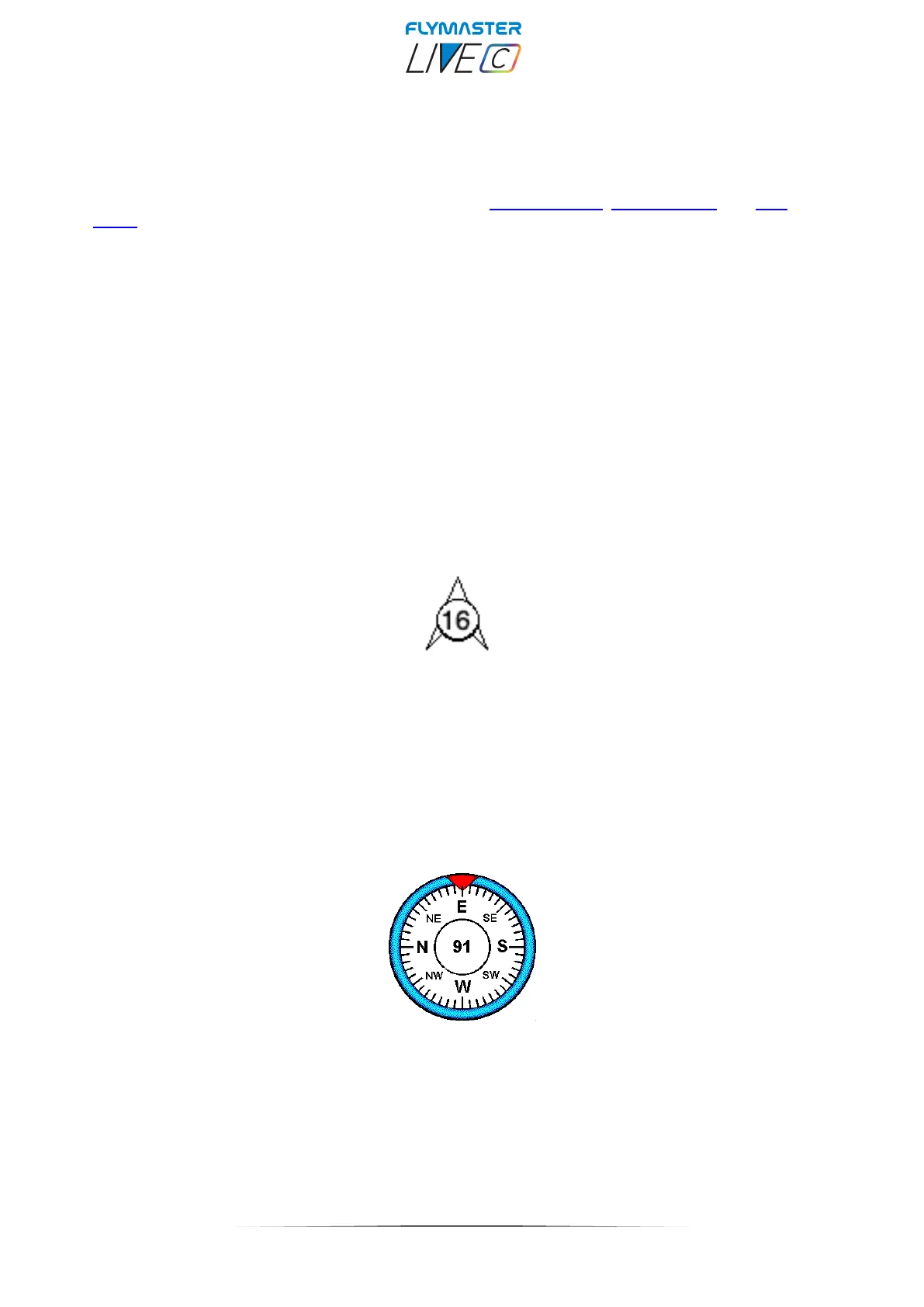
When used in a layout an arrow is draw showing the wind direction relative to the pilot
direction (direction the wind is coming from). For example, if the pilot is facing the wind
then the arrow points south (bottom of the screen). Cantered over the arrow is a circle in
which a number is displayed showing the wind speed. In the example above the wind is
blowing from South. Both, the wind speed, and direction, value can be seen in a data fields.
Compass
The Compass element show all the data provided by the LIVE C built in magnetic compass. The compass
includes an red top arrow which is always aligned with the LIVE C . If the LIVE C is turned the cardinal points
will also turn in order the arrow tip points the right cardinal point.
In the example of Figure the LIVE C is pointing almost to East. The direction is represented by the arrow,
and also indicated numerical (91°degrees).


 To Next Page