Page 74
Flymaster Live C User Manual
Maps
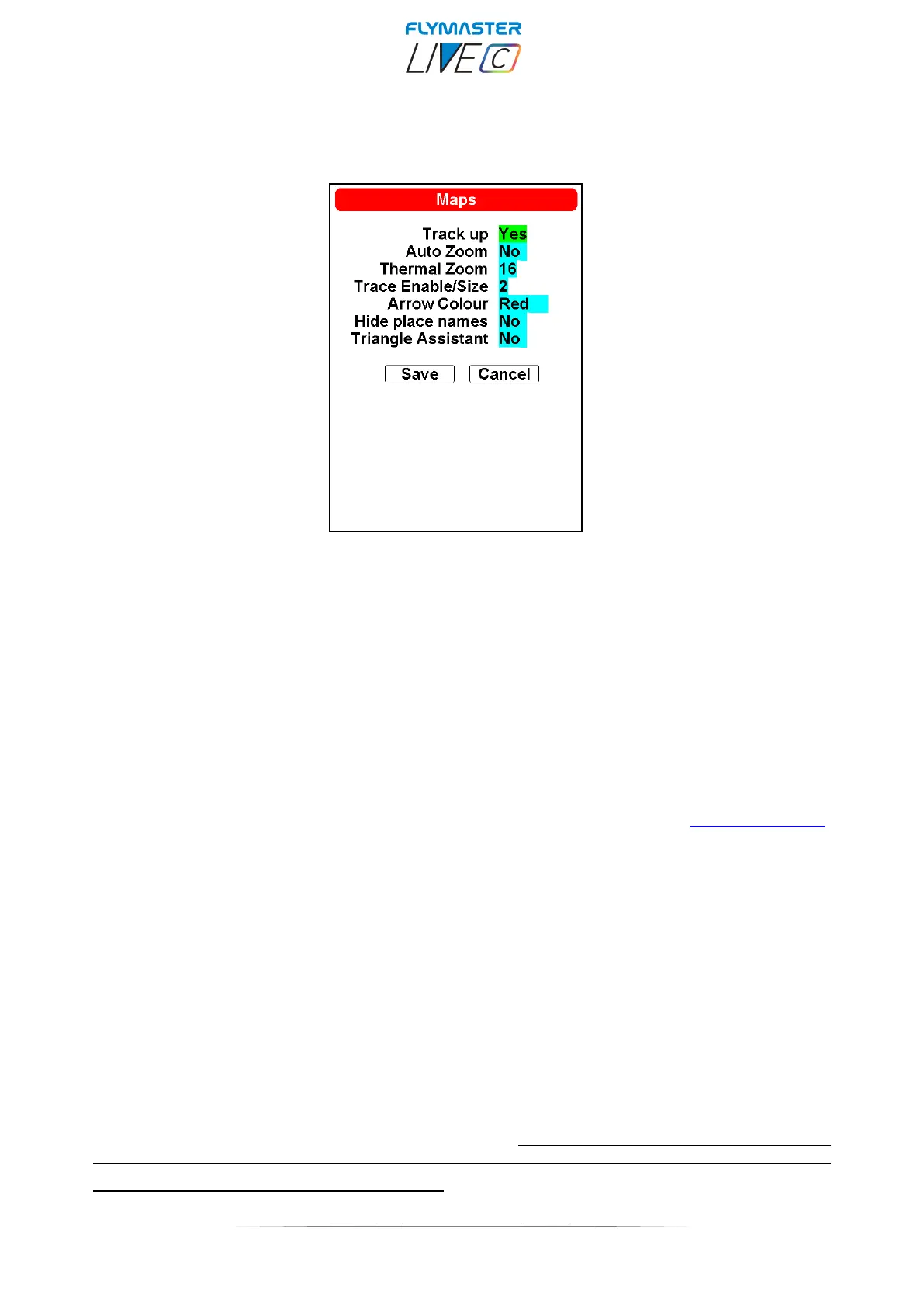
This options sets the behaviour of the traces drawn on the Thermal Trace map layer and you can modify
the map appearance
Track up - Track up allows the trace to be displayed with either the track relative to North, or with the
current heading to the top of the screen . When Track UP is set to YES you will see the map turning around
the pilot, while the Track UP is set to NO you will see the pilot moving around the Map.
Auto Zoom - Setting Yes causes the system to automatically zoom into the trace when entering a
thermal, making it easy to understand the location of the thermal.
Thermal Zoom – Here you can define the automatic zoom level you want on the "thermal map" layer.
This value ranges from level 1 to 16 with 16 higher or more "zoomed".
Trace Enable/Size- With this option you can define what thickness you want to see on the "thermal
map" layer. The value ranges from 1 (finest) to 3 (thickest).
You can turn off the "thermal map" by setting the value to "Off".
Arrow Color- You can choose the arrow colour.
Hide place names – You cand show or hide cities and villages names.
Triangle Assistant – In this option, you can enable or disable the "triangle assistant." This flight mode
enables the prediction and calculation of the best possible optimized route for performing a navigation to
complete a valid FAI Triangle flight. When the choice is set to "YES," the instrument switches to triangle
navigation mode, and all task navigation or waypoint destination navigation is cancelled in favour of
the triangle assistant. (check page 87)


 To Next Page