Page 19
Flymaster Live C User Manual
Force firmware install (recover the instrument)
If for some reason your instrument does not start and an error message appears on the
colour display such as "invalid crc", missing font, etc, this means that somehow
essential files for the recognition of the firmware version have been damaged on the SD
card and it will not be possible to restore firmware.
This does not necessarily mean any hardware problem with the instrument itself.
How to solve ?
You must have an SD card reader on your computer.
Have an Internet connection
Have the latest version of Flymaster Instrument Manager (downloads for this instrument
are available on the Flymaster website under Products -> Live C-> Downloads tab
First of all, force the instrument to shut down by pressing power button together with
Menu/Esc at the same time for about 3 seconds and release.
After releasing the buttons, the instrument should switch off.
This process is not dependent on any software and is always successful in any
situation.
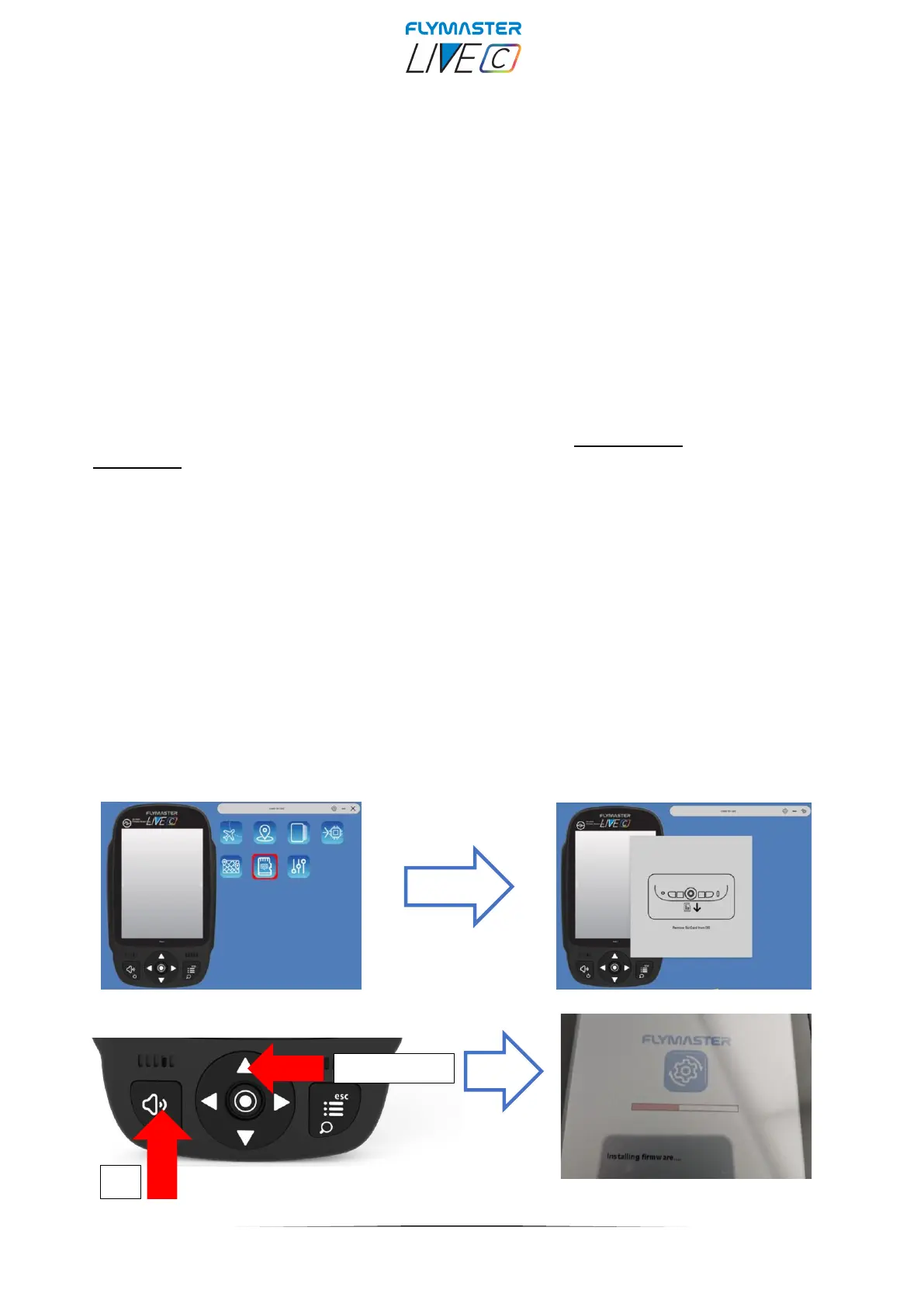
Method 1 - Use the SOS SD card tool, present in the latest versions of Flymaster
Instrument Manager. When you click on the tool, you will follow a pop-up that will guide
you through the procedure of ejecting the SD card from your LIVE C and inserting it into
your computer's card reader. After being detected by your computer, the process is
automatic and the necessary files will be copied to the card.
After this first step, just force installation of the Live C Firmware.
Insert the SD card into the Live C.
Press the UP key and keep it pressed while pressing the "power" key. Keep the UP
cursor key pressed until "installing firmware" appears on the display.


 To Next Page