The FOXTEL iQ
76
Using the FOXTEL iQ
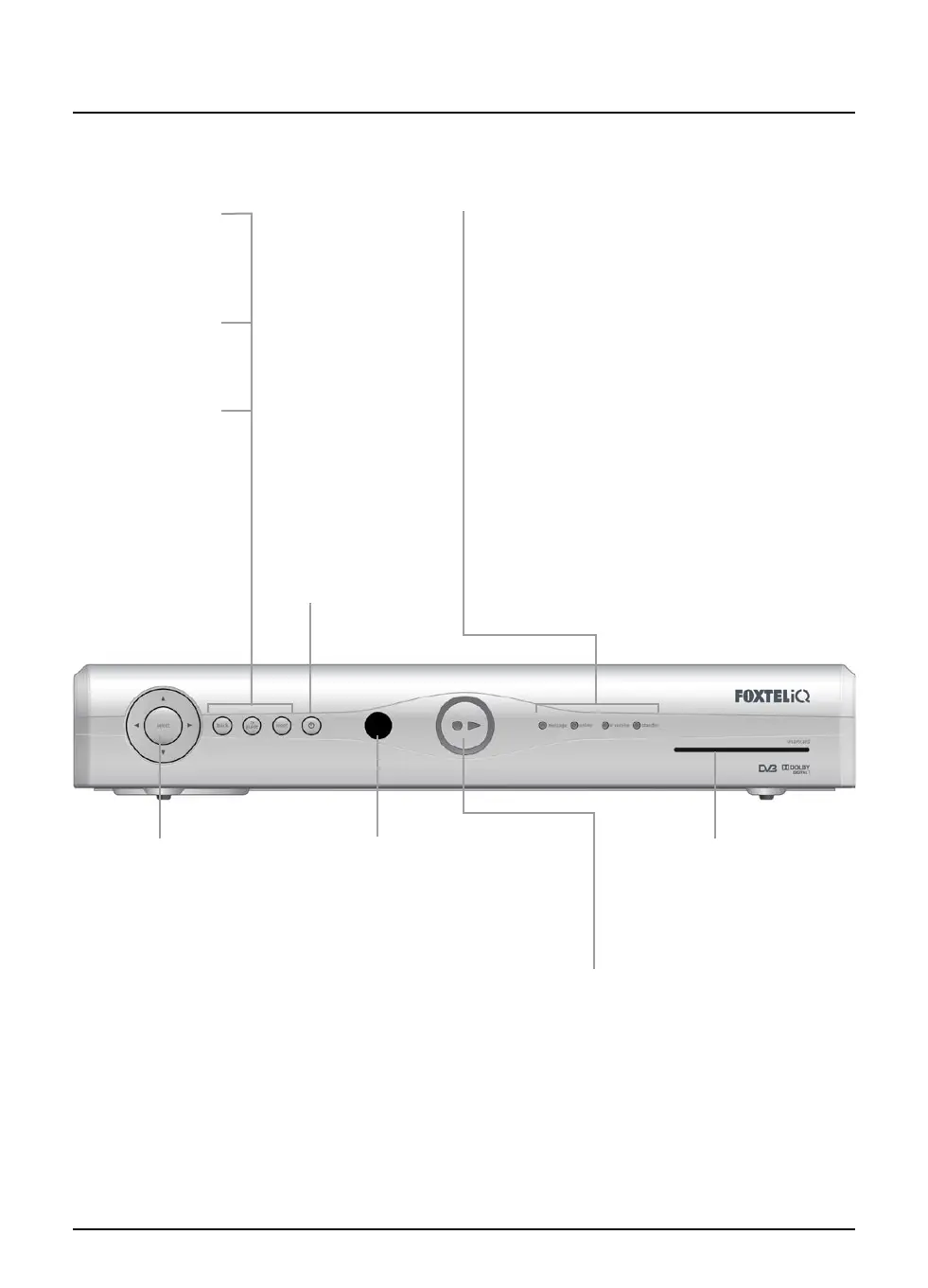
L, R, U and D buttons
While you are looking
at screens
- to move the
highlight and change what is
displayed on screen
While you are watching TV
-
U and D change the channel
select button
To confirm a choice or make a
selection
smartcard slot
To insert the FOXTEL
Smartcard
remote control sensor
Window that receives the
signal from the remote
control (do not block)
S
button
To switch the
FOXTEL iQ into or
out of standby
back button
To remove a screen
and go back to the
previous screen
tv guide button
To display the
TV guide
message light
Lights up green when there is a message waiting.
Flashes green when it is an important message
online light
Lights up green when the FOXTEL iQ is online
(using your telephone line)
Flashes when the FOXTEL iQ is sending or
receiving information
ir receive light
Flashes red when the FOXTEL iQ receives a signal
from the remote control
standby light
Lights up green if the FOXTEL iQ is receiving a signal
Lights up red when the FOXTEL iQ is in standby
Lights up orange when the FOXTEL iQ active and
has no signal
Playback indicator
Lights up when the FOXTEL iQ
is playing or recording. (See
also page 77)
v Front panel
reset button
To reset the FOXTEL
iQ (only in the
event of a problem
occurring)



 To Next Page