GETTING STARTED
15
Getting started
v Using Live Pause
u While you are watching a TV programme, you can pause it at
any moment you want - just press pause on the FOXTEL remote
control.
The TV picture and sound ‘freeze’, and the FOXTEL iQ starts recording
the programme.
u When you want to continue watching the programme from the
Live Pause point, press pause again, or press play.
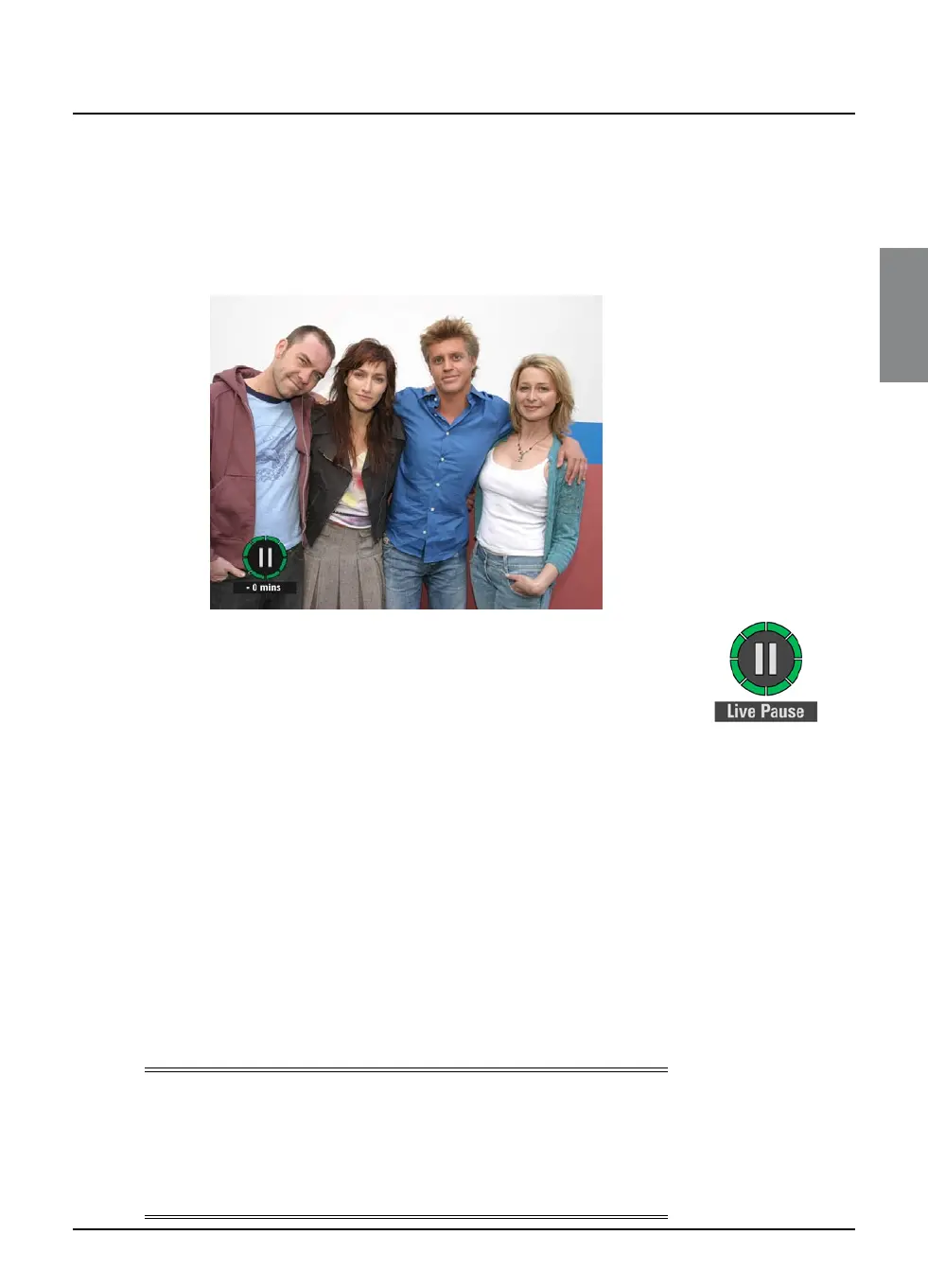
When in Live Pause the Live Pause symbol displays on-screen (see
right). The number shows the number of minutes you are ‘behind’
the actual live TV programmes.
While you are watching the Live Pause recording, you can use pause,
play, fast forward and rewind to move through the recording.
Symbols display on your TV screen to show you what is happening
(see page 93), and the lights on the playback indicator light up (see
page 77). If you rewind back to the start of the recording, the picture
freezes. If you fast forward to the end of the recording, the FOXTEL iQ
takes you back to normal TV viewing.
While you are watching the Live Pause recording, the FOXTEL iQ
continues recording the programme until it finishes. However, you can
press FOXTEL at any point to stop Live Pause and resume normal TV
viewing. When you stop Live Pause, the recording is deleted.
If you change channel, or launch an interactive application this will
also stop and delete the Live Pause.
Note
When you use Live Pause the FOXTEL iQ caches the programme,
but it
is not added to the Personal Planner.
This means, once you return to
normal TV, or launch an interactive application, the Live Pause cache is
deleted. To record the programme to the Personal Planner, to watch it
in the future, press the record button (see page 38).
Live Pause
Playback symbol



 To Next Page