FOXTEL GUIDE
49
v Using a Playlist
You can play back a sequence of recorded programmes, for
example if you want to schedule your favourite shows in one block.
In order to do this, you first need to create a Playlist.
Creating a Playlist
To select a programme to add to the Playlist:
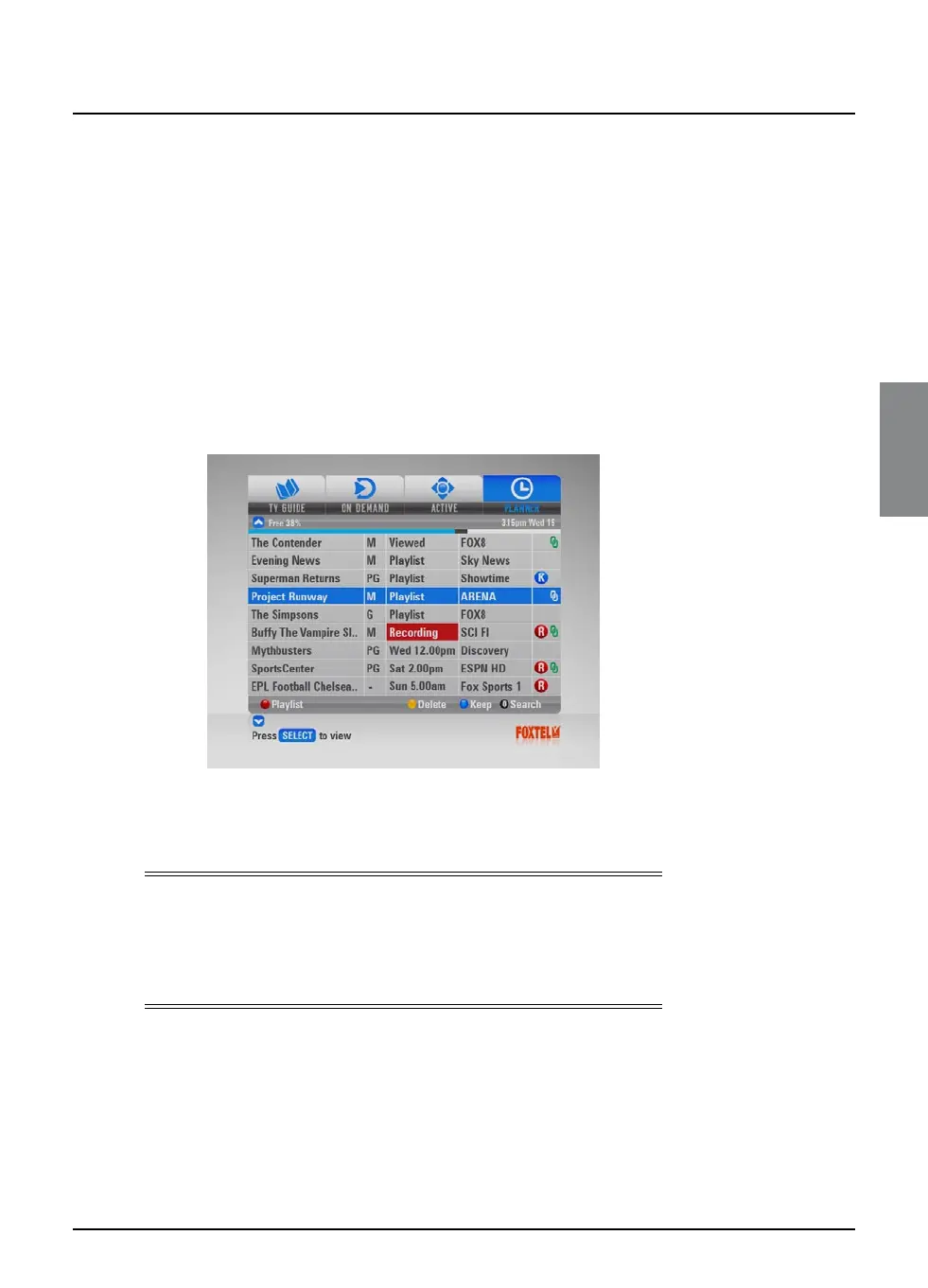
1. Press planner to display the Personal Planner.
2. Use U and D to highlight the recorded programme you want,
then press the red ‘Playlist’ button. Recorded programmes
may be marked as
Recorded
,
Part recorded
, or
Viewed
.
The status of the highlighted programme changes to
Playlist
.
3. If you want to add more programmes to the Playlist, repeat
step 2. The order that you select programmes will be the
order that they are played.
Note
To remove a programme from the Playlist, highlight the
programme, then press the red ‘Playlist’ button again. The
programme’s status changes back to Recorded, Part recorded, or
Viewed.
Playing out the Playlist
1. When you have selected all the programmes you want to add
to the Playlist, press play or select.
The FOXTEL iQ then checks that none of the programmes are
restricted programmes or are from blocked channels (see page 56). If
they are, you must enter your PIN to continue.
Playlist



 To Next Page