63
Viewing Images
6
5
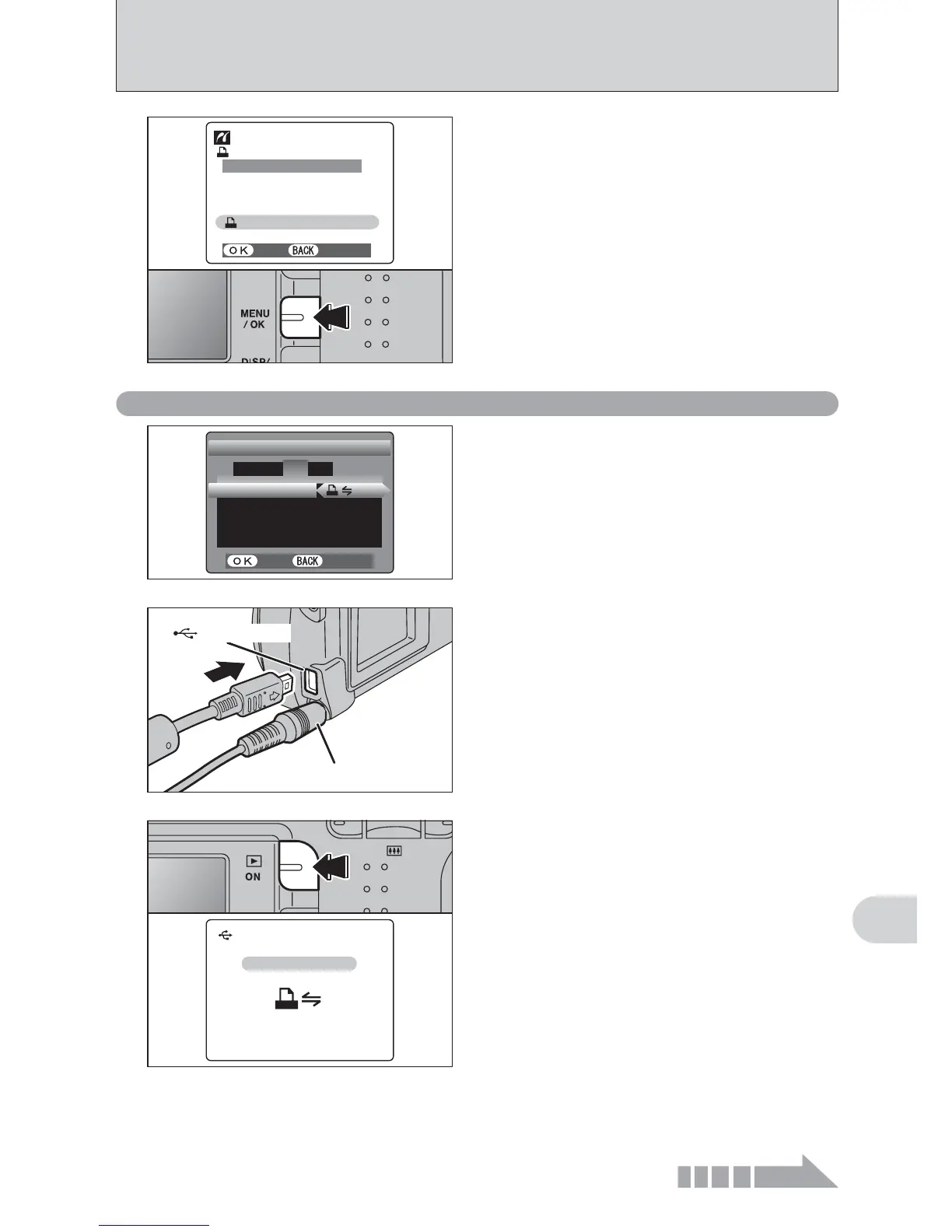
Press the “MENU/OK” button to download the data
to the printer and print the frames specified in the
DPOF settings.
TOTAL/TOTAL/ 1 19SHEETS9SHEETS
PRINT PRINT DPOFDPOF OK?OK?
PRINT PRINT DPOFDPOF
YESYES
CANCELCANCEL
●
!
Press the “DISP/BACK” button to cancel the printing.
Depending on the printer, the printing may not be canceled
immediately or printing may stop mid way through. When
printing stops mid-way, briefly turn the camera off and then
on again.
6.2.2 Specifying images for printing without using DPOF
(
single-frame printing
)
AC-3V (sold separately)
(USB)socket
2
Set to “¢” in the “USB MODE” setting in the
“SET-UP” menu (➡P.48).
●
!
Do not connect to a PC when the “USB MODE” setting is set
to “
¢”. See P.81 if you connect to PC by mistake.
言語言語
/LANG/LANG
:
ENGLISHENGLISH
VIDEO SYSTEMVIDEO SYSTEM
:
PALPAL
OKOK
SET−UPSET−UP
USBUSBMODEMODE
DISCHARGE DISCHARGE
:
1 2
3
4
SETSET
CANCELCANCEL
1
1Connect the camera to the printer using the USB
cable (included).
2Turn the printer on.
●
!
The camera cannot be used to specify printer settings such
as the paper size and print quality.
●
!
Please connect the AC Power Adapter AC-3V (sold
separately) or AC-3VW (included with optional PictureCradle
CP-FXA10) to your camera.
●
!
Use an xD-Picture Card that was formatted on the camera.
3
Press the “Playback” button to turn the camera on
in Playback mode.
“ç ” appears and then the menu
screen is displayed.
●
!
If the menu screen does not appear, check whether the USB
mode setting is
“¢”.
●
!
Depending on the printer, some functions are disabled.
USBUSB
CHECKINGCHECKING USBUSB




 To Next Page