To Next Page
J
Joanne AlexanderSep 23, 2025
What does 'Error message - Stuck key' mean on Fujitsu Tablet?
- AAndrea HernandezSep 23, 2025
Make sure that no key is pressed.

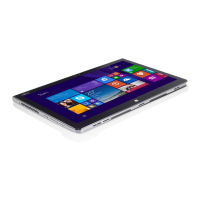
What does 'Error message - Stuck key' mean on Fujitsu Tablet?
Make sure that no key is pressed.
What does 'Error message - Operating system not found' mean on Fujitsu STYLISTIC Q704 Tablet?
Check in the BIOS Setup whether your hard disk has been set correctly and make sure that the operating system is installed on the corresponding drive.
What to do if stylus input is not working on my Fujitsu Tablet?
If the stylus input is not working on your Fujitsu Tablet, install the driver for the standard model if your device can only be operated using the stylus. For devices operable by both stylus and finger, install the driver for the "Dual Digitizer" model.
Why is the battery indicator not illuminating on my Fujitsu Tablet?
If the battery indicator on your Fujitsu Tablet isn't lighting up, it could mean the battery is completely discharged. Try charging the battery. Also, make sure to connect your Tablet PC to a power outlet using the AC adapter.
What to do if Fujitsu STYLISTIC Q704 PC stops working?
If your Fujitsu Tablet PC stops working, it might be in energy-saving mode, so end energy-saving mode. Also, an application program may have caused the malfunction. In this case, close the application program or restart the Tablet PC by restarting the operating system or switching the device off and back on again. Check if the battery is discharged and charge the battery if needed. Finally, connect the AC adapter to the Tablet PC.
Why does the Fujitsu STYLISTIC Q704 Tablet battery discharge too quickly?
Your Fujitsu Tablet's battery might be draining quickly for several reasons. The battery could be too hot or too cold, in which case the battery indicator flashes; bring the Tablet PC up/down to a normal operating temperature again. If necessary, replace the battery. An application running may consume a lot of power by frequently accessing the hard disk or optical drive, so use the AC adapter whenever possible. The screen's brightness may be set too high; reduce the brightness of the screen to lower energy consumption via Control Panel – Hardware and Sounds – Windows Mobility Center.
What to do if my Fujitsu STYLISTIC Q704 Tablet doesn't start after switching it on?
If your Fujitsu Tablet PC doesn't start, the battery may be dead, so charge the battery. Alternatively, connect the mains adapter to the Tablet PC, ensuring it's correctly connected. Finally, make sure to switch on the Tablet PC.
What to do if pen input is not working on my Fujitsu STYLISTIC Q704 Tablet?
If pen input isn't working on your Fujitsu Tablet, the incorrect driver may be installed. If your device can only be operated using the pen, install the driver for the standard model. If it can be operated by pen and finger, install the driver for the "Dual Digitizer" model.
What to do if the battery indicator does not illuminate on my Fujitsu STYLISTIC Q704?
If the battery indicator does not illuminate, the battery is likely fully discharged. Charge the battery. You can also connect the Tablet PC to a mains outlet using the mains adapter.
What to do if my Fujitsu Tablet PC does not start after I switch it on?
If your Fujitsu Tablet PC does not start, first ensure the battery isn't discharged by charging it. Next, connect the AC adapter to the Tablet PC and verify that the adapter is properly connected. Finally, switch the Tablet PC on.
 General
| LED backlight | Yes |
|---|---|
| Pixel density | 176 ppi |
| Display diagonal | 12.5 \ |
| Touch technology | Multi-touch |
| Touchscreen type | Capacitive |
| Display brightness | 352 cd/m² |
| Native aspect ratio | 16:9 |
| Display number of colors | 16.78 million colors |
| Bus type | DMI2 |
| Stepping | D0 |
| Tjunction | 100 °C |
| Processor code | SR1EA |
| Processor cache | 4 MB |
| Processor cores | 2 |
| Processor model | i7-4600U |
| System bus rate | 5 GT/s |
| Processor family | Intel® Core™ i7 |
| Processor series | Intel Core i7-4600 Mobile series |
| Processor threads | 4 |
| Processor codename | Haswell |
| Processor frequency | 2.1 GHz |
| Processor cache type | Smart Cache |
| Processor lithography | 22 nm |
| Processor manufacturer | Intel |
| Processor package size | 40 x 24 x 1.5 mm |
| Processor front side bus | - MHz |
| Processor boost frequency | 3.3 GHz |
| Processor operating modes | 64-bit |
| PCI Express configurations | 4x1, 2x4 |
| Supported instruction sets | AVX 2.0, SSE4.1, SSE4.2 |
| Thermal Design Power (TDP) | 15 W |
| Internal memory | 8 GB |
| Memory clock speed | 1600 MHz |
| Internal memory type | LPDDR3-SDRAM |
| Storage media | SSD |
| Compatible memory cards | MicroSD (TransFlash), MicroSDHC, MicroSDXC |
| Maximum memory card size | 64 GB |
| Internal storage capacity | 256 GB |
| Graphics card | HD Graphics 4400 |
| Audio system | Realtek ALC283 |
| Flash type | LED |
| Rear camera type | Single camera |
| Rear camera resolution (numeric) | 5 MP |
| Front camera resolution (numeric) | 2 MP |
| Wi-Fi standards | 802.11a, 802.11b, 802.11g |
| Bluetooth version | 4.0 |
| Top Wi-Fi standard | Wi-Fi 4 (802.11n) |
| Wi-Fi data rate (max) | 300 Mbit/s |
| Microphone in | No |
| Headphone connectivity | 3.5 mm |
| USB 2.0 ports quantity | 0 |
| Micro-USB 2.0 ports quantity | 1 |
| Device type | Tablet PC |
| Form factor | Convertible (Detachable) |
| Product color | Black |
| Sustainability certificates | RoHS, ENERGY STAR |
| Certification | CB, FCC Part 15 B, cUL, FCC Part 15 C, FCC Part 15 E, FCC Part 22, FCC Part 24, FCC Part 27, ICES-003 Class B, RSS-210, UL |
| Position location | - |
| Password protection type | BIOS, Supervisor, User |
| Platform | Windows |
| Trial software | McAfee Internet Security |
| Bundled software | Adobe Reader Fujitsu LIFEBOOK Application Panel Fujitsu Display Manager ShockSensor Utility Power Saving Utility Fujitsu Plugfree Network EasyGuide online user documentation |
| Operating system installed | Windows 8.1 Pro |
| Battery voltage | 10.8 V |
| Battery capacity | 4250 mAh |
| Battery life (max) | 10 h |
| Battery recharge time | 2.3 h |
| Number of battery cells | 3 |
| AC adapter power | 65 W |
| AC adapter frequency | 50 - 60 Hz |
| AC adapter input voltage | 100 - 240 V |
| AC adapter output current | 3.42 A |
| AC adapter output voltage | 19 V |
| Storage temperature (T-T) | -15 - 60 °C |
| Operating temperature (T-T) | 5 - 35 °C |
| Storage relative humidity (H-H) | 8 - 85 % |
| Operating relative humidity (H-H) | 20 - 85 % |
| Processor ARK ID | 76616 |
| Processor socket | BGA 1168 |
| Intel TSX-NI version | 0.00 |
| Intel ME Firmware Version | 9.5 |
| Intel Identity Protection Technology version | 1.00 |
 Weight and Dimensions
| Depth | 199.3 mm |
|---|---|
| Width | 309.6 mm |
| Height | 11.9 mm |
| Weight | 998 g |
Contact methods and required information for customer support.
Identification of ports and indicators on the front of the device.
Details of ports and buttons located on the left side.
Details of ports and features located on the right side.
Identification of ports and features on the back of the device.
General safety guidelines for proper device usage.
Precautions for handling the device and its materials.
Safety precautions when using wireless components.
Steps and precautions for initial device setup.
Step-by-step instructions for connecting the AC adapter.
How to power on the device for initial setup.
Instructions for turning the tablet device on.
Steps for correctly shutting down the tablet device.
Basic touch gestures for device interaction.
Describes actions performed using screen edge swipes.
How to use press and hold for context menus.
Describes tapping, scrolling, and moving objects with fingers.
How to select, start, move, and open menus using fingers.
How to use the stylus for writing, selecting, and drawing.
Recommendations for proper stylus handling and care.
Steps to calibrate the stylus for accuracy.
How to charge and care for the battery.
Guide to utilizing power-saving settings for efficiency.
Details about the SIM card and its correct format.
Step-by-step instructions for inserting a SIM card.
How to enable or disable wireless features.
How to connect to a local area network using Ethernet.
Identification of ports and connectors on the docking cradle.
Steps to connect the tablet to the docking cradle.
Steps to dock the tablet with the keyboard cover.
Identification of ports on the keyboard docking station.
Steps to set up and configure the fingerprint sensor.
How to set supervisor and user passwords in BIOS.
Procedures for modifying or deleting BIOS passwords.
How to enable password protection at system boot time.
Steps to activate and deactivate hard disk passwords.
Procedures for managing the TPM security chip.
Procedures for saving or discarding changes and exiting BIOS.
Initial steps to take when a fault occurs.
Troubleshooting device startup problems.
Solutions for when the tablet unexpectedly stops functioning.
Steps to configure wireless network connectivity.
Common WLAN issues and their solutions.
Overview of creating recovery media for the system.
Detailed steps for creating recovery disks.
Using tools to recover when the hard drive is accessible.
Steps to restore the recovery image from a hidden partition.
Steps for performing a full hard drive recovery.
Detailed steps for full hard drive recovery using tools.
Steps to install essential access software from hidden partition.
How to get the latest driver updates using FSDM.