1. OPERATIONAL OVERVIEW
1-61
1.43 How to Adjust Brilliance of On-screen Data
On-screen markers and alphanumeric readout brilliance can be adjusted using the fol-
lowing procedure:
1. Place the cursor on the [BRILL] box at the right of the screen, then press the right
button. The [BRILL] menu appears.
2. Select the appropriate item to adjust, then push the ADJUST knob.
3. Rotate the ADJUST knob to select the appropriate brilliance setting, then push the
ADJUST knob.
4. Close the menu.
1.43.1 How to change color palettes
This radar provides six sets of color and brilliance sets to match any ambient lighting
condition and can be assigned to a [BRILL] box preset.
1. Select the [BRILL] box at the bottom-left of the screen, then press the right but-
ton. The [BRILL] menu appears.
2. Select [PALETTE], then push the ADJUST knob.
3. Select the appropriate palette, then push the ADJUST knob. The default settings
for each palette are shown in the table below.
4. Close the menu.
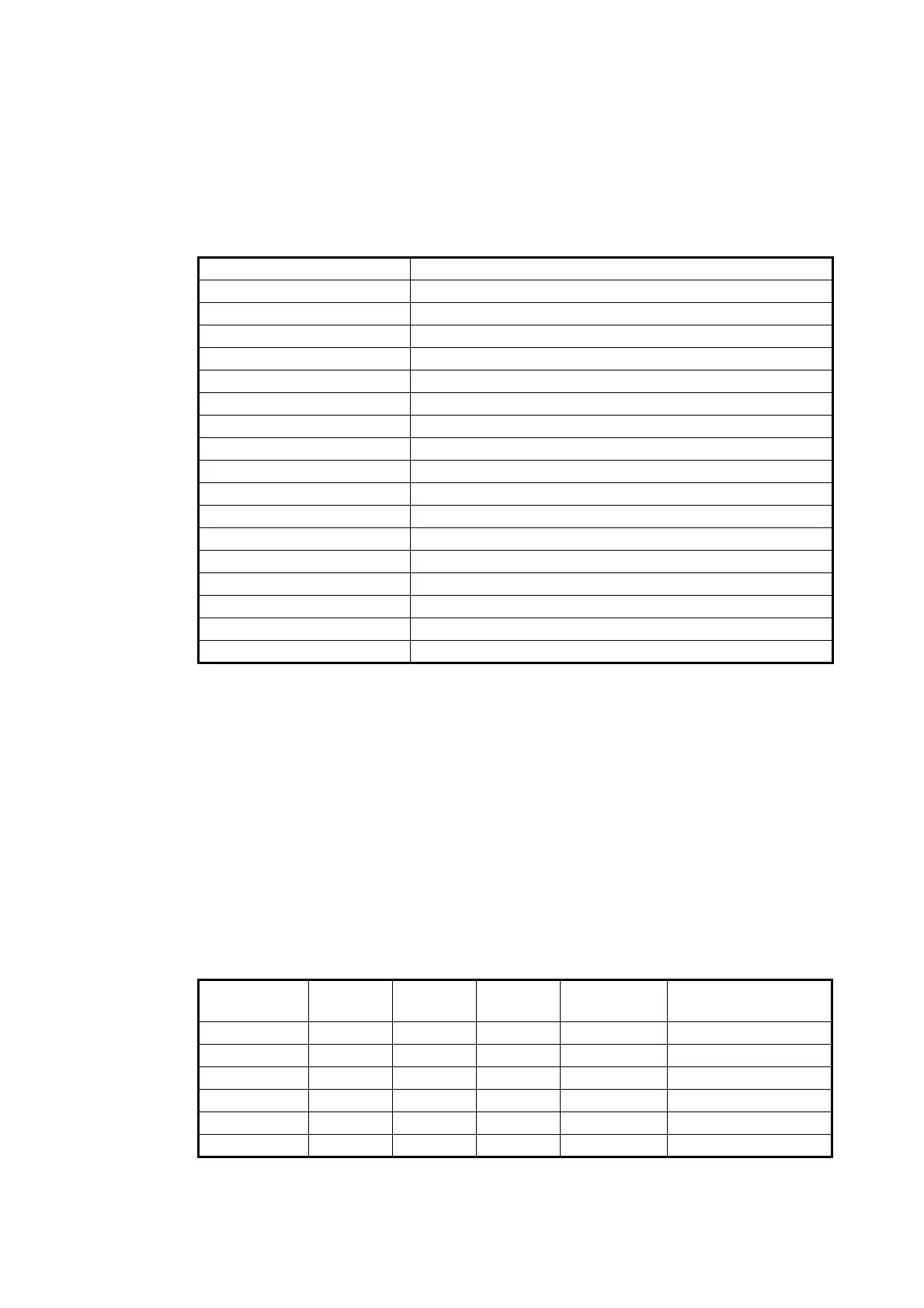
Menu item Description
ECHO COLOR Adjusts echo color brilliance.
PALETTE Adjusts background brilliance (see paragraph 1.43.1).
CONTROL PANEL Adjusts control panel key brilliance.
CHARACTER Adjusts on-screen text brilliance.
CURSOR Adjusts cursor brilliance.
ECHO Adjusts the echo brilliance.
TRAIL Adjusts echo trail brilliance.
HL Adjusts heading line brilliance.
RING Adjusts range ring brilliance.
BEARING CURSOR Adjusts bearing cursor brilliance.
EBL Adjusts EBL line brilliance.
VRM Adjusts VRM line brilliance.
PI LINE Adjusts PI line brilliance.
TT SYMBOL Adjusts target trail symbol brilliance.
AIS SYMBOL Adjusts AIS symbol brilliance.
L/L GRID Adjusts latitude/longitude grid brilliance.
MARK Adjusts marks brilliance (all marks).
PALETTE BRILL PANEL OTHERS
TEXT
COLOR
BCKGRND/CIRCLE
DAY-GRY 100 15 15 GREEN GRY/BLK
DAY-BLU 100 15 15 WHITE BLU/BLU
DUSK-GRY 40 10 15 GREEN GRY/BLU
DUSK-BLU 40 10 15 WHITE BLU/BLU
NIGHT-GRY 4 5 15 AMBER GRY/BLK
NIGHT-BLU 4 5 15 WHITE BRT-BLU/BRT-BLU






 To Next Page