GPSMAP 4000 Series Owner’s Manual 11
uSInG chartS
USinG
ChartS
To turn the track log on:
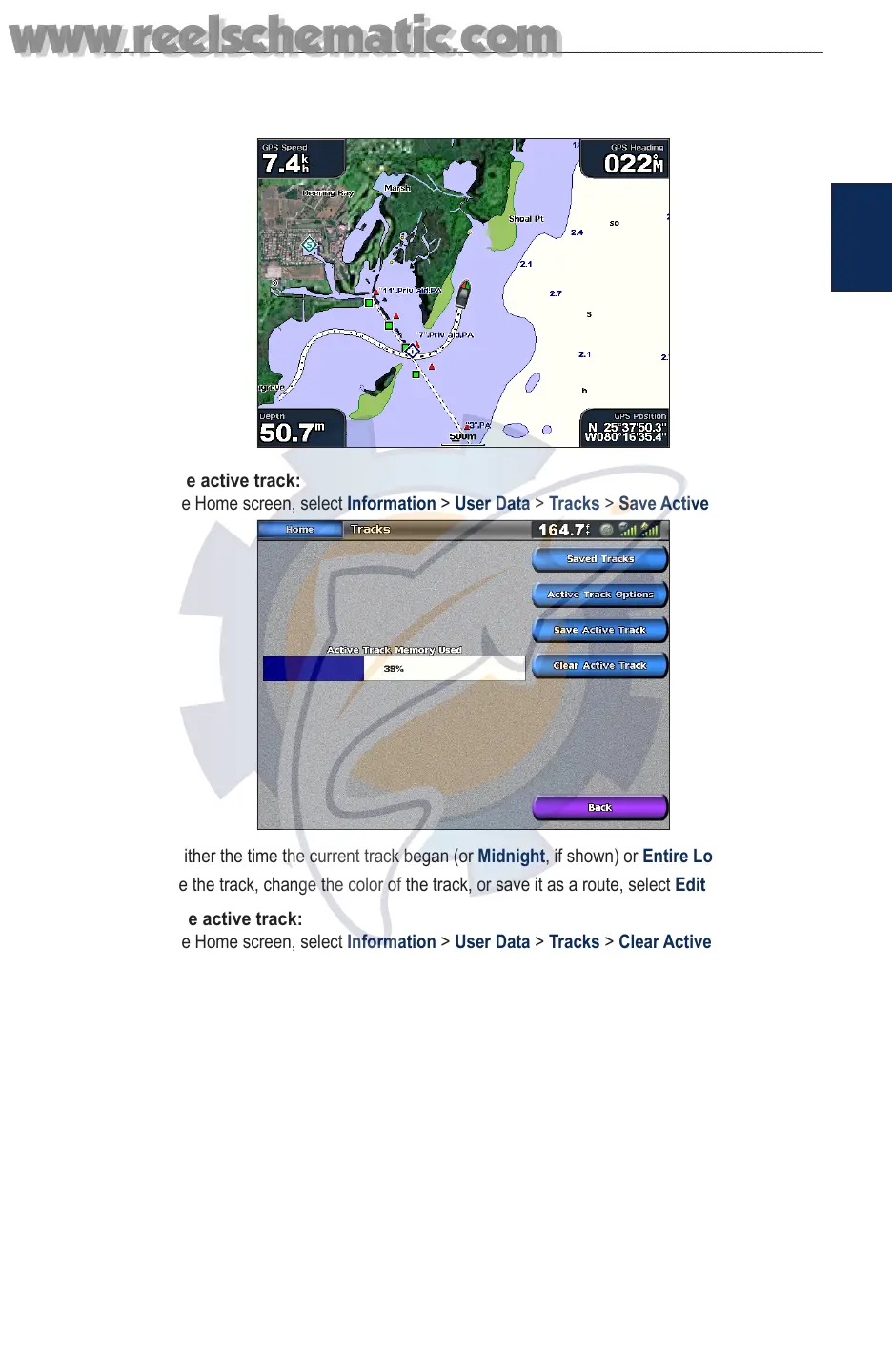
From the Navigation chart, select Menu > Chart Setup > Tracks > On. A trailing line on the chart
indicates your track.
To save the active track:
1. From the Home screen, select Information > User Data > Tracks > Save Active Track.
2. Select either the time the current track began (or Midnight, if shown) or Entire Log.
3. To name the track, change the color of the track, or save it as a route, select Edit Track.
To clear the active track:
From the Home screen, select Information > User Data > Tracks > Clear Active Track. The
track memory is cleared; the current track continues to be recorded.
To retrace the active track:
1. From the Home screen, select Information > User Data > Tracks > Follow Active Track.
2. Select either the time the current track began or Entire Log.
3. Follow the colored line on the screen.
To edit or delete a saved track:
1. From the Home screen, select Information > User Data > Tracks > Saved Tracks.
2. Select the track you want to edit or delete.
3. Select Edit Track to change the name or color of the track or select Delete to delete it.
Select Next Page to view the track on the navigation chart.
www.reelschematic.com
www.reelschematic.com



 To Next Page