42 GPSMAP 4000 Series Owner’s Manual
uSInG radar
USinG
radar
Understanding the Radar Overlay Screen
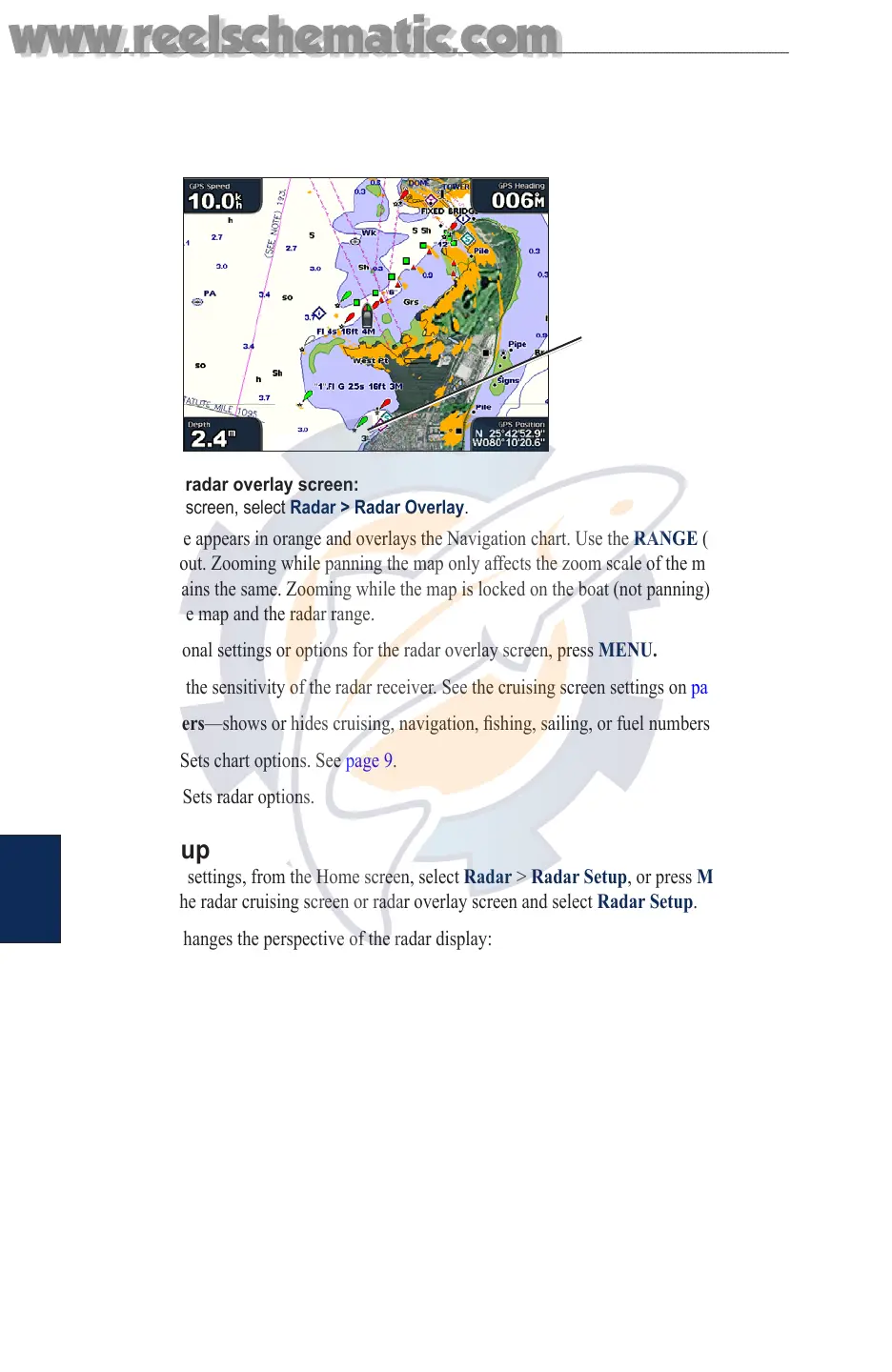
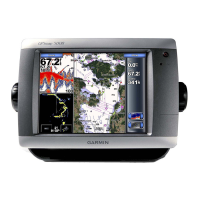
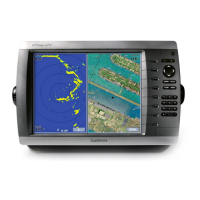
The radar overlay screen places the radar picture directly onto the navigation chart.
To access the radar overlay screen, from the Home screen select Radar > Radar Overlay.
Radar range
To access the radar overlay screen:
From the Home screen, select Radar > Radar Overlay.
The radar picture appears in orange and overlays the Navigation chart. Use the RANGE (+/-) keys
to zoom in and out. Zooming while panning the map only affects the zoom scale of the map. The
radar range remains the same. Zooming while the map is locked on the boat (not panning) affects the
zoom scale of the map and the radar range.
To access additional settings or options for the radar overlay screen, press MENU.
Gain
—controls the sensitivity of the radar receiver. See the cruising screen settings on page 40.
Overlay Numbers—shows or hides cruising, navigation, shing, sailing, or fuel numbers.
Chart Setup—Sets chart options. See page 9.
Radar Setup—Sets radar options.
Radar Setup
To change radar settings, from the Home screen, select Radar > Radar Setup, or press MENU
while viewing the radar cruising screen or radar overlay screen and select Radar Setup.
Orientation—changes the perspective of the radar display:
Heading Up—sets the radar display to the current track heading.
North Up—sets the top of the radar display to a north heading.
Course Up—sets the radar display so the direction of navigation is always up. The heading line
will appear vertically on the screen if it is shown.
Heading Line—shows or hides a line in the direction of travel.
Rings—shows or hides the radar range rings.
Look-Ahd Spd—shifts your current location toward the bottom of the screen as your speed
increases. Enter your expected top speed for best results.
Timed Xmit—sets and customizes a transmit/standby cycle. Dene the transmission time
(Xmit Time) and standby time (Stdby Time) in minutes.
•
•
•
www.reelschematic.com
www.reelschematic.com



 To Next Page