GPSMAP 4000 Series Owner’s Manual 19
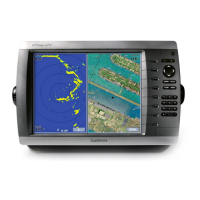
uSInG combInatIonS
USinG
CombinationS
To customize the screen combinations:
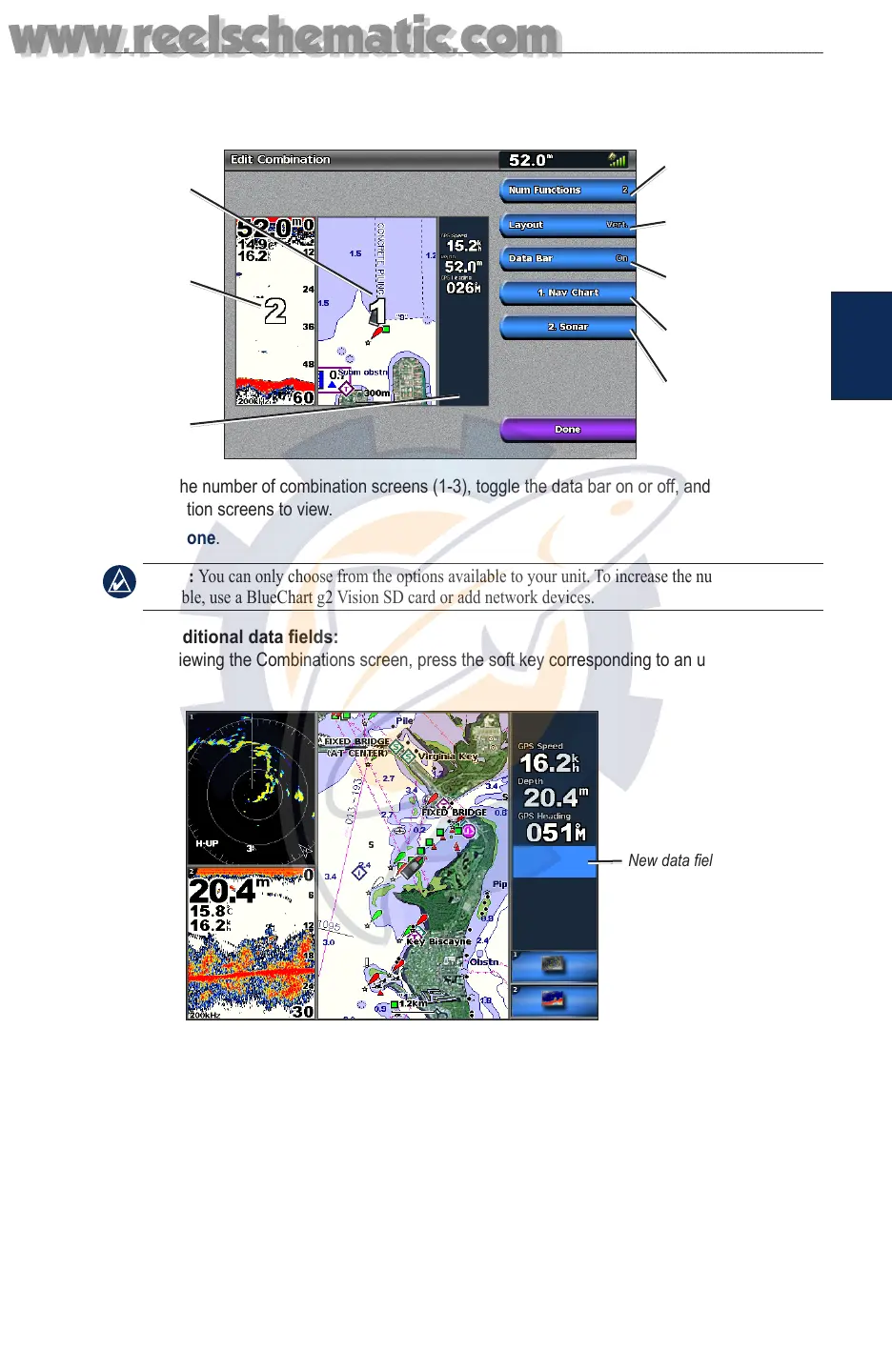
1. While viewing the Combinations screen, select MENU > Change Combination, or, from the
Home screen, select Combinations > Unused Combo (if one is available).
Combination
screen 1
Combination
screen 2
Data bar
Select the number of
combination screens
Change combination
screen 1
Change combination
screen 2
Toggle the
data bar
Change to vertical or
horizontal layout
2. Select the number of combination screens (1-3), toggle the data bar on or off, and choose the
combination screens to view.
3. Select Done.
NOTE: You can only choose from the options available to your unit. To increase the number of screens
available, use a BlueChart g2 Vision SD card or add network devices.
To add additional data elds:
1. While viewing the Combinations screen, press the soft key corresponding to an unused data
eld.
Adding a Data Field
New data eld
2. Select the Digital Item to be displayed on the Combinations Screen. Available options vary, based
on the unit and network conguration.
To edit an existing data eld:
While viewing the Combinations screen, press a soft key corresponding to a data eld. Select the
item to be displayed.
To change the layout to horizontal or vertical:
1. While viewing the Combinations screen, select MENU > Change Combination.
2. Select Layout Ver. or Layout Horiz.
www.reelschematic.com
www.reelschematic.com



 To Next Page