RX Series User Manual
Automatic-Aligning System
5-6
Note:
Before adjusting the AAS II settings, please proceed scaling for width and length.
The blade offset value isn’t set for this test graphic, please set it according to the
blade you use.
If you have any question, please contact us or your local distributor for assistance.
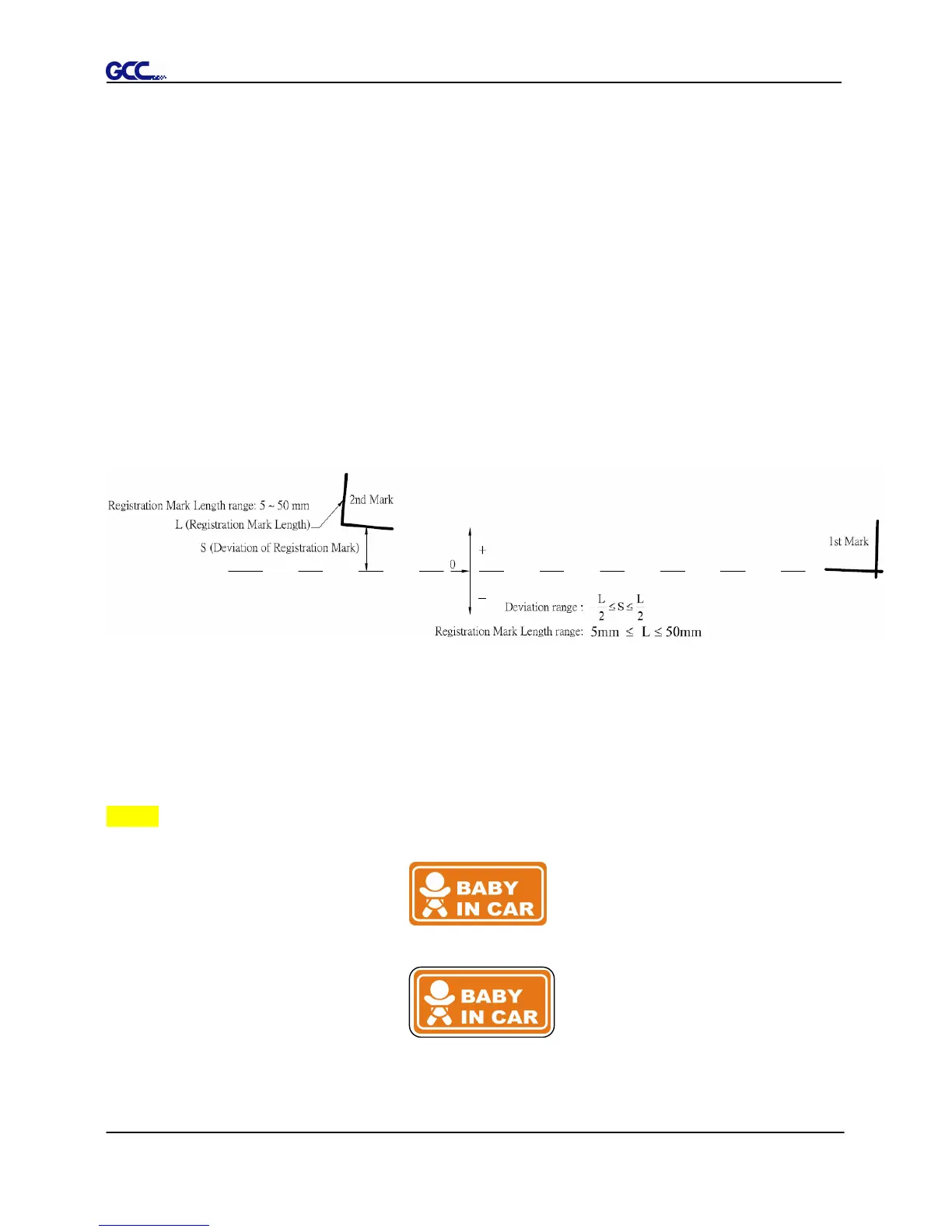
5.4 Registration Mark Offset Range
Please correctly load your media (refer to the alignment ruler on the platen) to make sure the
registration marks are successfully detected. Deviation exceeds the range below will lead to
detection failure.
5.5 Contour Cutting
For accurate contour cutting with AAS function, please proceed the following steps:
Step 1 Creating Graphics
■ Create the graphic that you want to print and cut in your software.
■ Create a contour for cutting around the graphic.
TIPS1: Leave some space between the graphic and contour line.
TIPS2: Create the contour in a separate layer and assign a different color for it.



 To Next Page