Operating Your Computer 2-11
Term Action
Drag and
drop
Press lightly on the touchscreen and move your finger
until you reach your destination (drag). Finally, release
your finger (drop) when you finish dragging your
selection to the destination. The object will drop into
the new location.
Using Multi-touch Gestures (Optional)
If your computer model comes with multi-touch-capable screen and
Windows 7, you can interact with your computer by placing two fingers on
the screen. The movement of the fingers across the screen creates
“gestures,” which send commands to the computer.
Here are the multi-touch gestures that you can use:
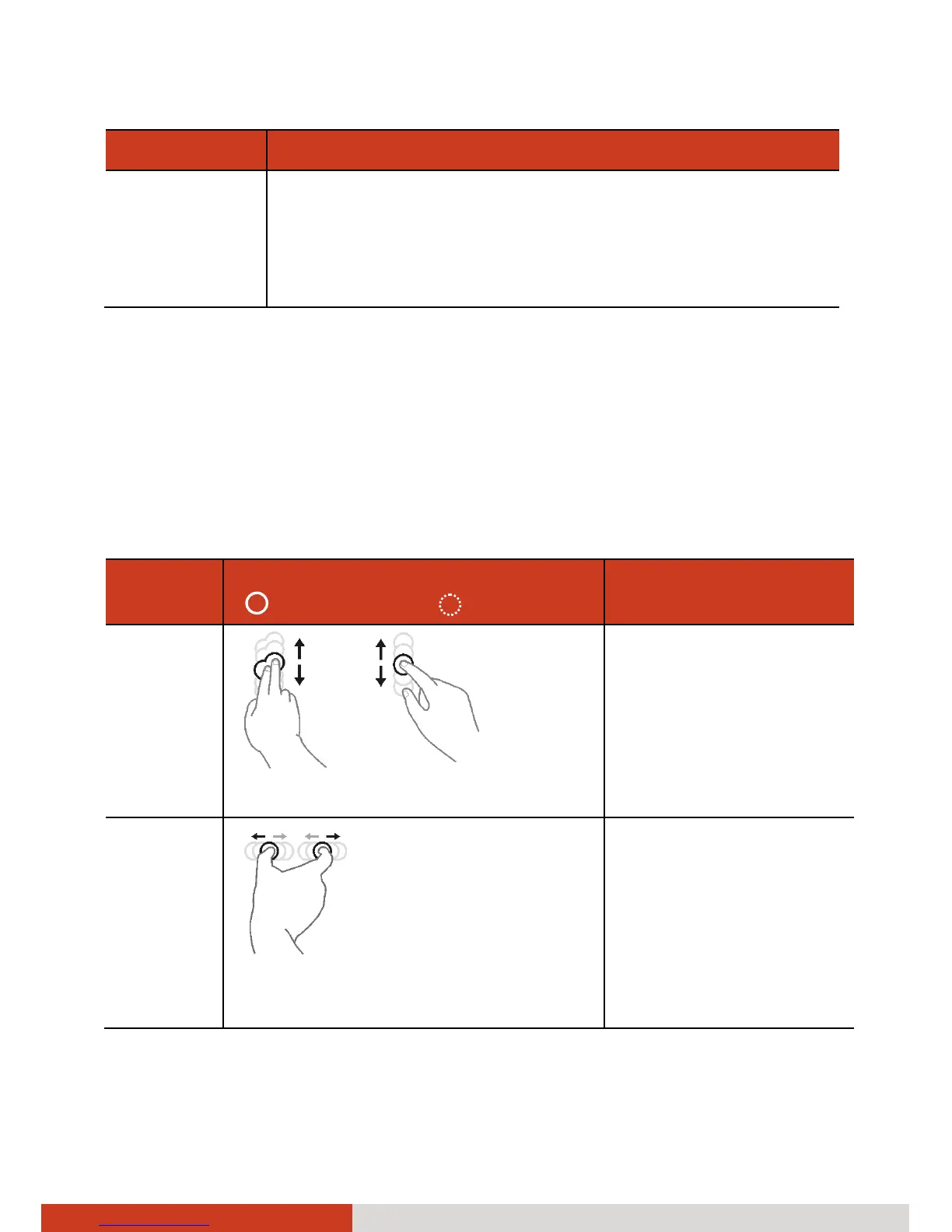
Gestures Actions
( = finger down; = finger up)
Descriptions
Pan
(Scroll)
or
Drag 1 or 2 fingers up or down.
Use panning to see
another part of a page
that has scroll bars.
Zoom
(Pinch)
Move two fingers apart/toward each
other.
Use zooming to make
an item (a photo for
example) on the screen
larger or smaller. The
gesture works in
applications that
support mouse wheel
zooming.



 To Next Page