2-24
Operating Your Computer
If you want to turn off all wireless radio, slide the RF switch to the OFF
position.
Connecting to a Wireless Network
1. Make sure that the WLAN function is enabled (as described above).
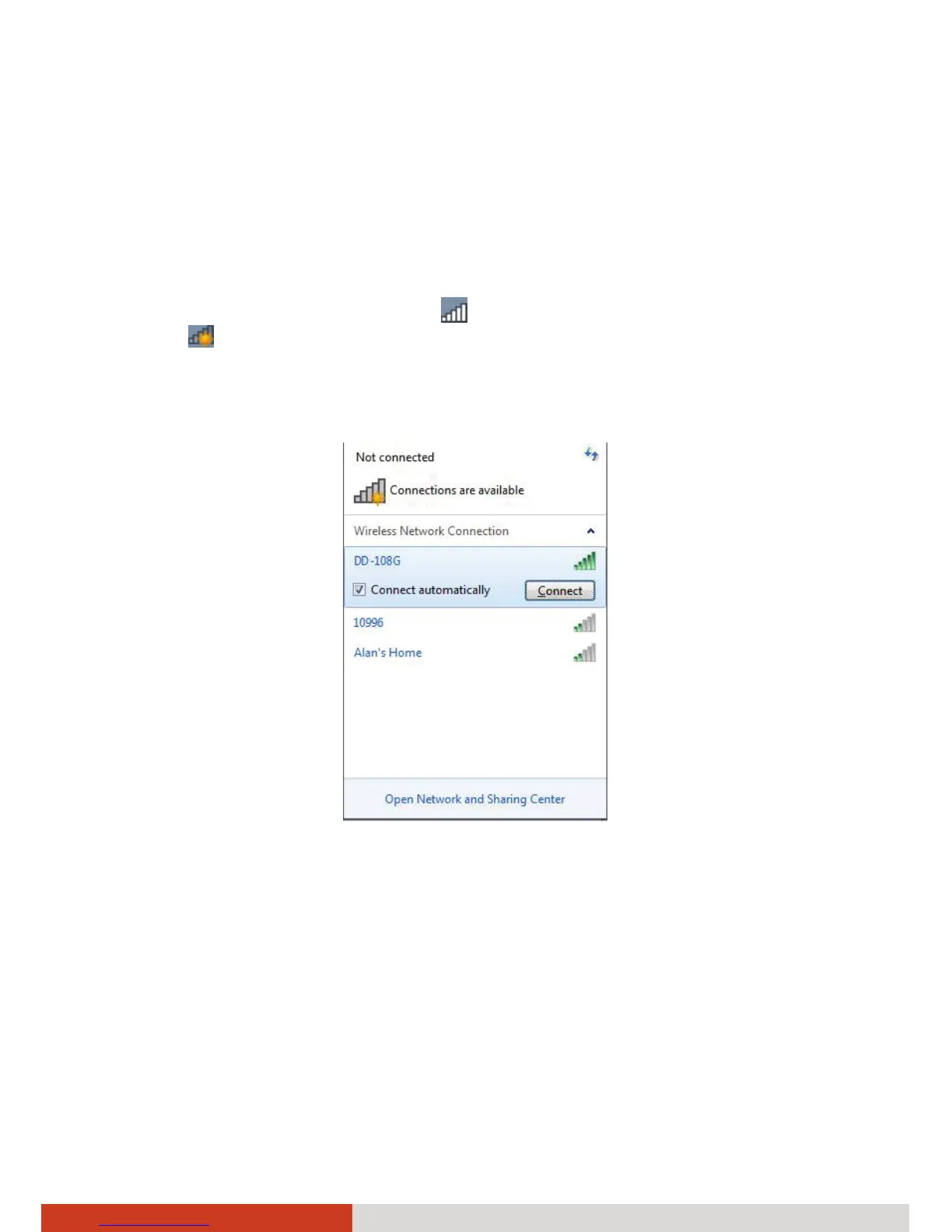
2. Tap the Wireless Network icon
on the taskbar. (An orange light in the
icon
indicates connections are available.)
3. In the list of available wireless networks, tap a network, and then tap
Connect.
4. Some networks require a network security key or passphrase. To connect
to one of those networks, ask your network administrator or Internet
service provider (ISP) for the security key or passphrase.
For more information on setting a wireless network connection, refer to
Windows online help.
NOTE: You can use Intel® PROSet Wireless to take full advantage of the
WiFi capabilities of your computer. See the Help of the utility for
instructions.



 To Next Page