GKB 4CH/8CH VFire Server
29
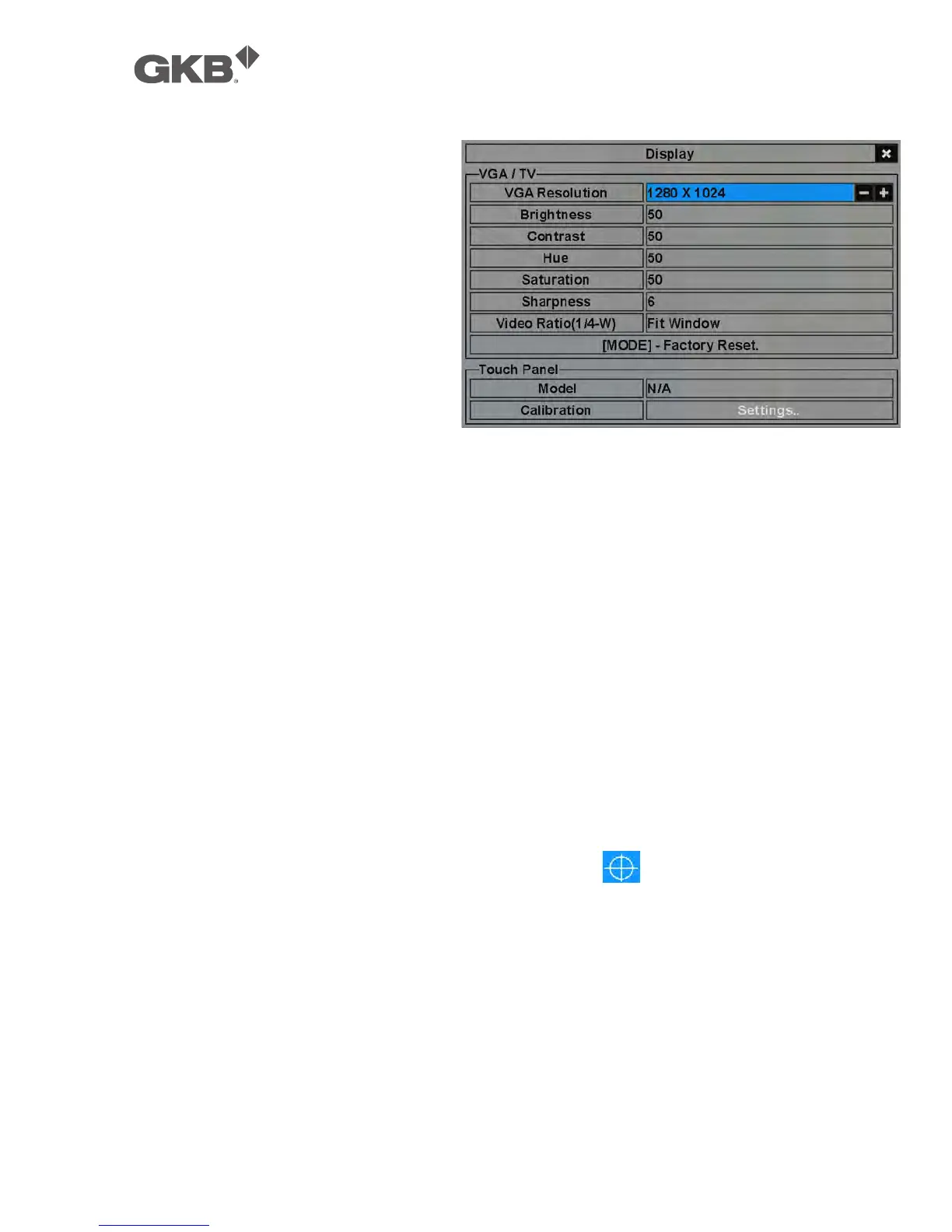
5.4 Display
In Menu display, press ▲▼◄► to
change the highlighted option to
Display, and then press ENTER to
call up Display dialog as shown.
There are several items which can
be adjusted, including Resolution,
Brightness, Contrast, Hue, etc.
Besides, Touch panel models
LP080S/LOF150B5A are also
supported. The operations are as
below:
n ▲▼ (Mouse: Click in the respective item)
Press these buttons to select the items.
n +/-
Press these buttons to adjust the selected item.
n MODE (Mouse: Left click)
Press this button to restore the items above to factory default values.
n Touch Panel Model – the models supported are LP080S/LOF150B5A. Press
+/- buttons to change the supported model. If your touch panel is not listed,
you may still select one of the supported models, and use Calibration Settings
to try to calibrate the touch panel. However, it’s not guaranteed to be
successful.
n Calibration Settings.. – used to calibrate the touch panel. Press ENTER (Mouse:
Left click) in Settings.. to call up Calibration display for the touch panel. Please
follow the screen instructions to touch the center of mark until successful
or failed.
n ESC (Mouse: Right Click)
Press this button to escape from this screen, and return to Menu display. If
the contents have been modified, a Save dialog will be shown to ask the user
to save the changes, press ENTER to exit and save, ESC (Mouse: Right Click) to
exit without saving. Please note that the display may not be able to support
the resolution selected, and hence the display will show nothing after reboot.
If so, please press MENU, ◄, ENTER, MODE, ESC, ENTER one by one to reset the
settings to default. The system will reboot again.



 To Next Page