GKB 4CH/8CH VFire Server
30
5.5 Backup Device
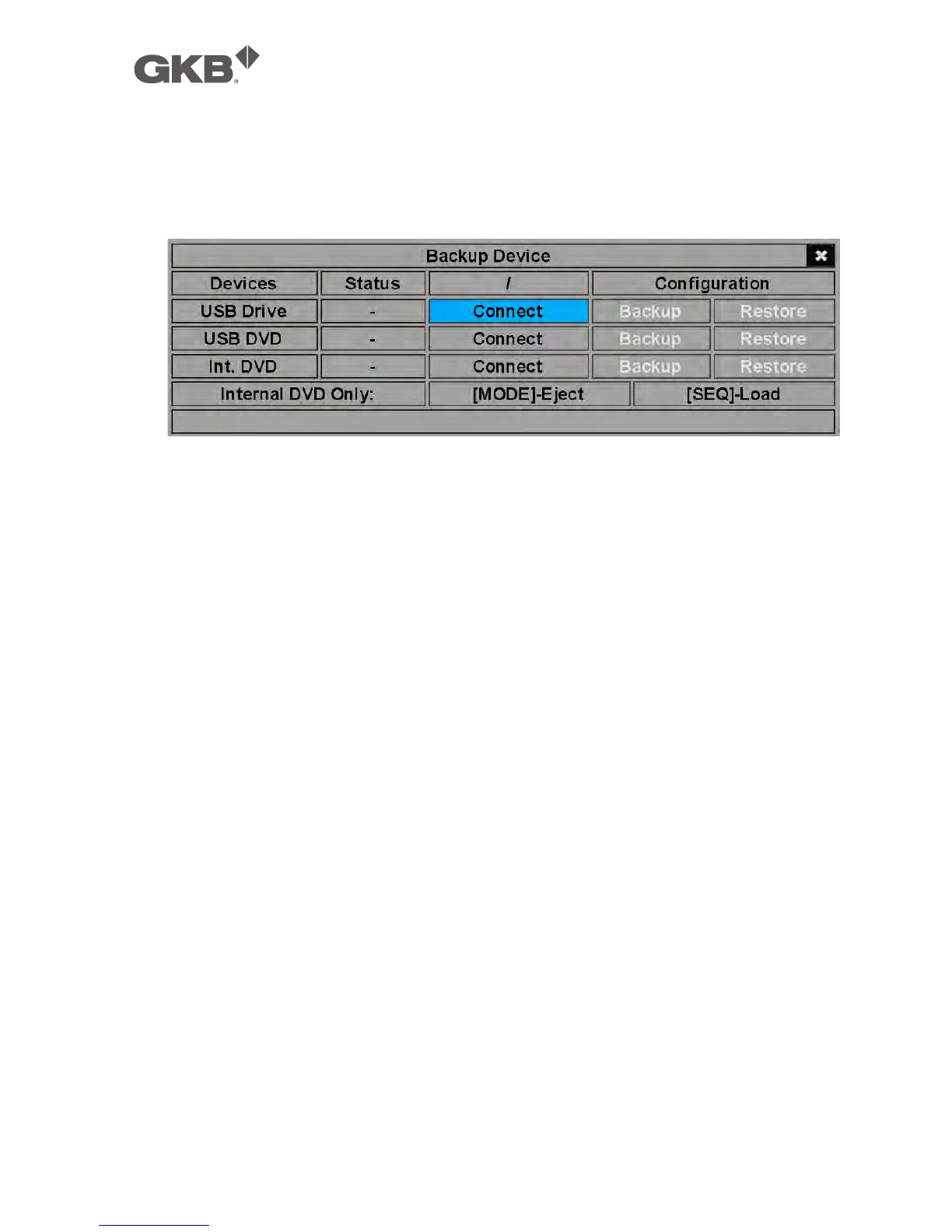
In Menu display, press ▲▼◄► to change the highlighted option to Backup
Device, and then press ENTER to call up Backup Device display as shown below.
The system supports a variety of USB 2.0 storage devices, including Storage Disk
such as USB 2.0 storage disk drives and DVD Disc (including DVD+RW, DVD+R,
and DVD-R). (DVD-RW is not supported.) The operations are as below:
n ▲▼◄►
Press these buttons to select the items.
n ESC (Mouse: Right Click)
Press this button to escape from this screen, and return to previous display.
n Connect/Disconnect – If the backup device is disconnected (as shown in
Current Status), please plug the device in the USB port and/or insert a DVD for
DVD device, and then press ENTER (Mouse: Left click) to command the system
to connect with it. If the device is already connected (EX. R/W - Read/write, as
shown in Current Status), please press ENTER (Mouse: Left click) to command
the system software to disconnect with the device, and then unplug the device
from the backup port.
Note 1: DO NOT format the DVD disc for better performance and compatibility.
Note 2: Before using USB pen drive, please format it to FAT32 file system by
MS-Windows.
Note 3: The backup device has to be connected by the system software before it
can be used to read/write. If it failed to connect, please unplug the
device, and then plug the device in the USB port again.
Note 4: Some backup devices may have compatibility problems. Please contact
your local dealer or installer for the supported devices.



 To Next Page