GKB 4CH/8CH VFire Server
40
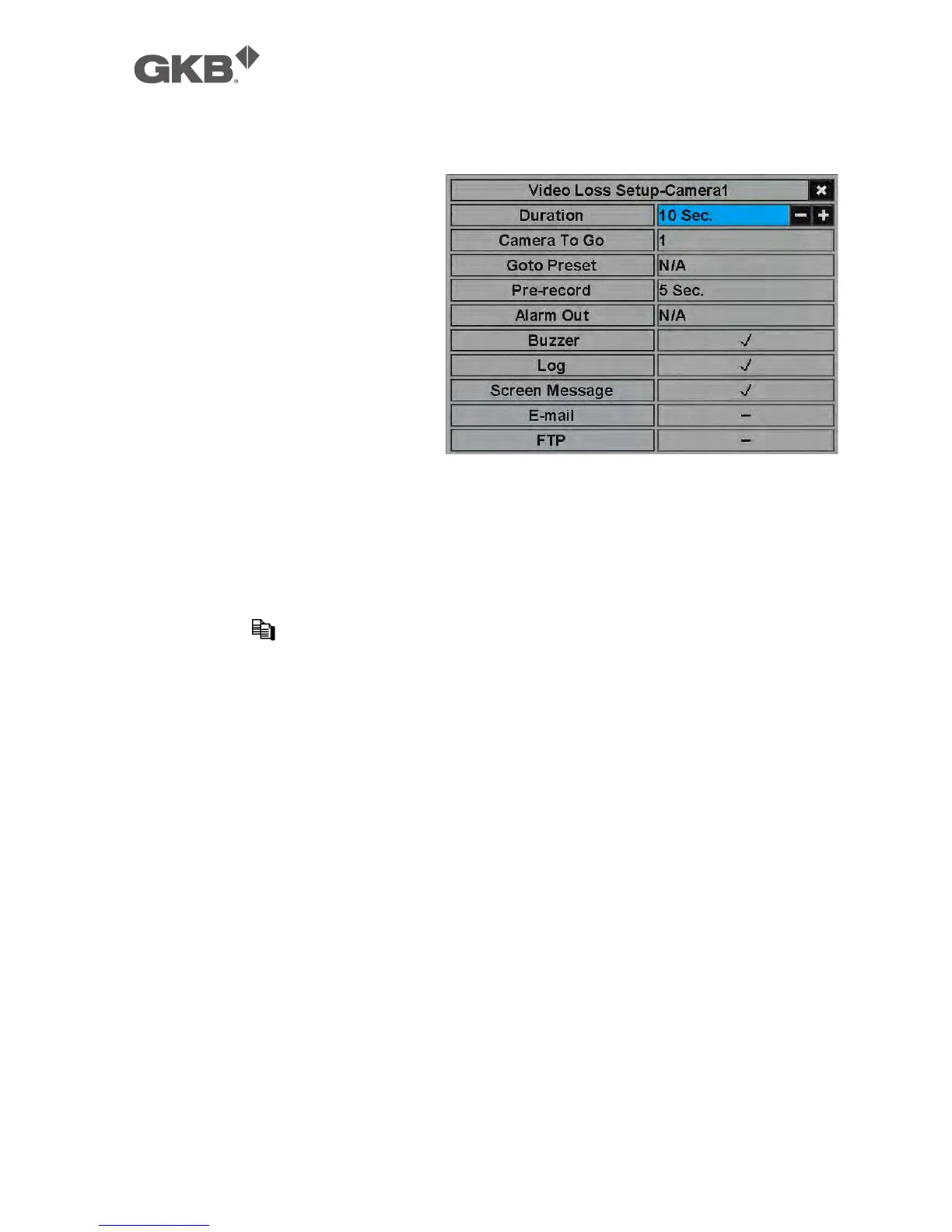
6.2.1 Video Loss Setup
In Camera Setup, press ENTER to
call up Video Loss Setup of the
selected camera as shown when
the highlighted option is Video
Loss Settings.. of the camera to
setup. The Video Loss Setup
allows the administrator to define
how the system responds to the
detected video loss for the
camera.
The general operations are as
below:
n ▲▼(Mouse: Left click)
Press these buttons to select the items.
n Numeric (ENTER)
Press these buttons to select the camera.
n COPY ( )
Press this button to copy the Video Loss settings of the focus camera to all the
following cameras. (EX. focus camera is 1, its Video Loss settings will be
copied to those of cameras 2-8/4.)
n ESC (Mouse: Right Click)
Press this button to escape from this screen, and return to Camera Setup
display. If the Save dialog is shown, press ENTER to exit and save, ESC
(Mouse: Right Click) to exit without saving.
Following is a brief description for each item and its specific operations:
n Duration – response duration to define at most how long (in seconds) the
Alarm Out relay and the Buzzer will keep being triggered after video loss is
detected for this camera. However, the Alarm Out relay and the Buzzer will
be reset immediately once the camera returns to normal. Press +/- buttons
to adjust the value (3 seconds - 60 minutes, discrete, ‘-‘ for ‘Forever’).
n Camera to go – the camera to go to the preset position in next field after video
loss is detected for this camera. “Camera to go” camera must be a PTZ
camera.



 To Next Page