GKB 4CH/8CH VFire Server
36
buttons to change the setting.
n Watermark – to record with digital watermark or not. If yes, all the recorded
images for all the cameras will have digital watermark embedded. Press
ENTER or +/- (Mouse: Left click) to check/uncheck this item. The default
setting is “ˇ” - checked.
n Type – whether this camera is IP CAM or N/A. If IP CAM, the IP CAM settings
will be settable. Press +/- (Mouse: Left click) to change the type.
n Resolution – the record resolution for the camera. For IP CAM, it can be 1080p,
720p or D1. Press +/- buttons to select the resolution.
n PTZ – Whether it’s a PTZ camera. Press +/- buttons to change the value (N/A
or Yes). The default setting is “N/A” – Not Available, which means that it’s not
a PTZ camera.
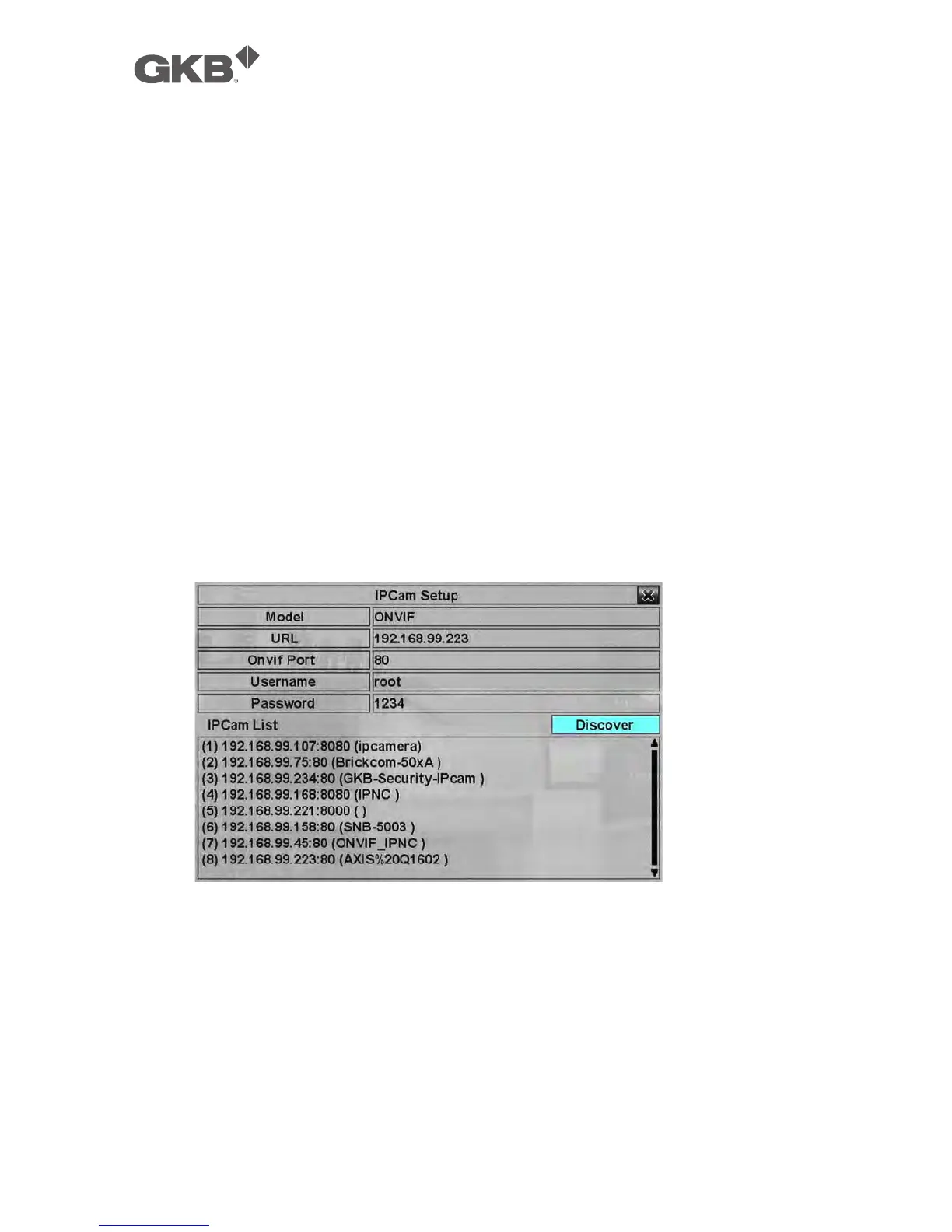
n IP CAM Settings.. – used to setup the IP CAM related settings for this camera.
Press ENTER (Mouse: Left click) in Settings.. to call up IP CAM Setup display for
the camera as shown below.
Please select ONVIF for the IP CAM that can support ONVIF profile S, or RTSP for
IP CAM that cannot. For ONVIF, user can click on Discover to discover the IP
CAM in the LAN automatically, and then click on the IP CAM in the list for the
URL and Onvif Port. For RTSP, please enter Main Stream URI and Dual Stream
URI manually. Please also enter the correct Username and Password for the
IP CAM. Please note that camera setup is not supported for RTSP. However,
live/network view, record, and playback are supported, but users need to
configure the bit rate and the frame rate of main/dual stream manually so that
the Max. incoming bandwidth won’t be exceeded.



 To Next Page