GKB 4CH/8CH VFire Server
90
Press this button to display the GPS/POS data if there’s GPS/POS data
accompanied with the playback camera. Please select the Type (GPS or POS),
Position, Background, Rows, and number of Characters on the screen, and
then press ENTER to display the GPS/POS data, or ESC to cancel. Press ENTER
again to not display it.
n MENU (Mouse: )
At playback, press this button for the snapshot of the playback video. A
confirmation dialog will be shown, press ENTER to snapshot, ESC (Mouse: Right
Click) to exit without snapshot. The snapshot picture will be saved in the
directory /Snapshot in the connected backup device.
n Copy ( ) (Mouse: )
Press this button to copy or stop copying the playback video/audio to the
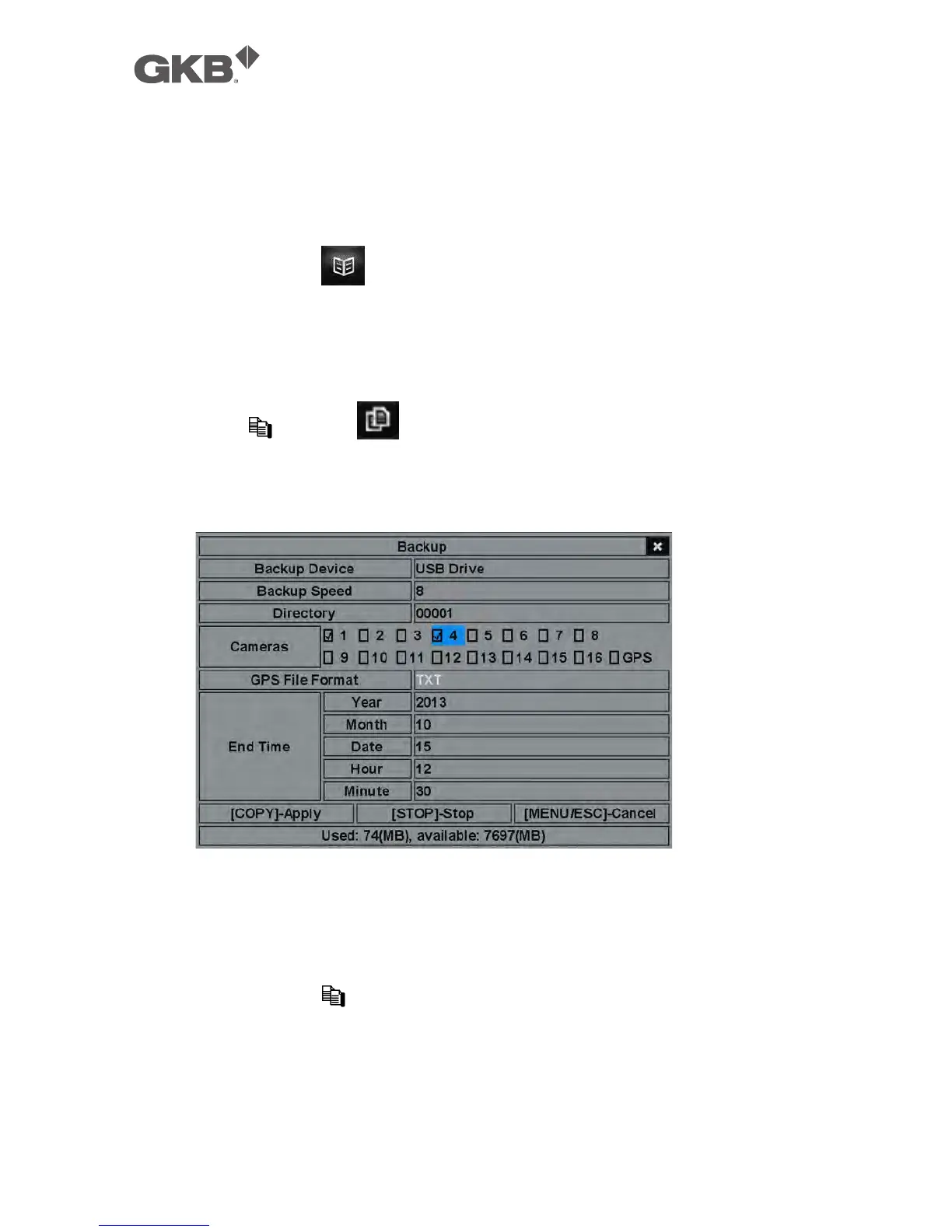
storage device connected to the USB port. The Backup display will be shown
as below.
Following is a brief description for the operations in Backup display:
n ▲▼◄► (Mouse: Left click)
Press these buttons to select the items.
n Copy Button ( ) (Mouse: Left click)
Press this button to start backup (copy) or apply the revised settings if it’s
copying, and return to the previous display. There will be a Copy icon on
the lower-right corner indicating that the selected video/audio is being
archived to the storage device. For DVD disc, the files won’t be written to



 To Next Page