GKB 4CH/8CH VFire Server
92
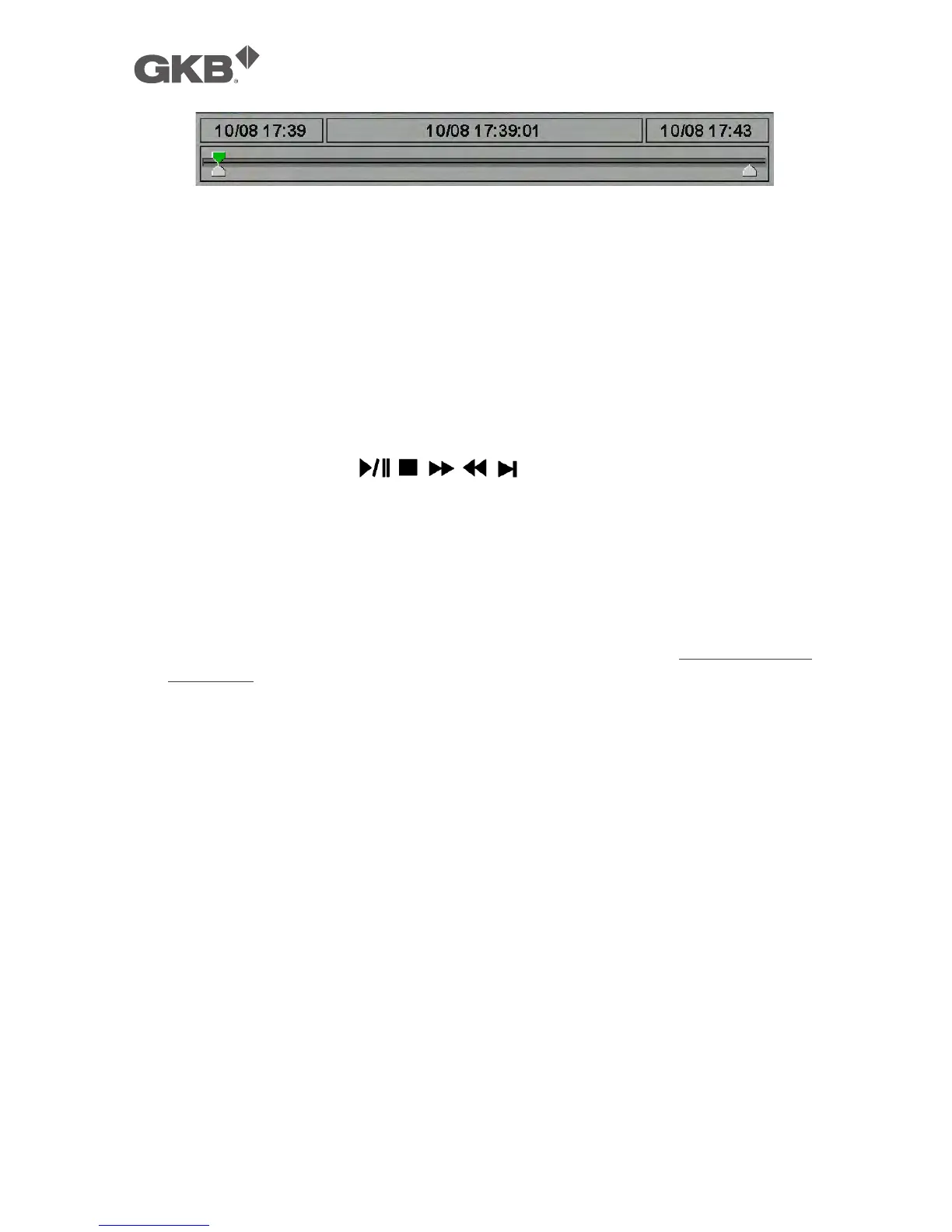
The left-most is the start time and its slider, the right-most is the end time and
its slider, and the middle is the current playback time and its slider. Following
is a brief description for the operations in playback slider bar:
n ▲▼ (Mouse: Left click)
Press these buttons to select the focus slider.
n ◄► repeatedly & ENTER Button (Mouse: Left click and drag)
Press ◄► repeatedly and then press ENTER to move the focus slider to a
new time. The whole playback slider bar will be updated accordingly.
n Playback Buttons ( , , , , )
These playback buttons are still operational as described above.
n ESC (Mouse: Right Click)
Press this button to not show the playback slider bar.
Except the playback buttons, the user can still do all the other operations in
split-window display as if there is no playback. Please refer to Section 4.3 Basic
Operations for the operations of the other buttons.
Note : The format of the GPS filename is YYYYMMDD-hhmmss.txt (or .kml), where
YYYY stands for year, MM month, DD date, hh hour, mm minute, and ss
second. GPS file can be displayed in the archived file list, but cannot be
played. Please use GPS applications such as Google Earth, PaPaGO, etc.
to read/convert its contents.
Note : For each camera and each backup, a batch file will be generated as well as
the backup files. A directory “/SelfPlayer” will also be generated if it’s
not existing in the backup storage device. The user can use the batch
file to self-playback the corresponding backup files in a PC. If the PC has
not been installed with the required player components, those
components will be installed by running the batch file except Windows
Vista. For Windows Vista, please run /SelfPlayer/SelfPlayerInstall.exe
manually to install the required player components. To copy
self-playback files, please copy the batch file and the backup files to the
destination directory, and copy the whole directory “/SelfPlayer” to the
root directory of the destination device.



 To Next Page