English _17
Live Screen Menu
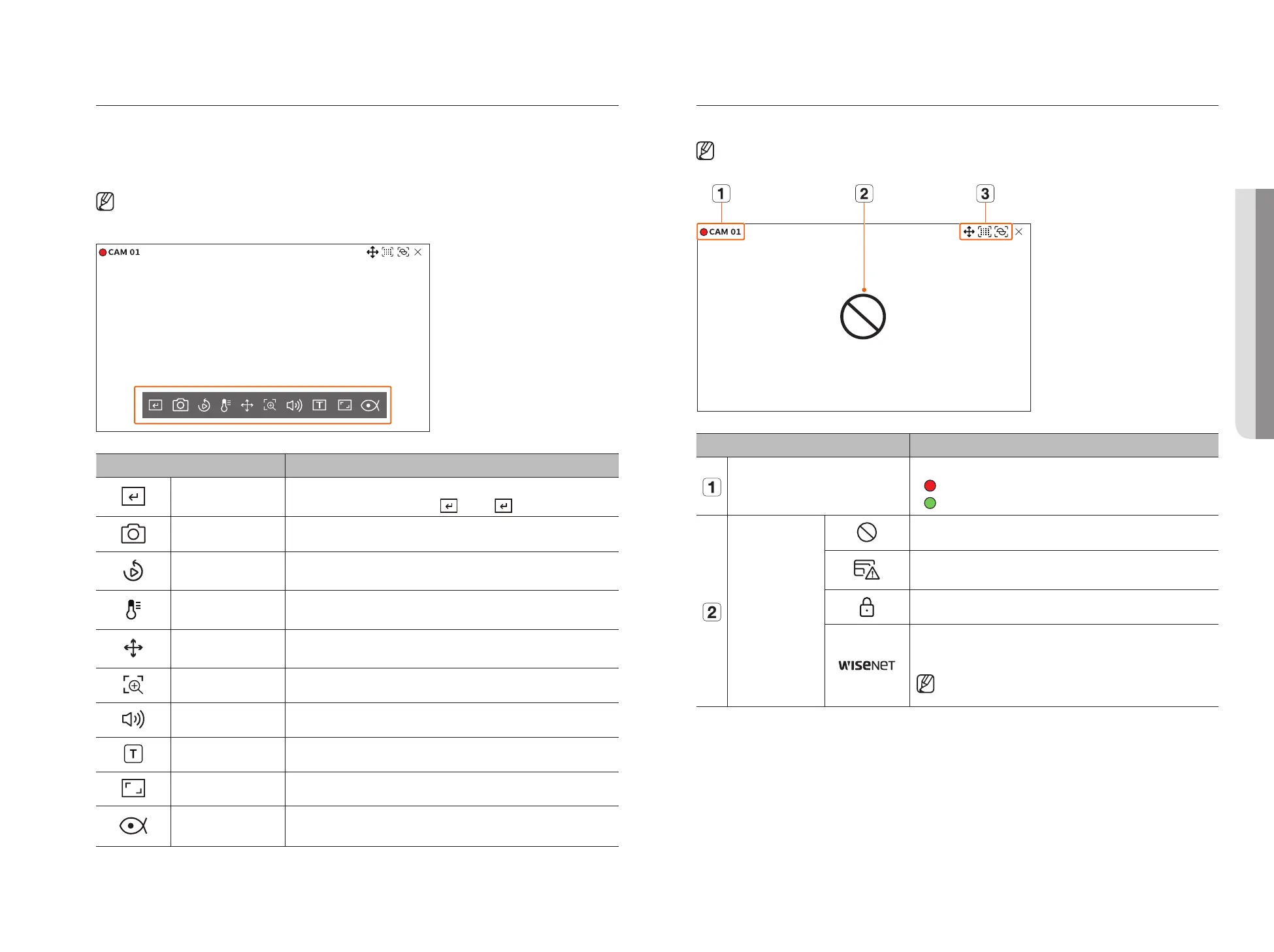
After selecting the desired channel on the split mode, roll the mouse cursor over the screen to see the live screen
menu.
The live screen menu appears differently depending on the recorder operation status or the type of the
registered camera.
■
Each function may be restricted depending on the type of camera and the user's authority.
■
For more detailed information about each function, refer to the table of contents "Live > Camera Video Control".
Item Description
Manual trigger
If the event action for <Manual trigger> is set for the selected channel, the event rule name is
displayed when you hover the mouse over <
>. Click < > to activate the set event.
Capture You can take a screenshot of the selected channel.
Instant Viewer You can rewind 30 seconds while monitoring the video.
Temperature Detection
For images that support the thermal imaging camera function, you can click the desired point to
check the temperature information.
PTZ control
If the network camera connected to the selected channel supports the PTZ function, it changes to
the PTZ control mode.
Zoom in You can zoom in or zoom out the video.
Audio Turns the audio on or off when the audio is connected.
Display Text Turns the text output on or off.
Channel aspect ratio Shows the video in actual proportions.
Dewarping
Enters the setup mode for dewarping the fisheye camera.
■
It works only when the video resolution is 1:1. Some models do not support this function.
Icons on the Live Screen
You can check the status or operation with the icons on the live screen.
■
The icons displayed on the screen may differ depending on the type of camera and the user's authority.
Item Description
Recording status and camera name
Displays camera's recording status and name.
●
: Displays the event recording.
●
: Displays the normal recording.
Video input status
Displayed when there is no input while the camera is on.
Displayed when the resolution of the live video exceeds the supported range while the
camera is on.
Displayed if no permission to live view is granted.
Displayed when the camera is not registered.
If you set the channel setup to <Covert2>, nothing will be displayed on the live screen.
■
If you set the channel setup to <Covert1>, the video will not displayed on
the live screen, but only the OSD will be displayed.
• LIVE



 To Next Page