English _89
FULL SCREEN MODE
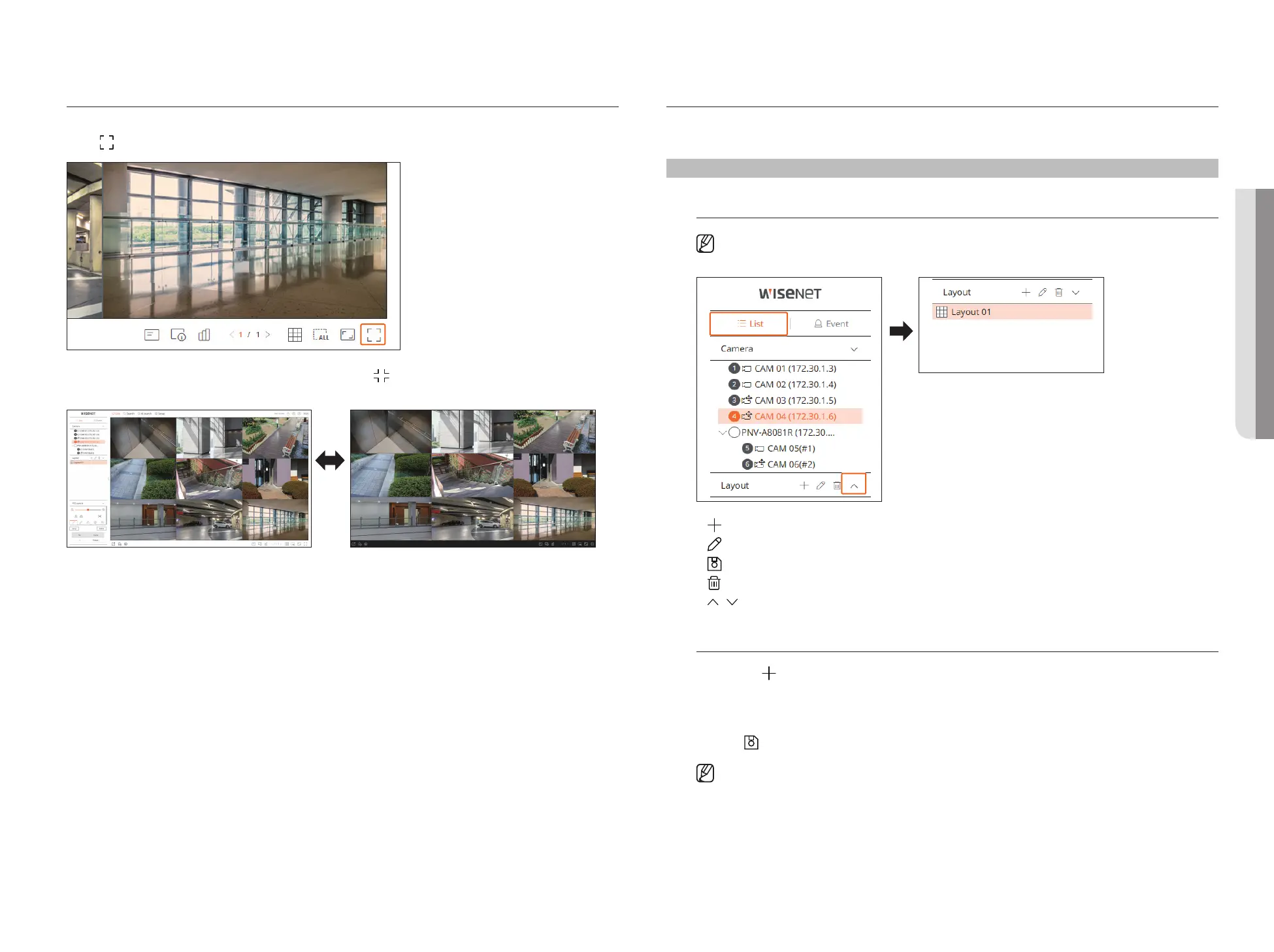
You can change to full screen mode, which has no top/bottom/left/right areas of the live screen.
Click <
> at the bottom of the screen.
To exit the full screen, press the ESC key on the keyboard or click < > at the bottom of the full screen mode.
General mode Full screen mode
SETTING UP THE LIVE LAYOUT
This section outlines how to select a series of channels based on their purpose/accessibility and monitor them in a
single layout.
Live > List
Check Layout List
■
The operating specifications may differ depending on the recorder model.
●
: Create a new layout.
●
: Change the channel or name of the layout.
●
: Save the changed layout.
●
: Delete the added layout.
●
/ : Open or close the layout list.
Add Layout and Set Name
1. Click the < > button.
2. Set the name of the layout.
3. Double-click a channel to display on the layout screen from the camera list.
4. Click <
> to save the set layout.
■
The default layout of the live viewer consists of a 4-split screen.
■
Each layout is saved separately by the user.
• LIVE VIEWER



 To Next Page