English _87
CHECKING THE ALL CAMERA STATUS
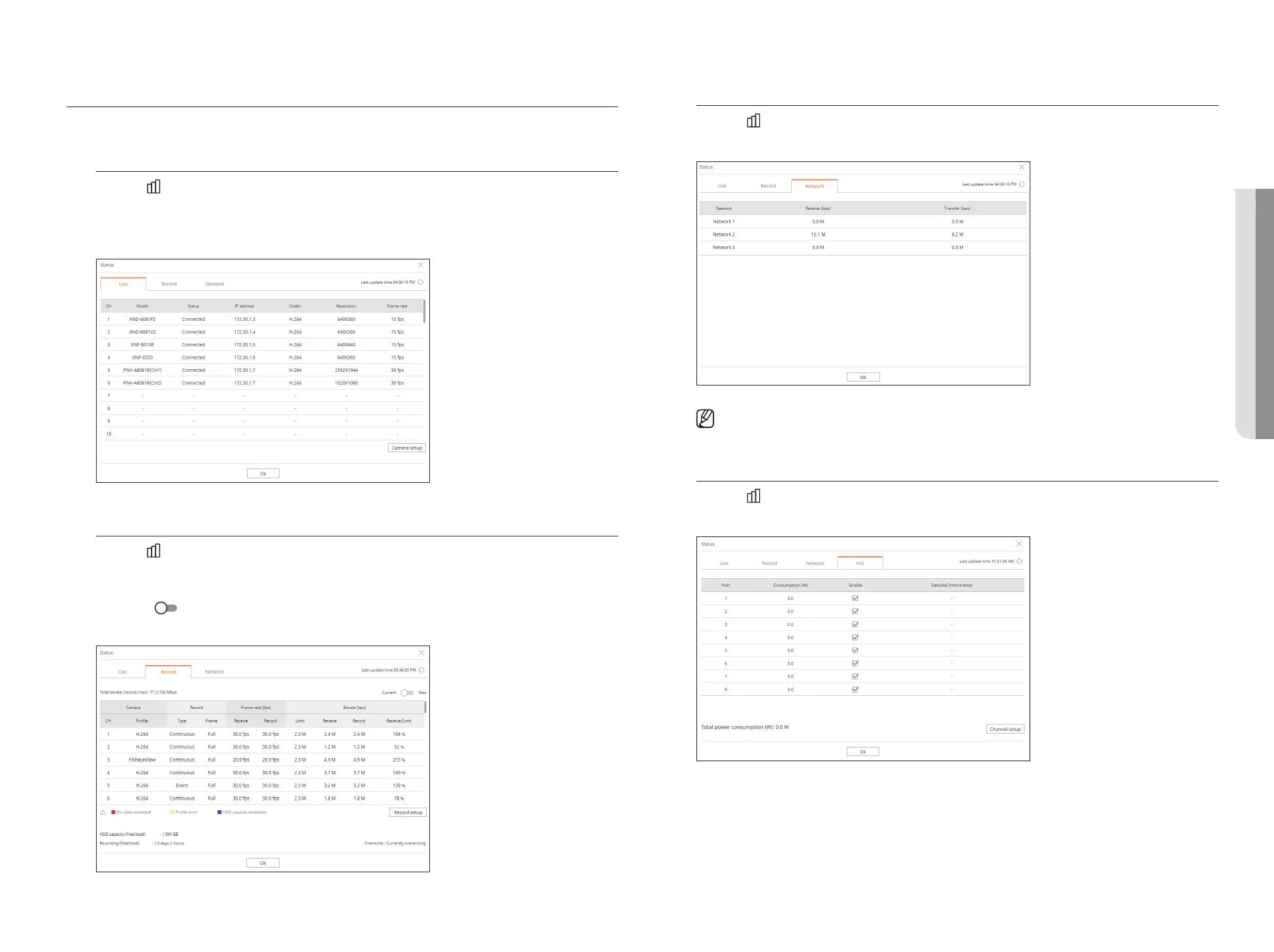
You can check the status of all cameras connected to the recorder.
Live Status
Click the < > button. You can check the status and transmission information of the camera connected to each
channel.
■
To change the profile setup, click the <Camera setup> button. For details on how to set up the profile, refer to the "Setup > Setting the Camera >
Setting the Profiles” page in the Table of Contents.
Record Status
Click the < > button, followed by the <Record> tab.
You can check the profile, record type, frame rate (Input/Record), and bit rate (Limit/Input/Record) for each
channel.
■
Use <Current Max> to check the current recording status and maximum recording setting value.
■
To change the profile setup, click the <Record Setup> button.
Network Status
Click the < > button, followed by the <Network> tab.
You can check the status of network bandwidth currently being received/transmitted.
■
Each product supports a different number of network ports.
PoE Status
Click the < > button and then click <PoE>.
You can check the current PoE status of each port.
■
This function is only available for products that support PoE.
• LIVE VIEWER



 To Next Page