92_ live viewer
live viewer
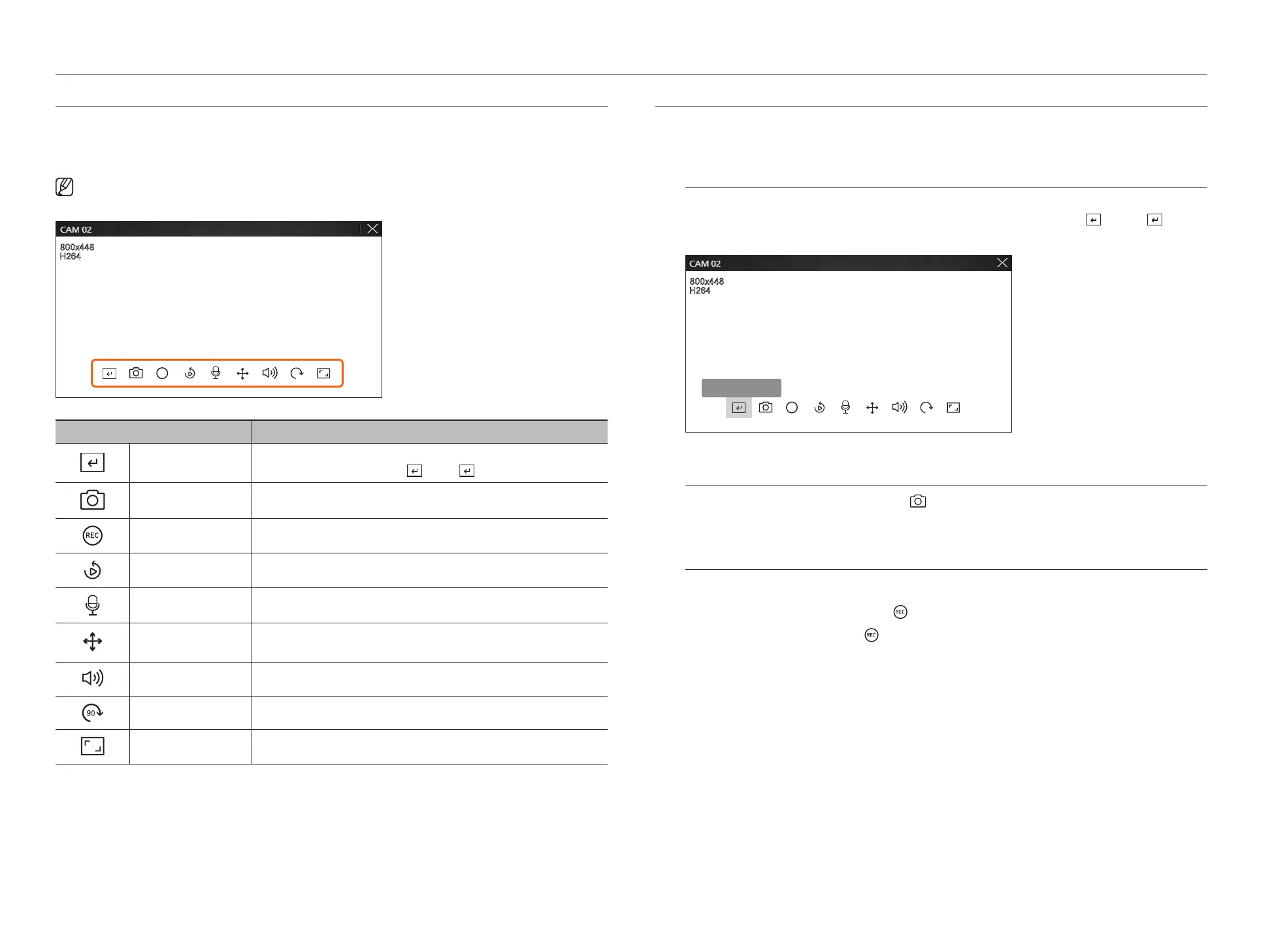
LIVE SCREEN MENU
After selecting the desired channel on the split mode, roll the mouse cursor over the screen to see the live screen menu.
The live screen menu appears differently depending on the recorder operation status or the type of the registered
camera.
■
Each function may be restricted depending on the type of camera and the user's authority.
REC
90
Menu Description
Manual trigger
If the event action for <Manual trigger> is set for the selected channel, the event rule name is
displayed when you hover the mouse over <
>. Click < > to activate the set event.
Capture You can take a screenshot of the selected channel.
PC REC Images can be saved on a PC.
Instant viewer During monitoring, you can rewind 1 minute before playback.
Microphone Turns the microphone on or off on your PC.
PTZ control
If the network camera connected to the selected channel supports the PTZ function, it changes to the
PTZ control mode.
Audio Turns the audio on or off when the audio is connected.
Image rotation Rotates the video to display.
Channel aspect ratio Shows the video in actual proportions.
CAMERA VIDEO CONTROL
By using the function icon in the video window, you can easily enable functions such as screenshot, video rotation, and
PTZ control.
Manual trigger
If the event action for <Manual trigger> is set for the selected channel in the "Setup > Event > Event rule
setup" menu, the event rule name will be displayed when you hover the mouse over <
>. Click <
> to
activate the set event.
REC
90
Manual trigger 1
Capture
Select a channel to capture video and click the < > button.
The captured image is saved as .png file in the download folder.
PC Recording
You can record video on your PC while monitoring.
1. Select the desired channel and click the <
> button to start PC recording.
2. To end the PC recording, click the <
> button.
The recording ends, and the recorded video is saved as .avi file in the download folder.



 To Next Page