98_ search viewer
search viewer
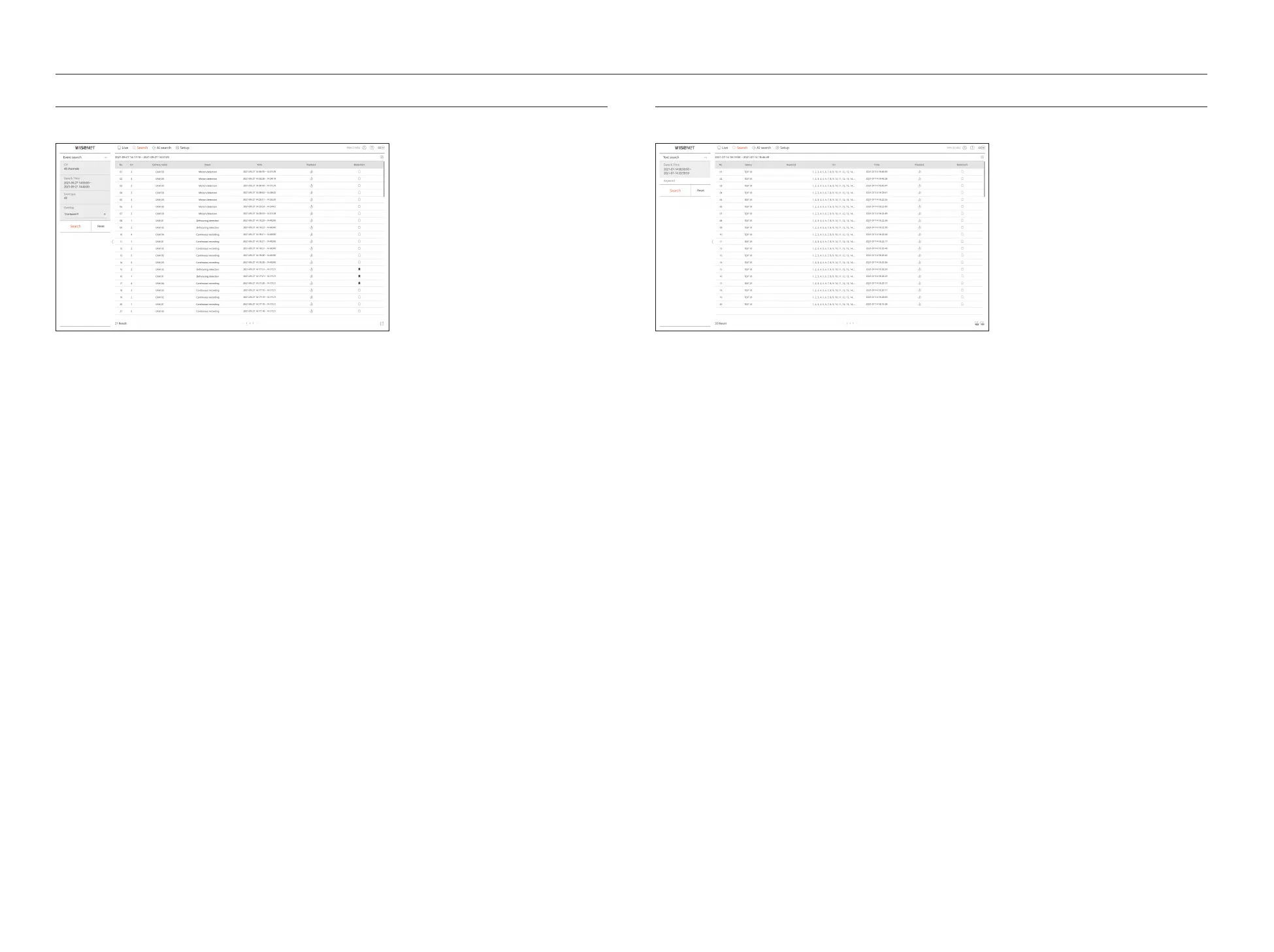
EVENT SEARCH
You can search for various events by channel.
1. Select <Event search> in the <Search> menu.
2. Select a channel to search.
3. Select a date and time to search.
4. Select an event type.
●
Event type options may vary depending on the camera model.
5. Select the overlap.
●
It will be displayed when there is overlapped data in one channel by changing the time or time zone at the
selected time.
6. Click the <Search> button.
The search results list will be displayed.
●
CH : Displays the channel where the event occurred.
●
Camera name : Displays the camera name.
●
Event : Displays the event type of the recorded video.
●
Time : Displays the start time and end time of the recorded video.
●
Playback : Plays the recorded video with an instant viewer.
●
Bookmark : Specifies a bookmark for the recorded video.
TEXT SEARCH
You can search the data input to the POS device connected to the recorder.
1. Select < Text search> in the <Search> menu.
2. Select the date and time to search.
3. Set the event keywords and search condition.
●
Event keyword : You can search for text with preset event keywords. For details, refer to the "Setup > Setting the
Device > Text" page in the Table of Contents.
●
Text search keyword : Enter the text you want to search.
●
Match with case sensitivity : Searches are case-sensitive when checking.
●
Match whole words : Searches for data that exactly matches the characters entered.
4. Select the overlap.
●
It will be displayed when there is overlapped data in one channel by changing the time or time zone at the
selected time.
5. Click the <Search> button.
The search results list will be displayed.
●
Device: Displays the name of the POS device connected to the recorder.
●
Keyword: Displays the searched text.
●
CH : Displays the channel where the event occurred.
●
Time: Displays the start time of the recorded video.
●
Playback : Plays the recorded video with an instant viewer.
●
Bookmark : Specifies a bookmark for the recorded video.



 To Next Page