FAXITRON PATH USER MANUAL | HOLOGIC | REVISION 024
ECTION
ISION
oftware
5
5-14
Dynamic Zoom Adjustment
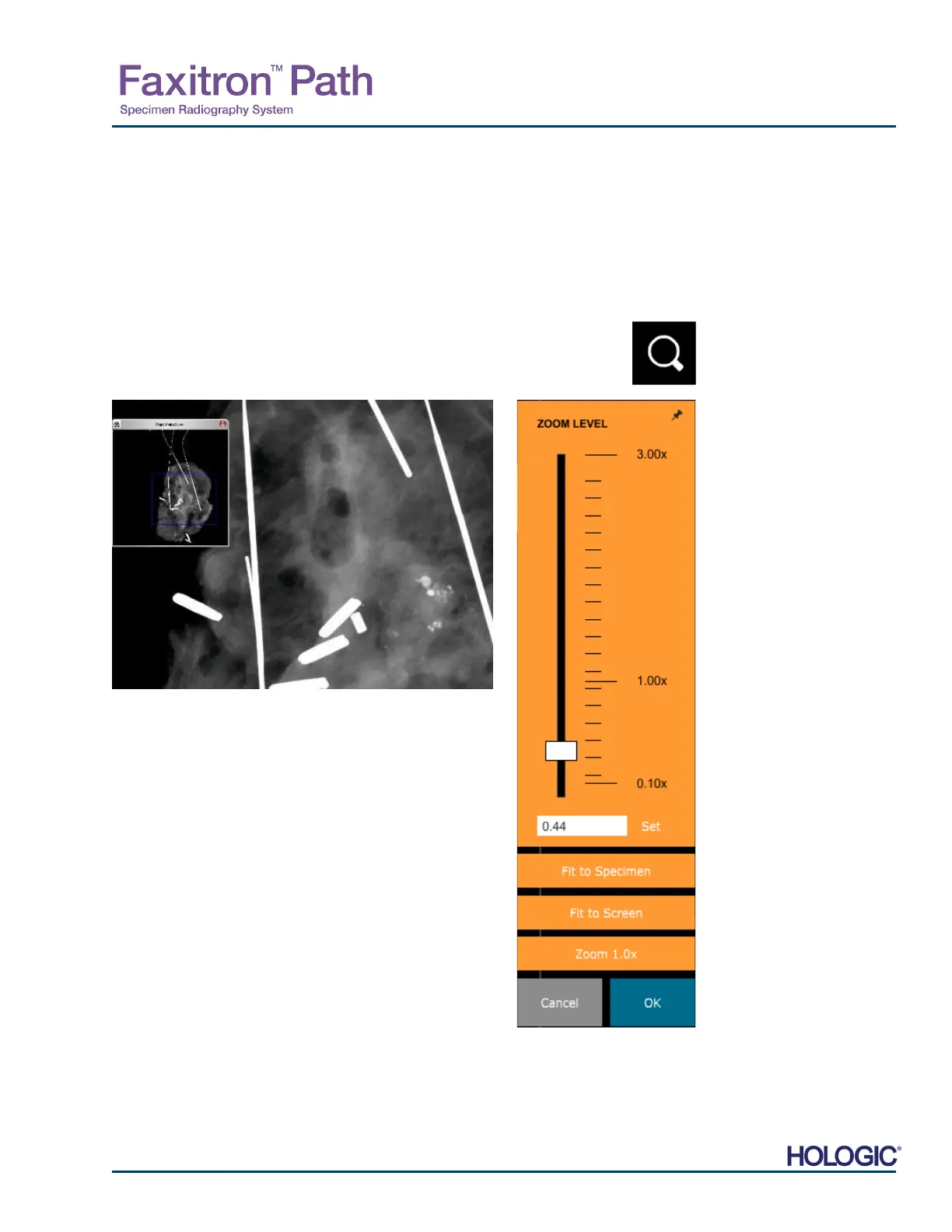
The Zoom Tool icon, Figure 5.4.5, will open the Zoom Adjustment tool. After opening this tool,
the user may use the slider bar to adjust the zoom level, click the button to Fit to Specimen,
Fit to Screen, or Zoom 1.0x (full resolution). See Figure 5.4.6. When the image has been
zoomed in, panning is necessary to navigate around the image. A thumbnail dialog will appea
in the top left corner of the screen, See Figure 5.4.7 below. Click and hold the left button ove
the image and move the mouse to move the image around in the main screen.
Note that traditionally, this feature is also called "Pan View" and/or "Pan and Scan.”
The Fit to Specimen button will attempt to detect and zoom in
onto the specimen as to ensure that the specimen is in full view.
If a specimen is not detected, it will default to the previous mode
(either “Fit to Screen” or “Zoom 1.0x”).
Fit to Screen fits the image to the screen.
Zoom 1.0x is traditionally called “Full Resolution” as it brings the
image to a 1-1 view with the monitor resolution.
5.4.1 Cont.
Figure 5.4.5
Zoom tool icon
Figure 5.4.6
Zoom Level Adjustment tool
Figure 5.4.7
Pan View example (left)













 To Next Page