FAXITRON PATH USER MANUAL | HOLOGIC | REVISION 024
ECTION
ISION
oftware
5
5-34
Default DICOM Servers
This section contains settings for default DICOM servers and to automate some of the
processes when storing, printing or searching PACS and MWL servers.
“Enable Single-Click Auto Store”, “Print” or “MWL Connection” checkboxes allow user to store
or print images or automatically connect to the MWL server. If you use a single PACS serve
for those actions or majority of your work involves a single PACS server, check a desired box
to automate those actions.
“Enable Auto Search When Connecting to MWL Server” will tell the application to automatically
perform a search with default search settings when looking up patient’s data.
“Auto close dialog after N seconds of successful transfer/printing” will automatically close the
DICOM Networking dialog after specified number of seconds passed. The dialog will not close
automatically if there was an error with transfer or printing.
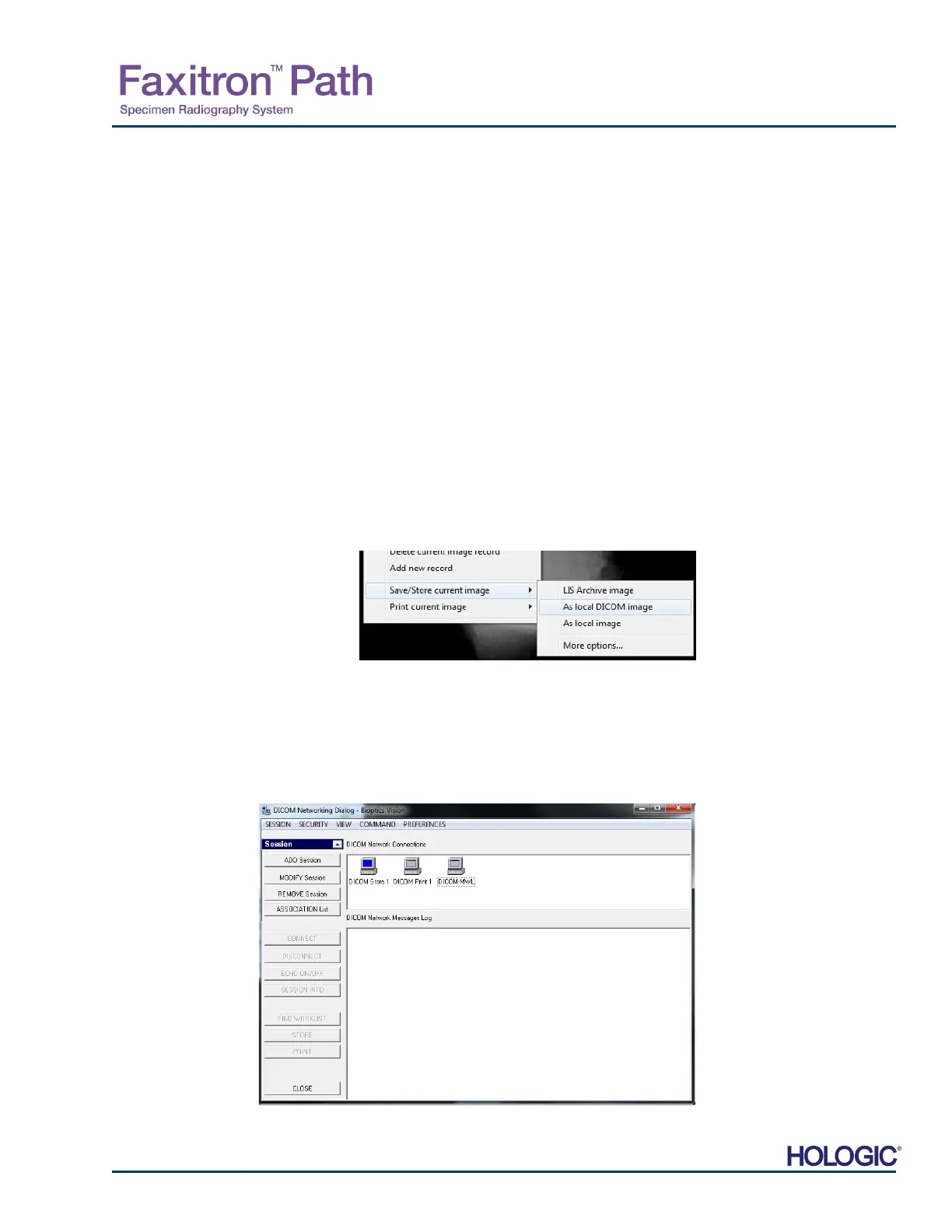
Clicking the DICOM Servers button will open DICOM Networking dialog, where a user can add,
modify or delete DICOM servers. See Figure 5.7.5.
DICOM Save Local
To save the durrent image to a local drive/directory, right click anywhere in the image. This will
display the dialog box shown in Figure 5.7.4 below. Click “Save/Store current image” then “A
Local DICOM image”. This will bring up the standard Windows File Save Dialog. Browse or click
through to the desired directly/folder, enter the file name and click Save.
PACS STORE and PACS PRINT
The Vision software allows for PACS (DICOM) Store and PACS (DICOM) Printing. These
options are available throughout the software. For example, if the PACS Store button is
selected, the following DICOM Networking Dialog window can be displayed. This Dialog box
allows the user to do a DICOM Store, DICOM Print, or to Add, Modify or Remove DICOM
Network connections or Peripherals.
5.7.0 Cont.
Figure 5.7.4
Save Current Image Dialog
Figure 5.7.5
DICOM Networking Dialog box













 To Next Page