FAXITRON PATH USER MANUAL | HOLOGIC | REVISION 024
ECTION
ISION
oftware
5
5-35
PACS DICOM STORE
The Vision software supports DICOM 3.0 C-STORE Service. This allows for sending an image
or a series of images (under a specified Procedure) to a remote DICOM Application Entity (AE)
compliant storage system such as PACS. Again, the DICOM Store capability is provided fo
throughout the Vision software. Modifications to the Presentation and Processing may be made
through the DICOM Modality Setup, under the Tools menu.
Note: For DICOM Store, the “SET FILM Attributes” will be grayed out.
The user can add a new configuration for a remote DICOM AE to which to send the image o
select from an already configured one, shown under the DICOM Network connections, in the
DICOM Networking Dialog. By double clicking (or single click, followed by pressing the Connect
button) the icon for the remote DICOM AE, the Vision software will connect and establish a
DCIOM association with the selected remote AE. Once the association is successfully
established, the image can be sent for storage by pressing the Store button. After the Store
button is selected, the Vision software will send the selected image to the defined remote
DICOM AE. If the Store operation is successful, the remote DIOCM AE will send a confirmation
of reception and storage of the image(s). If the operation fails, the remote DICOM AE will send
an error code indicating the reason for failure.
single image can also be sent for storage by clicking the Right Mouse button on the image
“thumbnail” while in the Database Browser and following the same procedure described
previously. It is possible to send a whole Series (Procedure) of images for storage. This is
accomplished by clicking the Right Mouse button on the Series (Procedure) name, displayed in
the Database Browser screen and again, following the same protocol described above.
Add Session
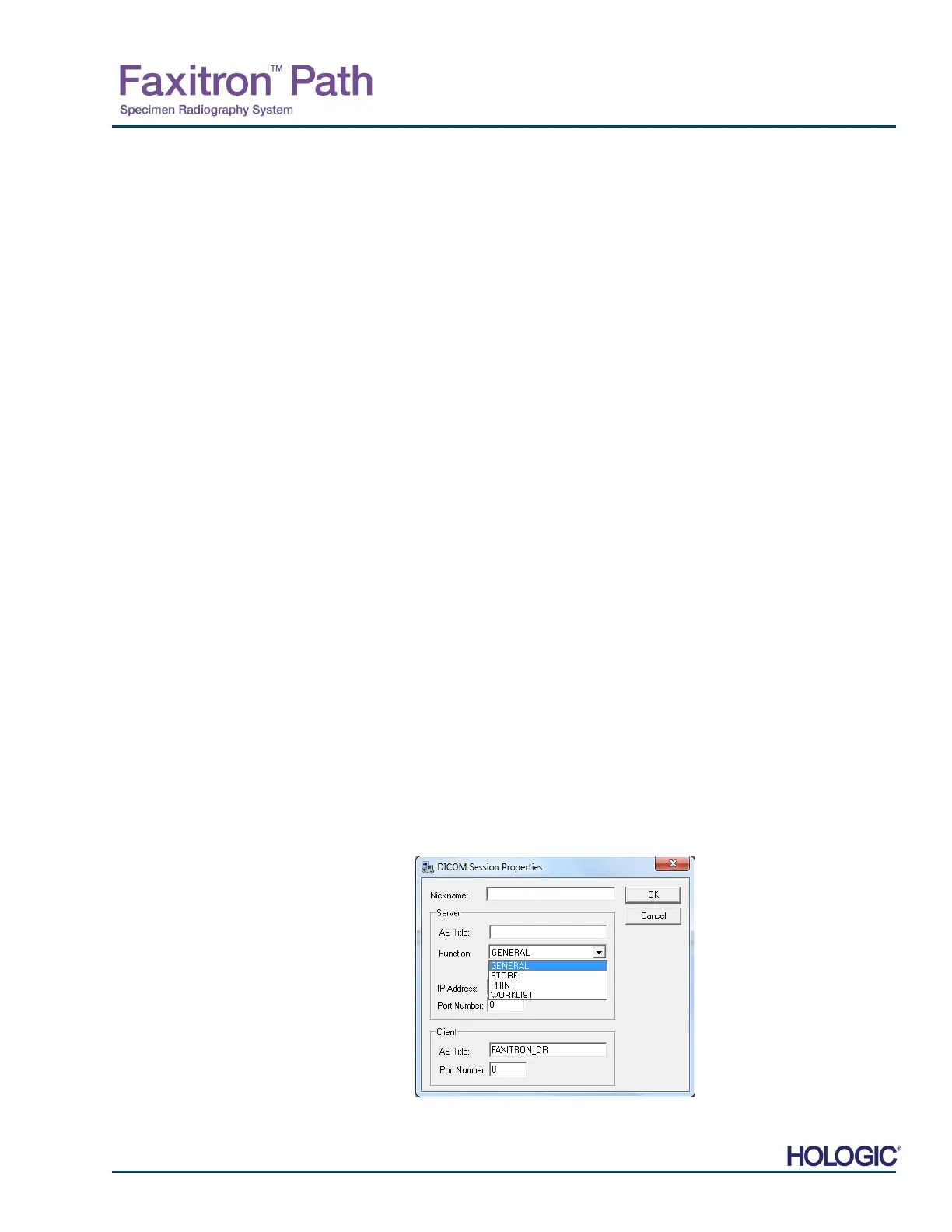
The Add Session button opens the Session Dialog box through which the user can configure
a new connection to a remote DICOM Application Entity.
To create a new connection configuration to a remote DICOM AE, the user must have the
following information available: the Application Entity Title (AE Title), the choice of DICOM
PACS “function to perform”, the IP Address and the Port Number for the Server (i.e. the DICOM
printer or PACS system).
The AE Title and Port Number of the user’s system (i.e. the client) are also required. Complete
the appropriate data fields and select OK to create a new configuration.
Choosing DICOM / PACS Default Session Function Behavior
There are currently four (4) types of functions that a DICOM session can represent as a default.
These are found in the Function drop-down list (combo box) seen in the figures below. A list
also follows:
1. A GENERAL DICOM / PACS Connection
2. A DICOM STORE Connection
3. A DICOM PRINTER Connection
4. A Modality WORKLIST Connection
5.7.0 Cont.
Figure 5.7.6
Session Properties Dialog box













 To Next Page