FAXITRON PATH USER MANUAL | HOLOGIC | REVISION 024
ECTION
ISION
oftware
5
5-36
The purpose of the DICOM “Function” is to allow a Session/Connection to be created (added)
that allows a DICOM / PACS “device” to only be used as the user has configured it for a
particular function category. Once configured, when you view or use the “DICOM Networking
Dialog,” (see figure 5.7.5 above) only the icon that matches the function chosen will be “active
and lit up.” That is, it will have a blue color as opposed to a “grayed out” color. For example, in
figure 5.7.5 above, we have three (3) icons representing, in order, a PACS Store (DICOM Store
1), a PACS Print (DICOM Print 1), and a Modality Worklist (DICOM-MWL). Because the DICOM
Store button was chosen previously it is the only one active (blue screen). It works the same
for the other modes as well.
Modify Session
The Modify Session button opens the Dialog box for the selected DICOM AE. In this window,
the user may modify the Server and Client information described in the Add Session description.
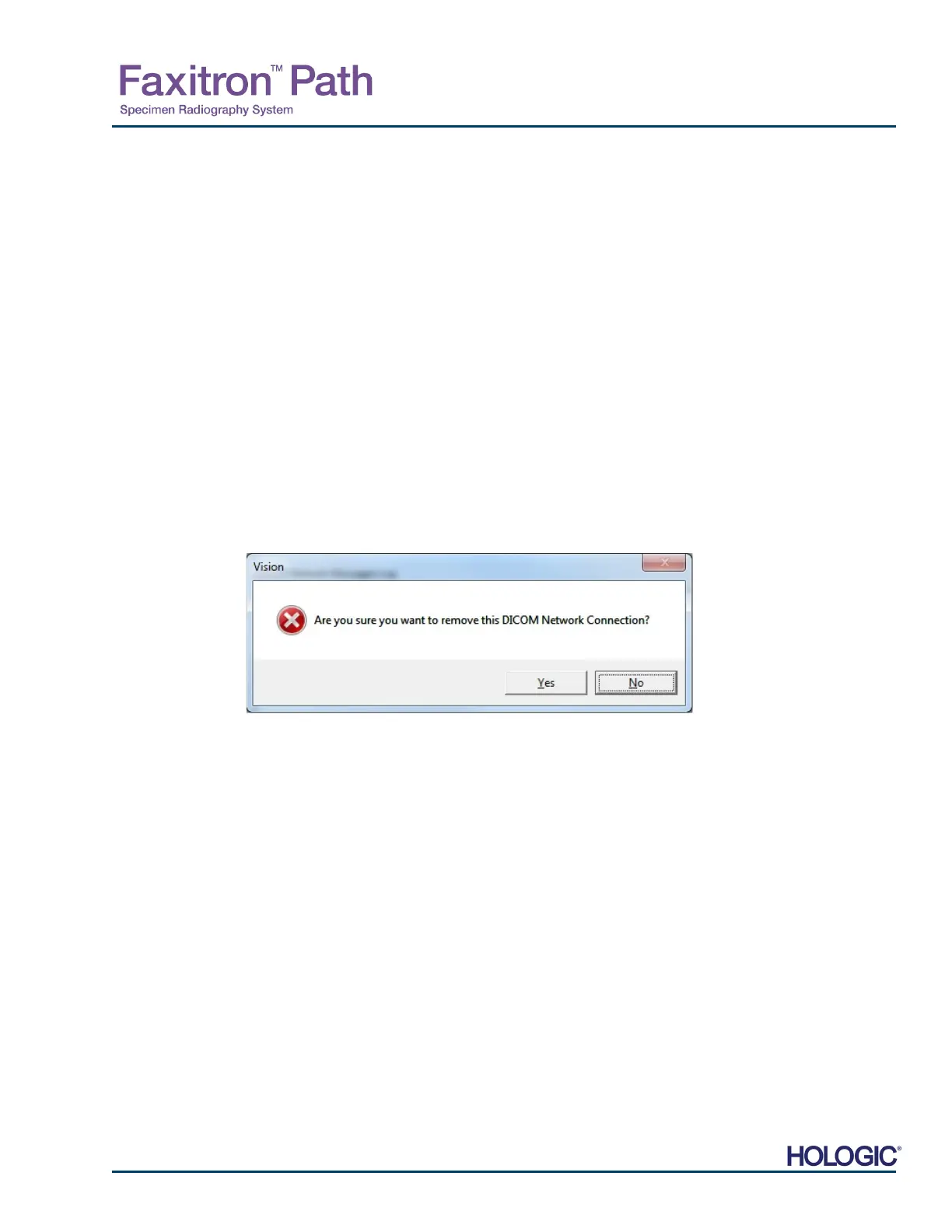
Remove Session
The Remove Session button removes the selected DICOM AE configuration from the Vision
software. Once removed, a DICOM AE configuration cannot be restored, unless the use
manually re-enters the requisite data through the Add Session button. A confirmation of action
will be requested, see below.
5.7.0 Cont.
Figure 5.7.7
Verifying Removal of an Existing
DICOM Network Connection













 To Next Page