39
TO DRAW LINE
Drawing line
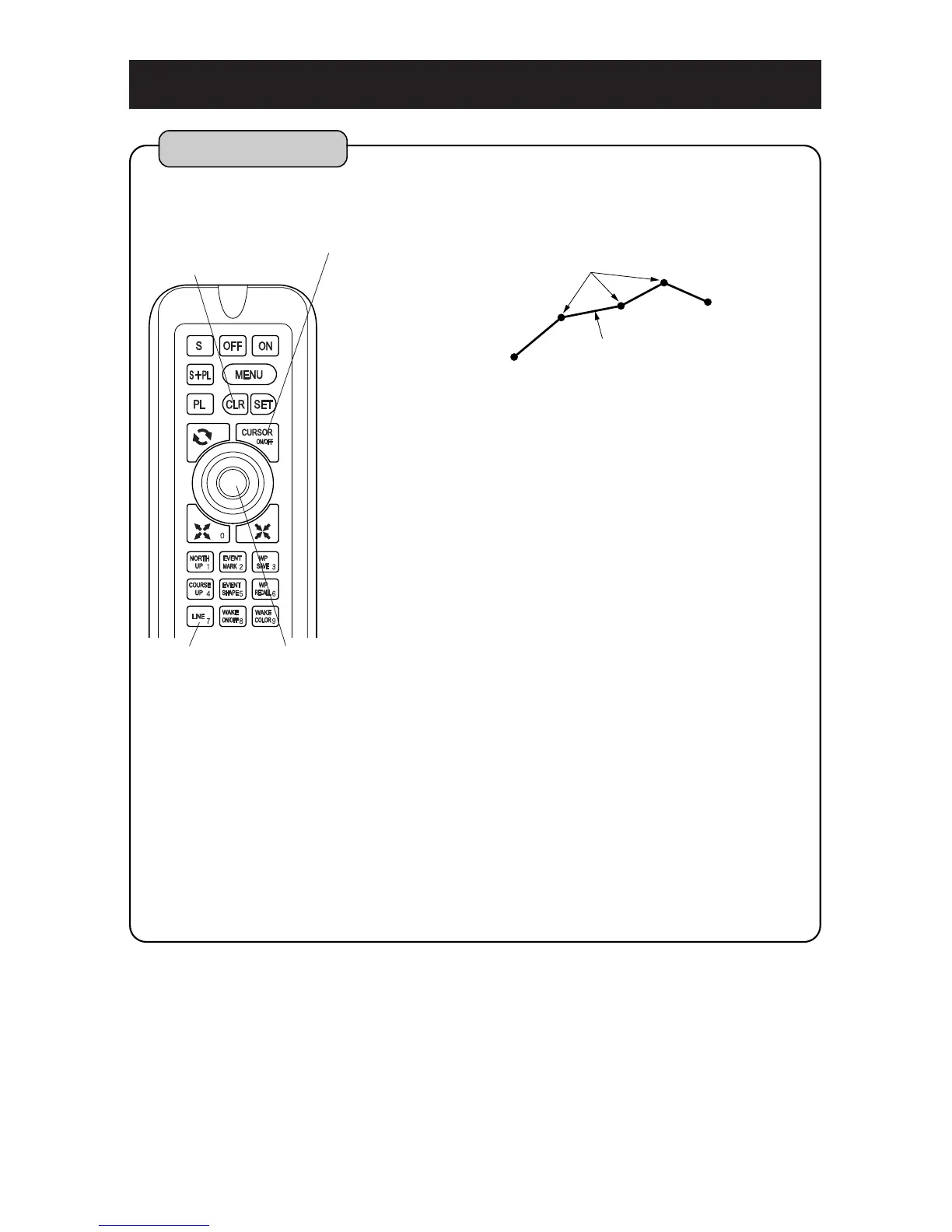
[Line]
You can draw line on any position of display as you
want.
By pressing [CURSOR ON/OFF] key, cursor is
shown.
Move the cursor to the position which you will start
to draw line (starting point) and press [LINE] key.
Move the cursor to next position with [CENTER]
key and press [LINE] key.
Repeat procedure 3 if you want to continue
drawing line.
When you finish to draw line, press [CLR] key.
CURSOR ON/OFF key
1
2
3
4
5
[Distance between two points]
When line is drawn, distance from a previous position (point) to “Cursor” position is
indicated. You can know the distance between any two points.
[Color of line]
Each time when you press [WAKE COLOR] key, color changes. Color can be confirmed
by color of “SCALE” or “RANGE” on the lower left of screen.
Color can be changed only when line is being drawn. Color can not be changed after
line was drawn.
CLR key
CENTER keyLINE key


 To Next Page