BACKING UP TO A CD-R DRIVE
8–7
8.6 SPECIFYING SCHEDULED BACKUP DRIVES
In order to use the Scheduled Backup feature one or more storage drives or partitions
connected to the DVR must be labeled as a backup drive.
1. Exit and restart in Windows mode.
2. Double click the My Computer icon on the DVRs desktop. A file menu will be
displayed.
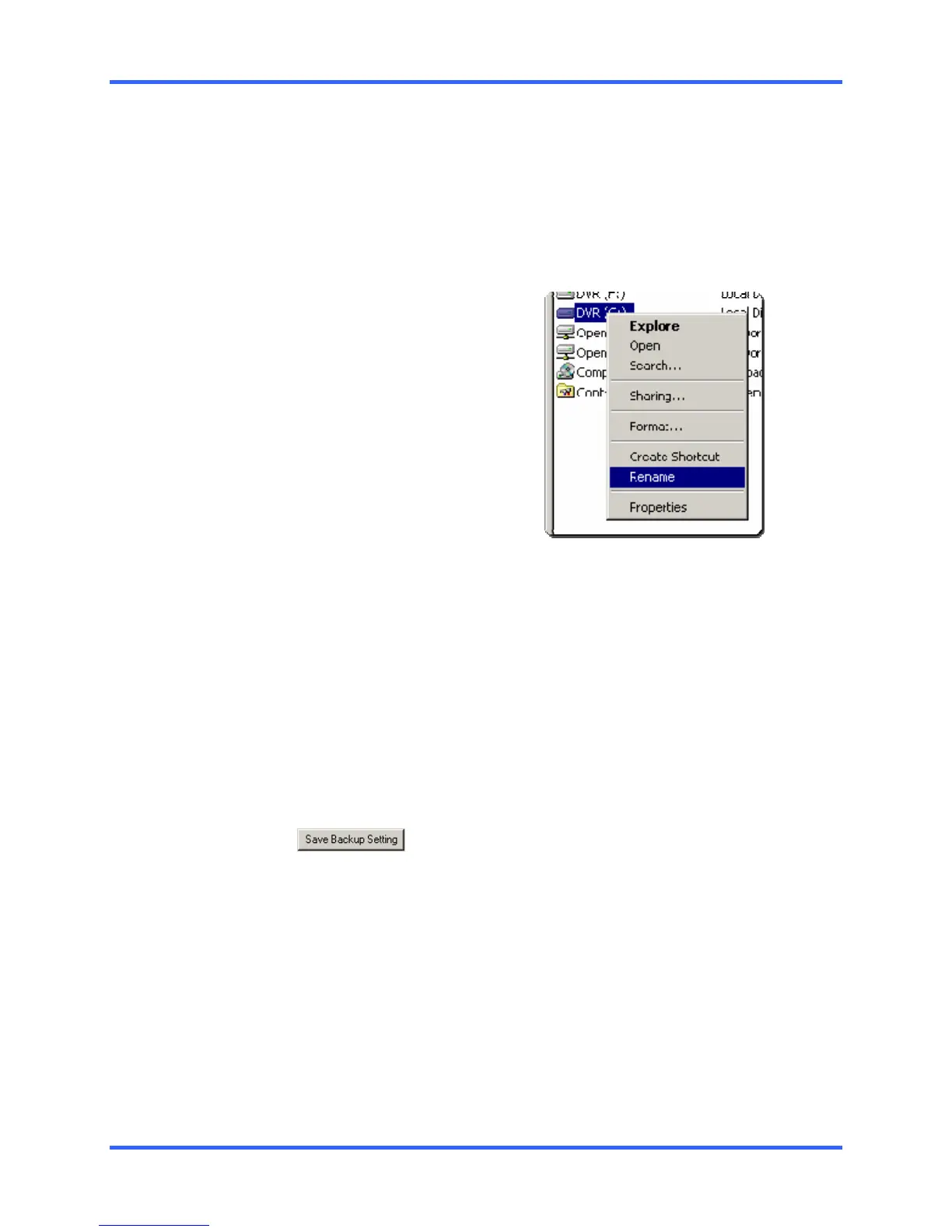
3. Right click on the drive you wish to
specify as a backup drive for
Scheduled Backup and select
rename. Rename the drive to
‘Backup’. Repeat this process for all
drives you wish to use for Scheduled
Backup. To remove a drive from use
for Scheduled Backup, change its
name back to DVR.
4. Restart the DVR and return to the Scheduled Backup window.
8.7 CREATING A SCHEDULED BACKUP
1. Enter Backup and select the Schedule radio button at the top of the window.
2. Select the times to backup by clicking on the desired blocks. The blocks will turn
red when selected. Click a block again do deselect it.
3. Set the time to run Scheduled Backup in the provided space under Backup Time.
4. Specify the drive or drives to save the backup video to and set backup order.
5. Click
. The window will automatically save and close.
NOTE: Only one daily Scheduled backup is allowed. To overwrite the existing schedule
simply reenter the Scheduled Backup window set a new schedule and save.


 To Next Page
 Loading...