Notification Panel
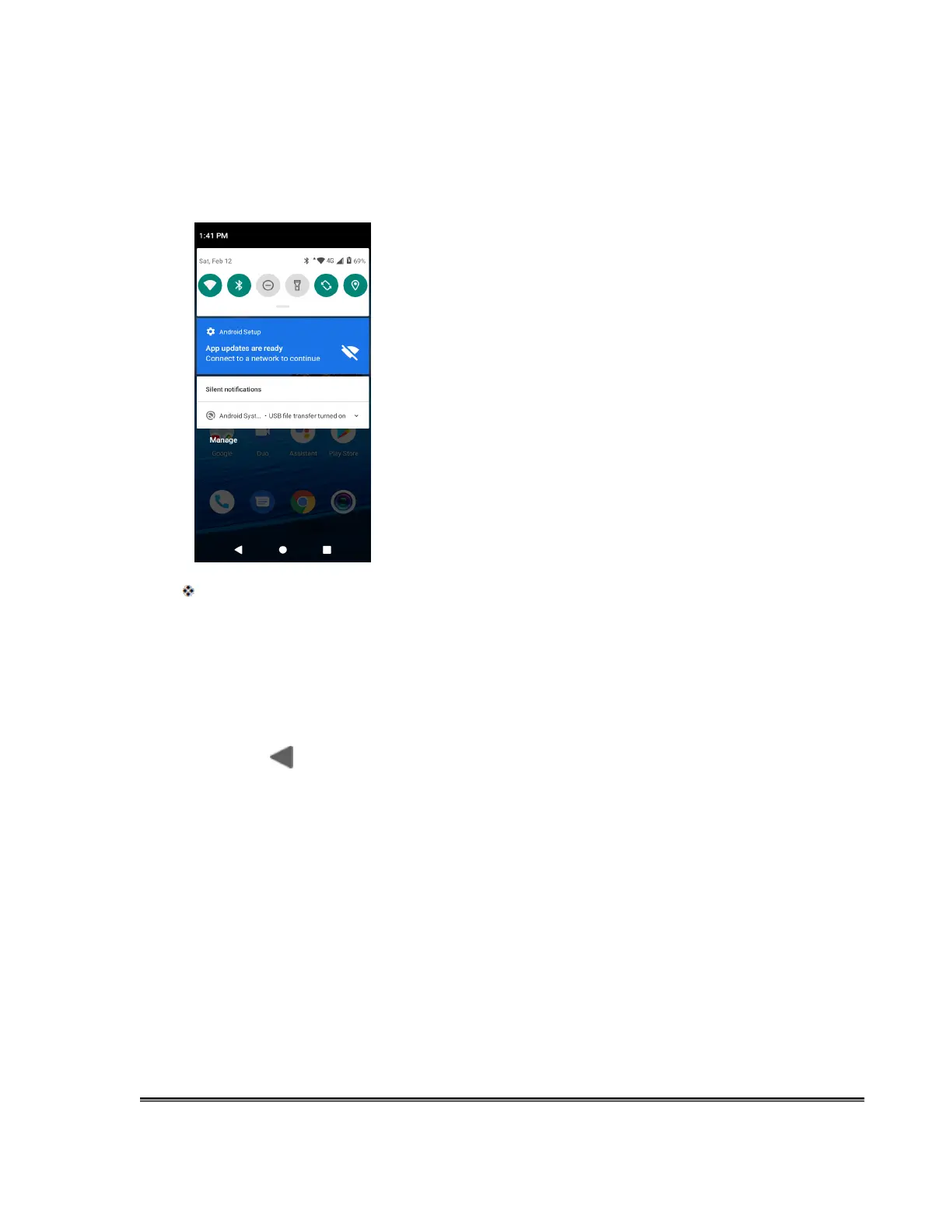
Your phone’s notifications appear at the left side of the status bar, and you can access the full
notification panel by pulling down the status bar. From there, you can check notifications, download
updates, open messages apps, use the quick settings menu, and more.
Open the Notification Panel
■ Pull down the status bar. (Slide your finger down from the top of the screen.)
The notification panel opens. To check notifications, tap an item in the list.
Close the Notification Panel
■ Slide the notification panel up. (Slide your finger up from the bottom of the screen.)
– or –
Tap Back to close the notification panel.
Customize the Home Screen
Learn how to set the wallpaper and add, move, or remove shortcuts and folders from the home
screen.
Operations for Rearranging the Home Screen
● Moving Icons: From home, tap and hold an item and then drag it to the desired location.
● Deleting Icons: From home, tap and hold an item and then drag it to Remove.
● Displaying the Home Screen Menu: From home, tap and hold an empty space to
display the home screen menu. Menu options include Widgets, Wallpapers and Home
screen settings.
Making Connections


 To Next Page