Tip: You can also access settings from the notification panel. Pull down the status bar and tap Settings
.
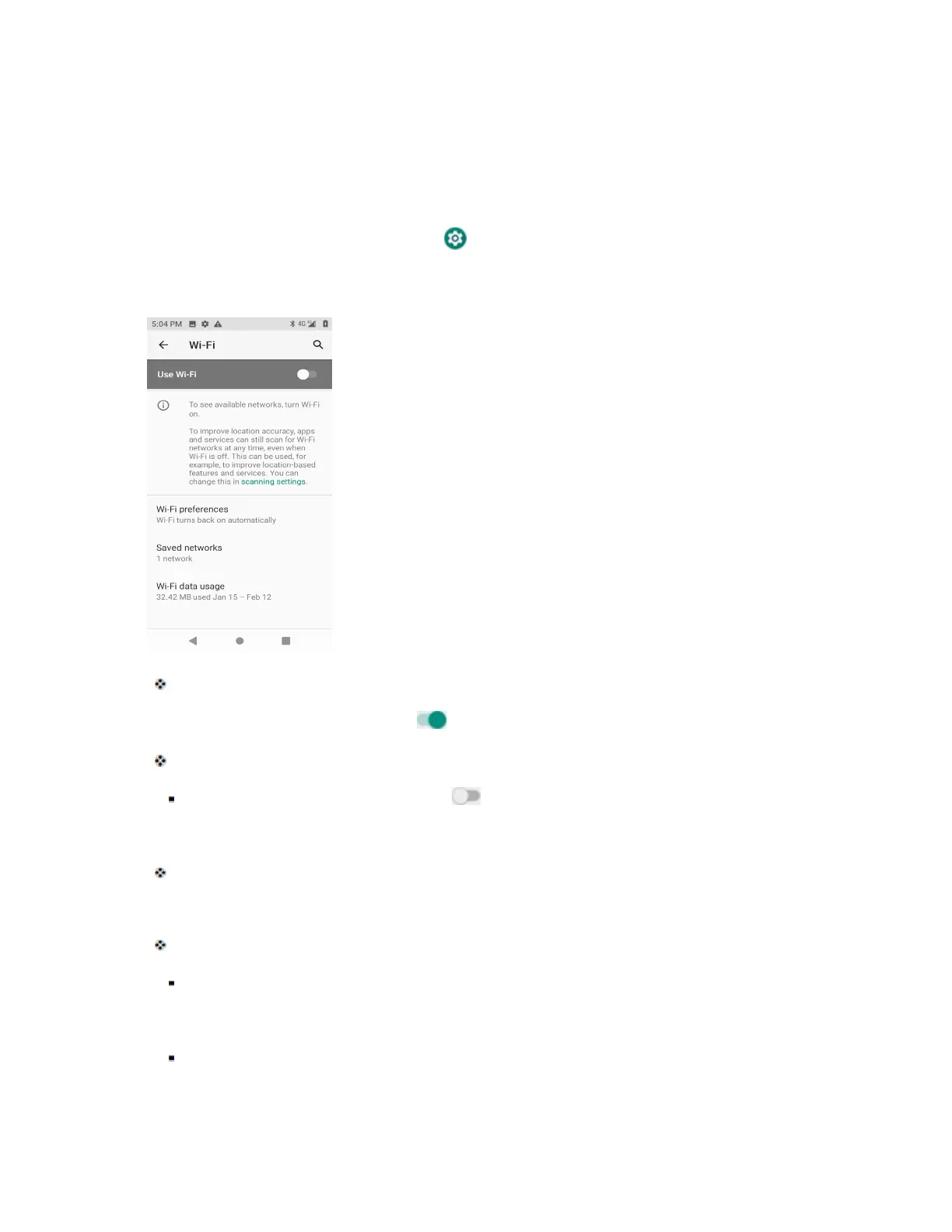
Wi-Fi Settings
The Wi-Fi settings menu lets you turn Wi-Fi on or off, set up and connect to available Wi-Fi networks,
and configure advanced Wi-Fi options.
For more information about Wi-Fi settings, seeWi-Fi.
1. From home, swipe up and tap Settings .
2. Tap Network & internet > Wi-Fi.
The Wi-Fi settings menu appears.
3. Tap the Wi-Fi slider to turn Wi-Fi on .
Wi-Fi is enabled. You will see the names and security settings of in-range Wi-Fi networks.
To disable Wi-Fi, tap the slider again .
4. Tap a Wi-Fi network, enter the password, and tap Connect.
Your phone is connected to the selected Wi-Fi network.
5. Configure your Wi-Fi settings.
Your Wi-Fi settings changes are saved.
The password, for a household wireless LAN router, is sometimes found on a sticker on the
router (WEP, WPA, KEY, etc.). Contact the router manufacturer for information. For
password for a public wireless LAN, check with user's service provider.
Entering a password is not required if an access point is not security protected.
Data Usage Settings
The data usage menu lets you view your phone’s mobile and Wi-Fi data usage, set data limits, and more.


 To Next Page