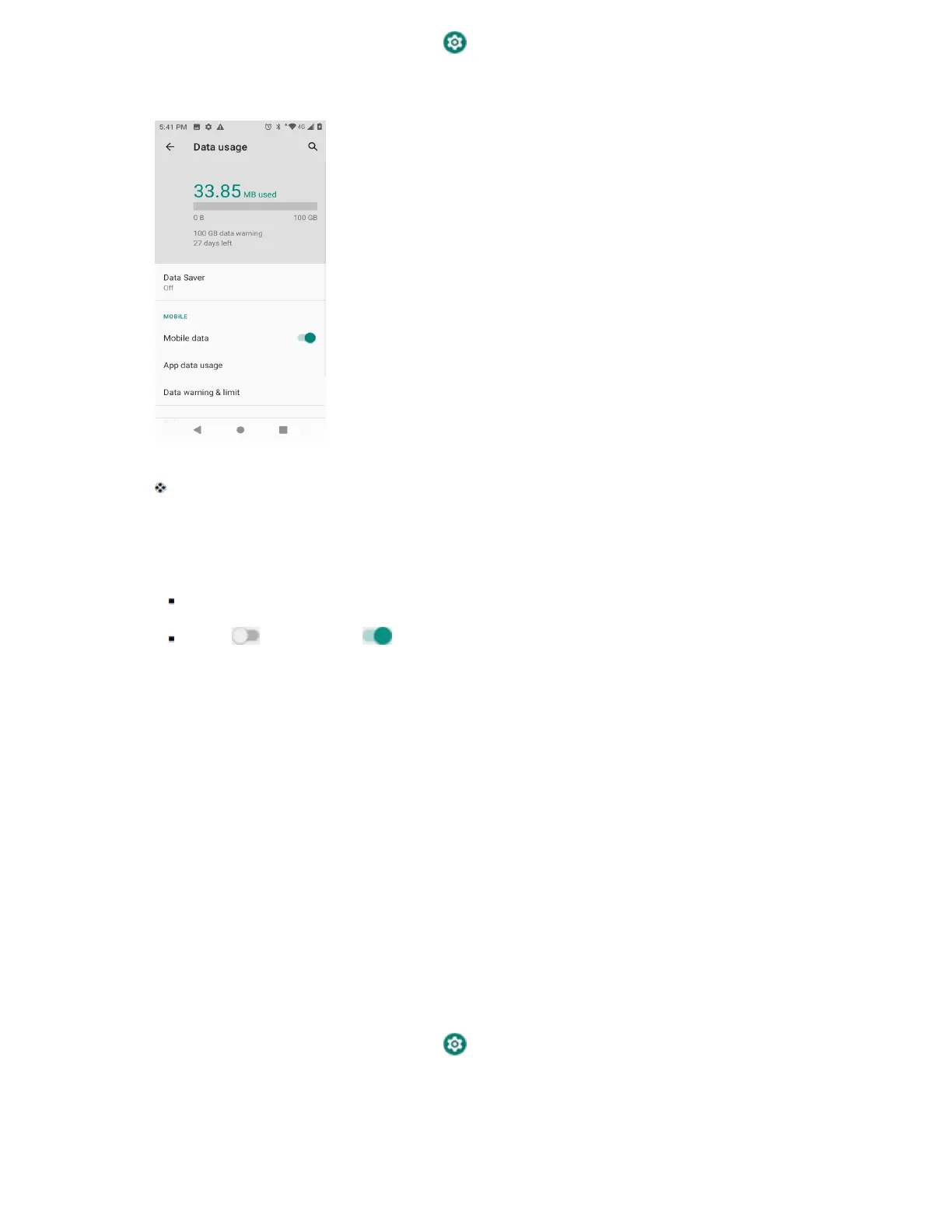
1. From home, swipe up and tap Settings .
2. Tap Network & internet > Data usage.
The data usage window opens.
Data Usage Settings Operations
● Enable Mobile Data: In Data usage window, tap the slider for Mobile data to enable the service.
If a confirmation appears, follow the onscreen instructions.
Tap to enable and to disable.
● Set Amount for Alert when Data Usage Increases: From the Data usage window, tap Data
warning & limit and enable Set data warning, and then tap Data warning to set an amount.
● Enable Restrictions on Mobile Data Usage: From the Data usage window, tap Data warning &
limit and enable Set data limit, and then tap Data limit to set the data usage limit.
● Set Date for Resetting Data Usage: To set the data usage measuring cycle, from the Data
usage window, tap Data warning & limit and tap Usage cycle reset date to set a reset date,
and tap Set.
● View App Data Usage: From the Data usage window, tap App data usage to view your phone’s
app data usage.
Tethering & Mobile Hotspot Settings
Use the settings menu to configure your tethering & Mobile Hotspot settings, which allow you to share
your phone’s data service with multiple Wi-Fi capable devices and share your device’s Internet
connection with a computer that connects to your device via USB cable, or by Bluetooth .
1. From home, swipe up and tap Settings .


 To Next Page