Complete the Setup Screens
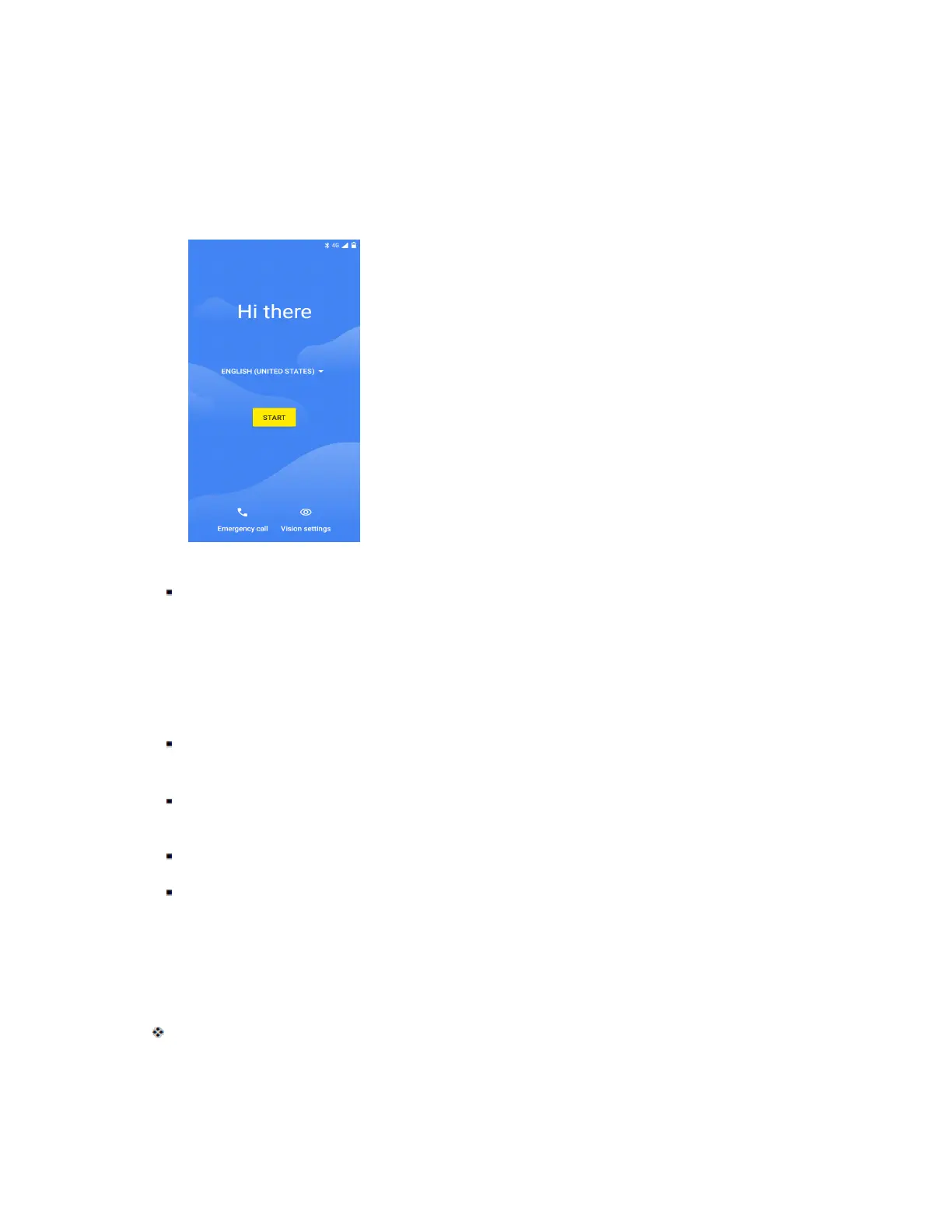
The setup screens help you set up certain features and preferences on your phone. Once your phone has
been turned on, you will see a Welcome message. You can then complete the setup process.
Note: You may be able to complete the setup screens before your phone has been activated on your
account.
1. From the Welcome screen, select a language and tap Start to get started.
To skip any section, tap Next or Skip.
2. Follow the onscreen instructions to complete each section. For each topic, you will have the
option to skip it and continue to the next screen.
Wi-Fi – If prompted, follow the prompts to sign in to an available Wi-Fi network. For secured
Wi-Fi networks, you will need to enter a password. Or select Set up offline to skip next
Date & time – If a network is connected, your phone will automatically set up date and time.
Adjust date and time manually if needed.
Google services – Select your Google location and service options and then tap Accept.
Choose screen lock - Choose a screen lock method and follow the onscreen instructions.
3. Tap Next. Your setup is now complete. Follow the onscreen instructions to learn about basic tap
menu navigation, view tutorials, or just get started.
Your phone is now set up for use. If you skipped any part of the setup, you can access
additional options through the Apps screen or through Settings.


 To Next Page