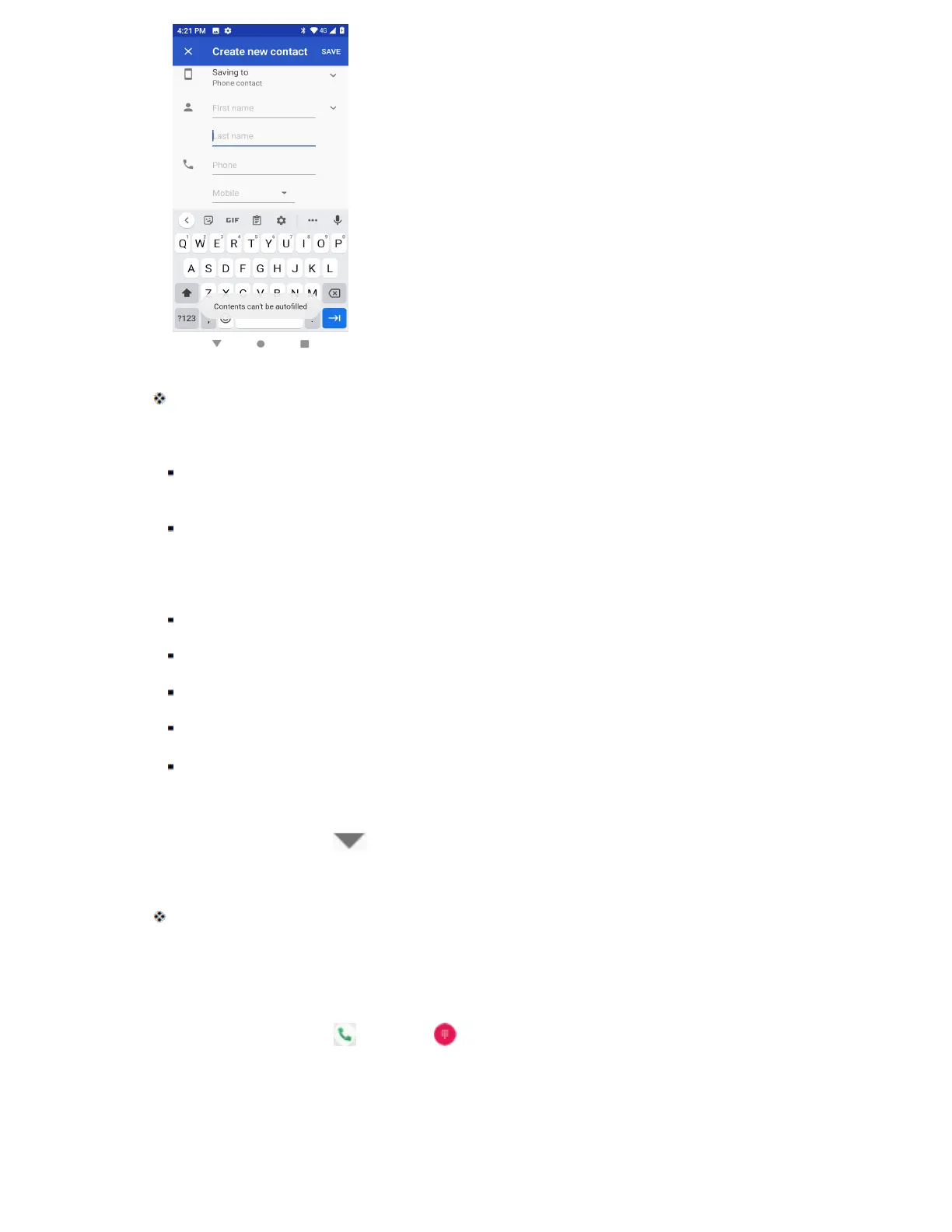
The Add Contact screen appears.
3. If you have multiple account types associated with your phone, select a contact type.
Select Google if you want to save contacts to your Google Account; these will be synced
automatically with your Google Account online.
Select Device as the sync account if you want your contacts on your phone only; they will not
be synced with your Google Account.
4. Use the keyboard to enter as much information as you want.
[picture]: Tap the picture icon to assign a picture to the contact.
Name
Phone
Email
More field: Tap More fields to include additional information such as IM address, Notes,
Nickname, Website, etc.
Note: To select a type (label) for a phone number, email address, or postal address (such as Mobile,
Home, Work, etc.), tap the type to the right of the field and select the appropriate type.
5. When you have finished adding information, tap Save.
The contact is added.
Save a Phone Number
You can save a phone number to Contacts directly from the phone keypad.
1. From home, tap Phone > Keypad .
2. Enter a phone number and tap Add to a contact.


 To Next Page