The StellarMate Plus Manual
221 / 341
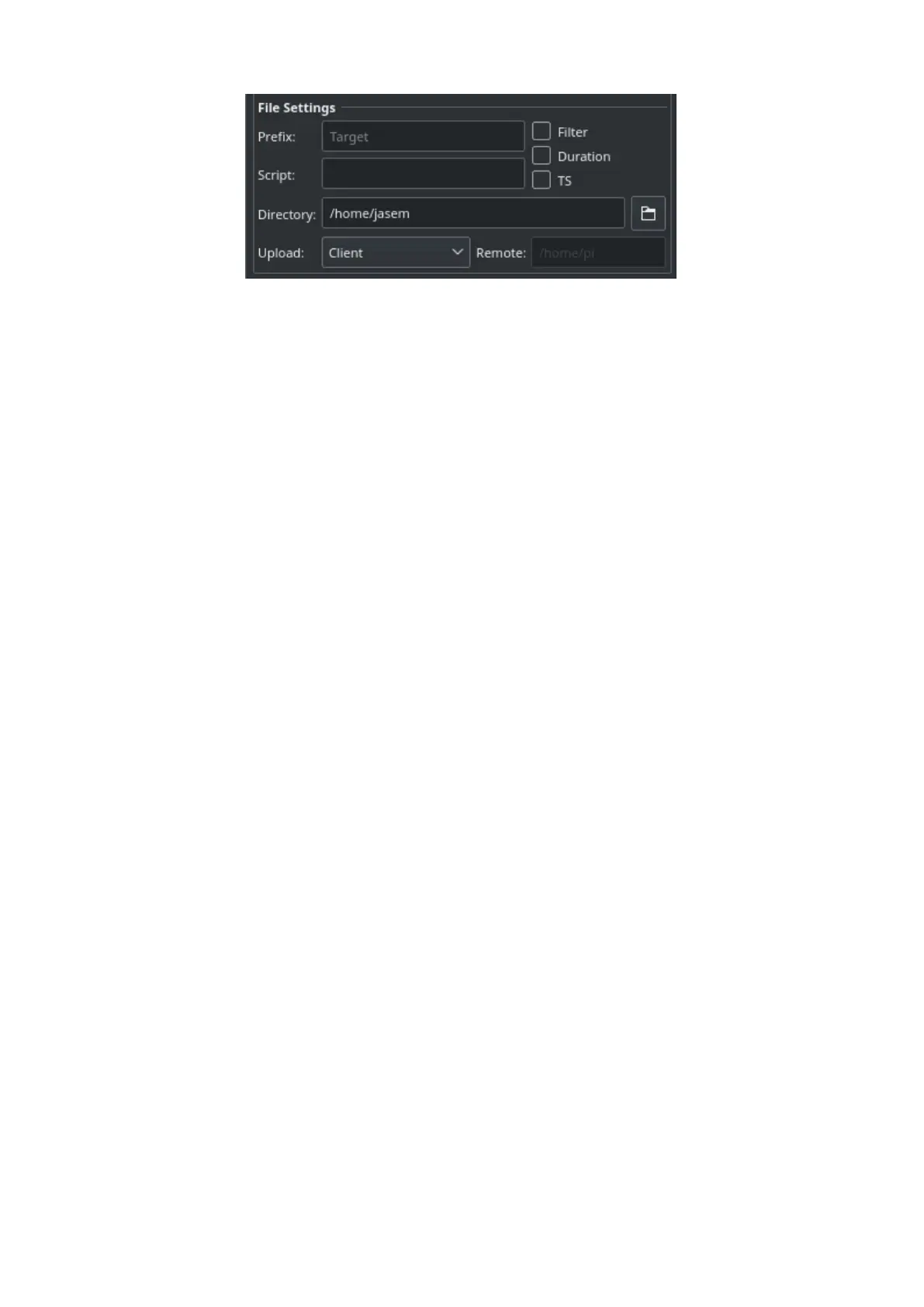
Settings for specifying where captured images are saved to, and how to generate
unique file names in addition to upload mode settings.
· Prefix: Specify the prefix to append to the generated filename. You may also
append the frame type, filter, expose duration, and ISO 8601 timestamp. For
example, if you specify Prefix as M45 and checked the Type and Filter
checkboxes, and assuming your filter was set to Red and your frame type
is Light, the generated file names will be as follows:
o M45_Light_Red_001.fits
o M45_Light_Red_002.fits
If TS was checked, a timestamp will be appended to the filename, example:
o M45_Light_Red_001_2016-11-09T23-47-46.fits
o M45_Light_Red_002_2016-11-09T23-48-34.fits
· Script: Specify an optional script to be executed after each capture is
complete. The full path of the script must be specified and it must executable.
To denote success, the script must return zero as this would allow the
sequence to continue. If a non-zero value is returned by the script, the
sequence is aborted.
· Directory: Local directory to save the sequence images to.
· Save: Select how captured images are uploaded:
1. Locally: Captured images are saved locally on disk in the directory
specified in the Directory field.
2. Remotely: When connecting to a remote device, select this option to
save images on the remote device only. No images are uploaded to
Ekos.
3. Both: Captured images are saved on both the remote computer and on
the local disk as well. When selecting Remotely or Both, you must
specify the remote directory where the remote images are saved to. By
default, all captured images are uploaded to Ekos.
When selecting Remotely or Both, you must specify the remote directory
where the remote images are saved to. By default, all captured images are
uploaded to Ekos.



 To Next Page