The StellarMate Plus Manual
223 / 341
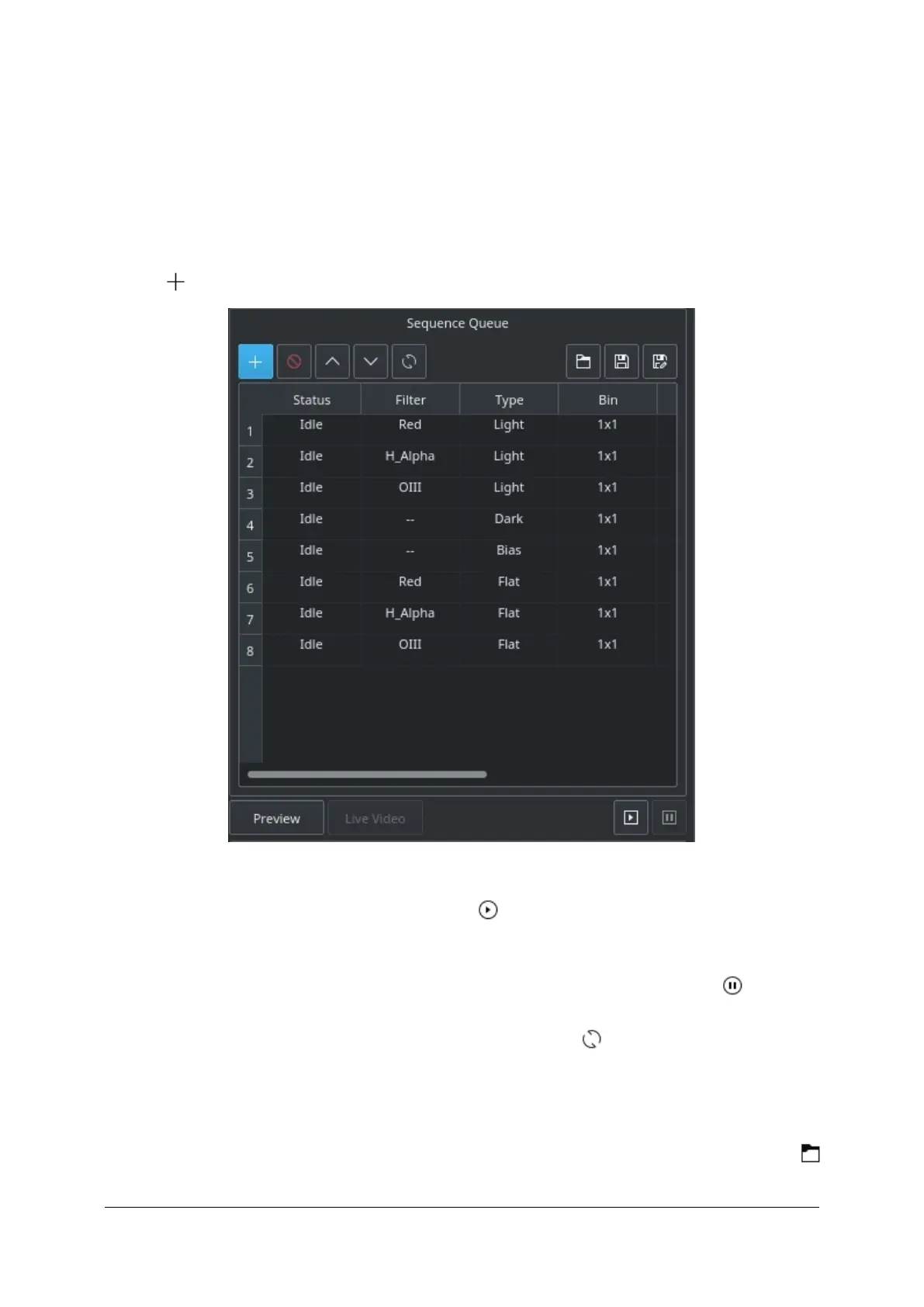
Sequence Queue
Sequence Queue is the primary hub of the Ekos Capture Module. This is where
you can plan and execute jobs using the sequence queue built-in powerful editor.
To add a job, simply select all the parameters from the capture and file settings
as indicated above. Once you selected your desired parameters, click on the add
button in the sequence queue to add it to the queue.
You can add as many jobs as desired. While it is not strictly necessary, it is
preferable to add the dark and flat jobs after the light frames. Once you are done
adding jobs, simply click Start Sequence to begin executing the jobs. A job
state changes from Idle to In Progress and finally to Complete once it is done.
The Sequence Queue automatically starts the next job. If a job is aborted, it may
be resumed again. To pause a sequence, click the pause button and the
sequence will be stopped after the current capture is complete. To reset the
status of all the jobs, simply click the reset button . Please beware that all
image progress counts are reset as well. To preview an image in KStars FITS
Viewer, click the Preview button.
Sequence queues can be saved as an XML file with extension .esq (Ekos
Sequence Queue). To load a sequence queue, click the open document button
. Please note that it will replace any current sequence queues in Ekos.



 To Next Page