The StellarMate Plus Manual
293 / 341
The image for the galaxy is now deleted
You can add more objects by pressing the Find Object button. It will open
the Find Object tool which provides two accurate methods for sorting out the
items, depending on what criteria you want to use. You can filter the list by
objects type: Any, Stars, Solar System, Clusters (Globular and Open), Nebulae
(Gaseous and Planetary), Galaxies, Comets, Asteroids, Constellations, Supernovae
or Satellites. You can also filter the objects list by name. Enter the name of
desired object in the Filter by name text box.
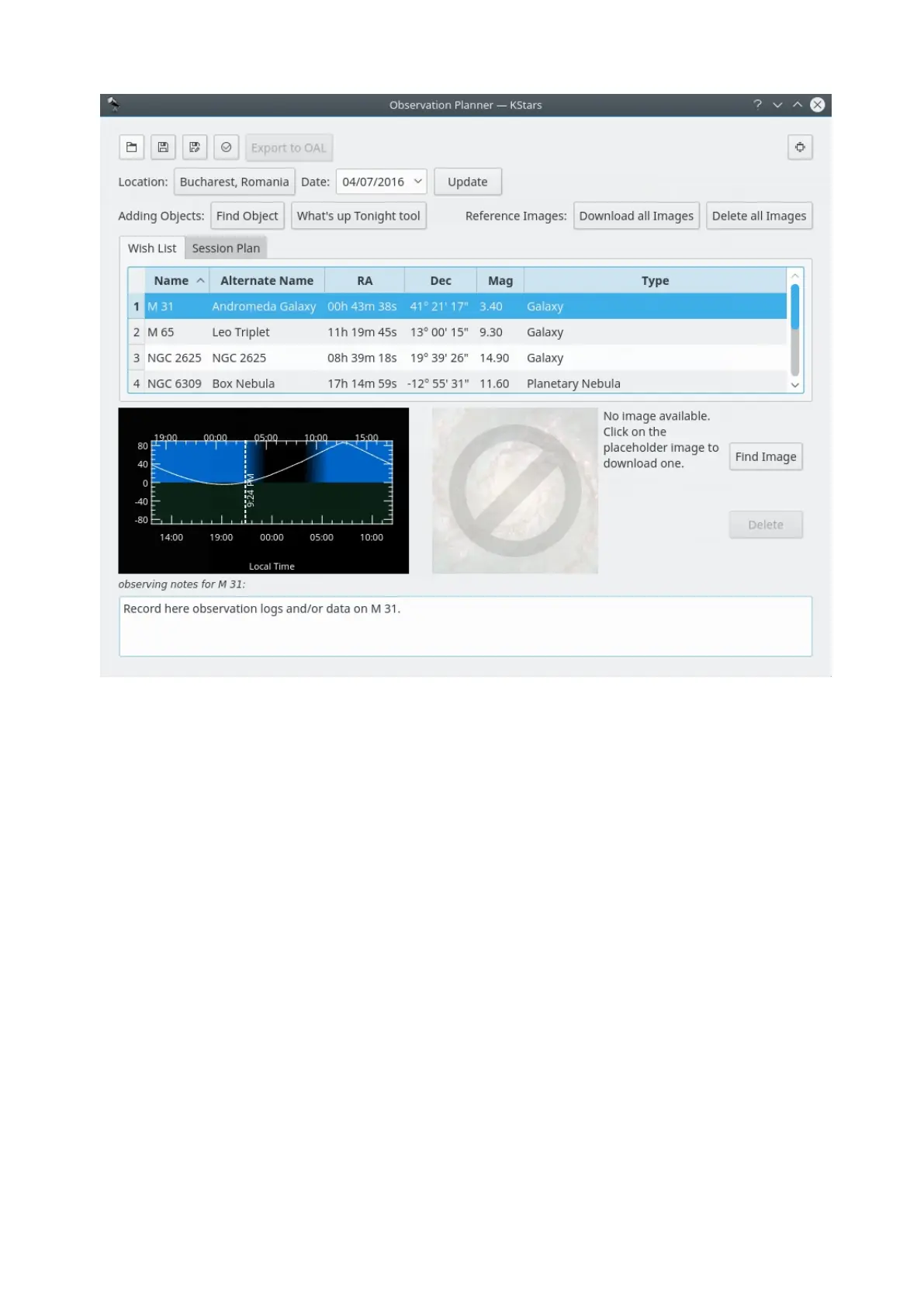
Inside Observation Planner window you can see the “Altitude vs Time” widget
(AltvsTime), which shows you how the altitude of a selected object varies over
time.
Below the AltvsTime widget, there is a text box in that you can add observing
notes for current sky object.
Note that the Wish List is not the Session Plan. In the Wish List you can add
objects that you wish to observe at some point. From there you can add them to
the Session Plan.
You can see the pop-up window that comes after right-clicking on an object.



 To Next Page