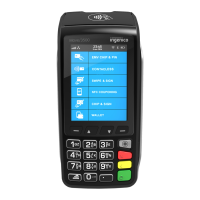
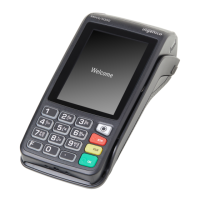
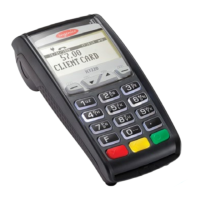
User Guide Payment terminals | 17
7. Terminal menu structure
8. iSMP4 – Getting started
The payment terminal iSMP4 is designed for integration with an ECR system.
Download the latest version of the iSMP4 software by doing the following on the terminal:
Press F (Menu), select 8 Merchant Menu, Drag Merchant Card, Select 8 Software, 1 Get
software and OK (green key). The terminal will restart after software update.
8.1 Bluetooth pairing
In order for the mobile device / ECR solution to be used with iSMP4, the devices must be connected via Bluetooth. To
connect the terminal to a mobile device via Bluetooth; turn on Bluetooth on the mobile device and do the following on
the iSMP4 terminal:
1. Press F1.
2. Press 2, or scroll down to 1 BT PAIRING and press OK (green button at the bottom right of the terminal).
3. Press number key 0 or OK and select 0 - Pair device.
4. The terminal displays a code. Enter the code on the mobile device, and press OK.
5. iSMP4 and the mobile device (box solution) connected via Bluetooth and the Bluetooth icon appears in the iSMP4
screen. You get an error if something goes wrong with the pairing.
8.2 Buttons/functionality
See chapter 4.4 for description of the keyboard.
Chip reader
USB-C input (charging)
1D/2D bar code scanner
Bar code scan buttons
(on both sides)
Magnetic stripe reader
(slide across top)
!
Bar code scannner activation
(F4)



 To Next Page
 Loading...