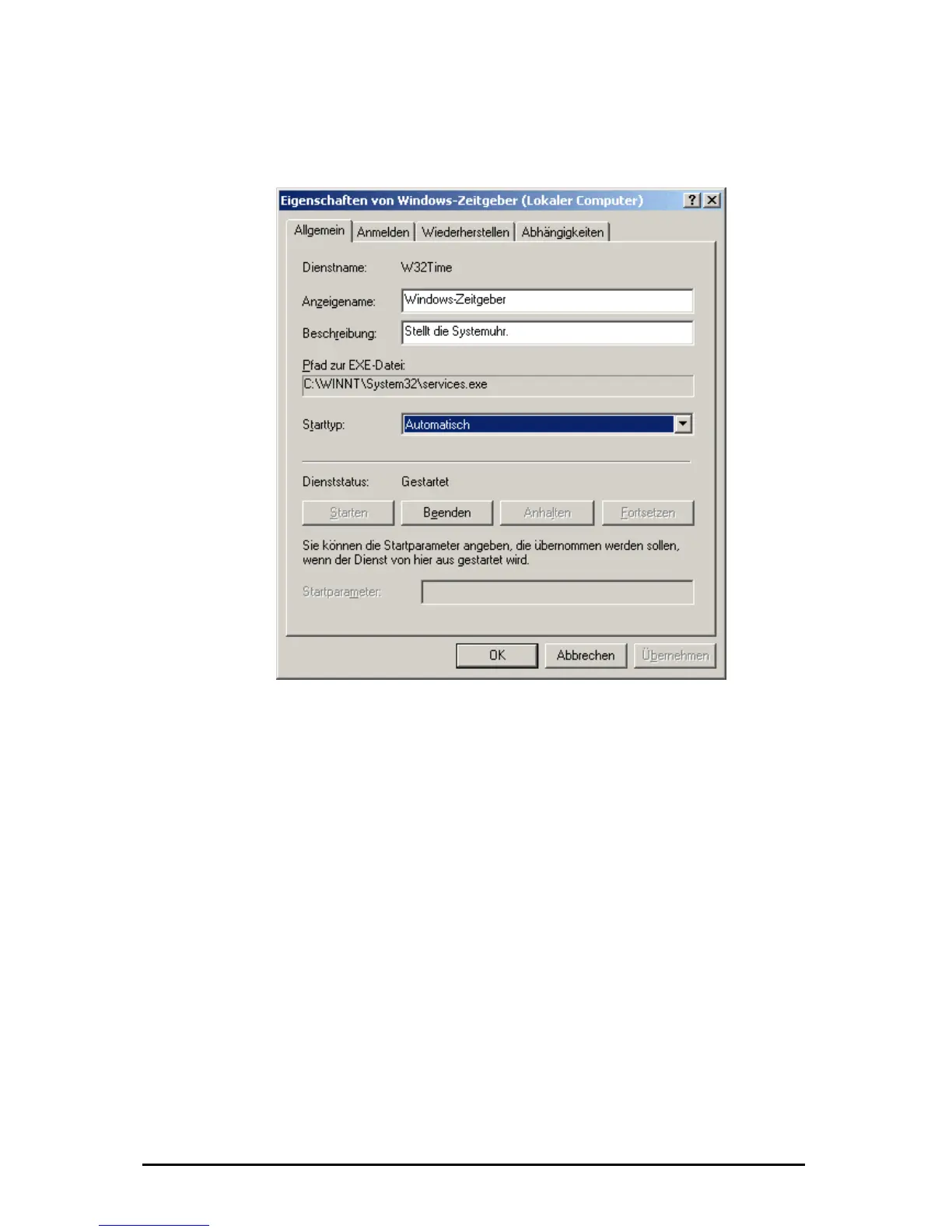
Right-click on „My Computer“ and click in the following dialog on „Manage”, in
„Services and Applications” click on „Services”. After a double-click on „Windows
time” the following window opens.
T set to automatic. After that you have to open th
command prompt with Start | Programs | Accessories | Command prompt and
test the connection to the NTP server (in our example the server IP is:
ing the following command:
I leted successfully you have to enter the command
C 1.237 to set th P.
T erver you have to type C:w32tm –once
f n.
The time on the PC deviates then only a few the timeserver.
T synchronization in re e the
f
C d <Intervalcode>
T s for updating inter
0 Daily
65535 Every second day
6553
6
6 minutes
W ystem attempts t ck every 45
m imes. After tha aily.
he startup time must be e
212.34.181.237) with the ping function by typ
C:ping 212.34.181.237 .
f this test comp
:net time /setsntp:212.34.18
nchronization with the times
e NTP server I
o test the sy
or a single synchronizatio
milliseconds from
o carry out automatic
and:
gular distances you have to typ
ollowing comm
:w32tm –perio
here are following code vals:
4 Every third day
5533 Weekly
5532 Every 45
ith the last function the s o synchronize the clo
inutes until it worked three t t it synchronizes d
Änderungen vorbehalten Stand 09.09.05
ipcas GmbH ipEther232 V11.01 Seite 103 von 150


 To Next Page