DP350 User's Manual
- 7 -
1.8.3 Connecting to the Serial Interface
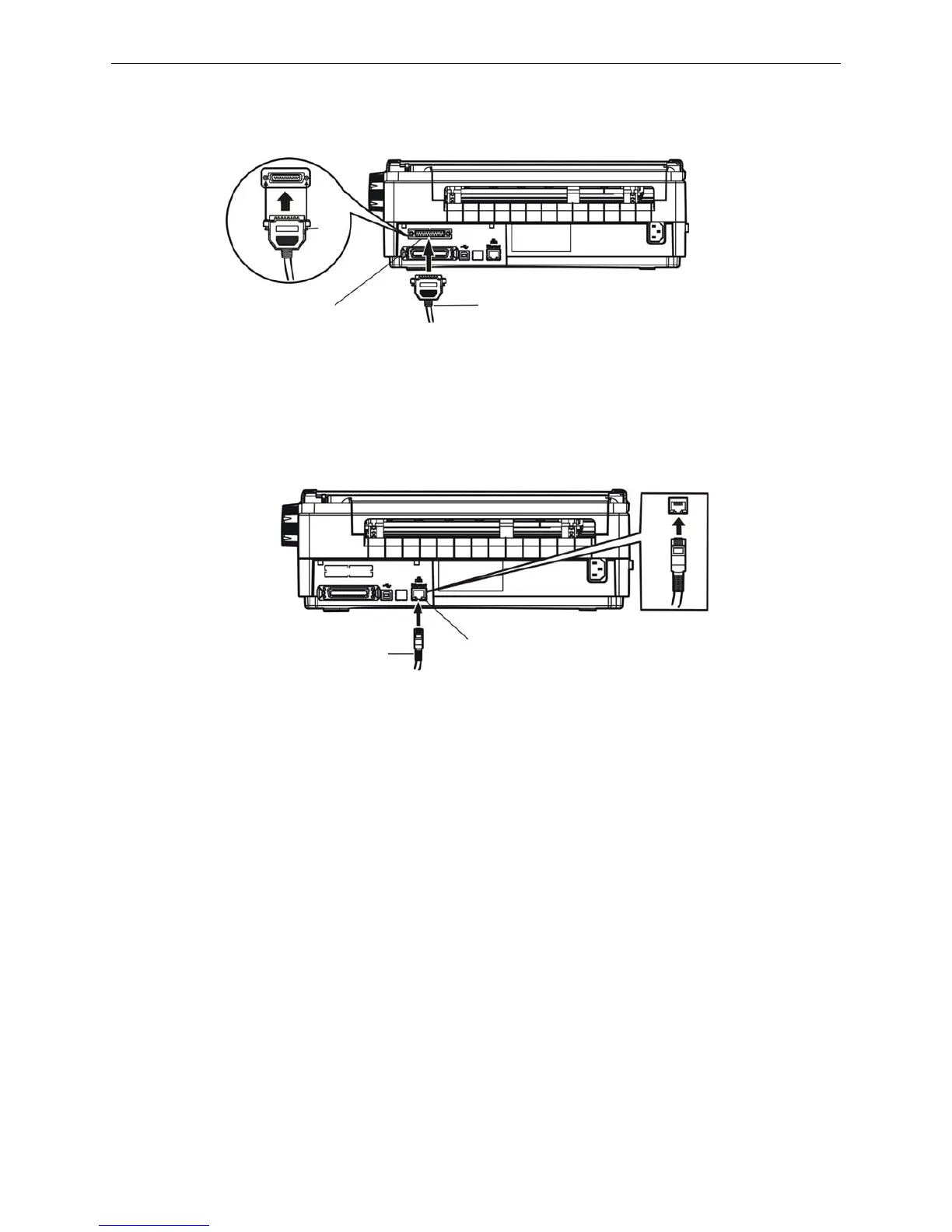
1. Turn off both the computer and the printer. Plug the serial cable connector securely into the printer’s
serial interface. Tighten the screws on either side of the connector. (As shown in figure 1-15)
2. Plug the other end of the cable into the computer’s serial interface, make sure it connects tightly.
1.8.4 Connecting to the Ethernet Interface
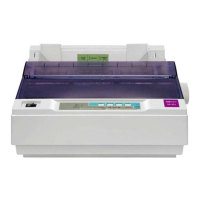
Plug the RJ-45 crystal end of the Ethernet cable into the printer Ethernet interface, and plug the other
end into the LAN. (Shown as figure 1-16)
Note: The detail instructions of network setting please refer to the User’s Manual.
1.9 Installing Printer Driver
Please use the cable to connect computer with printer, then turn on the computer and the printer, put
the driver CD into the CD-ROM. Install driver by the following ways:
Auto-installing way
Double click the file “Setup.exe” in the driver disc, install driver by the following direct.
Note: Auto-installing way needs the operating system of Windows 2000 or above.
Hand operated installing way
Note: The hand-operated installing ways of serial interface and parallel interface are the same.
1) The installing steps of parallel interface for Windows 2000/XP/Vista are as follows:
1 Click “Start” → “Settings” → Select “Printers”.
2. Click “Add Printer”, then it pops up a window of “Add Printer Wizard”, click “Next”, then please read
the select guide carefully, such as, select “Local printer” in the “Local or Network Printer” window,
then click “next”.
3. A window of “Select a Printer Port” pops up, select a usable port. Such as, select “LPT1:
(Recommended Printer Port)”, (If you need to use other ports, please select the respective port),
click “Next”.
Figure 1-15 Connect to serial interface
Figure 1-16 Connect to the Ethernet interface
Serial interface
Serial cable
Screw
Ethernet interface
Ethernet cable


 To Next Page